Converting a picture
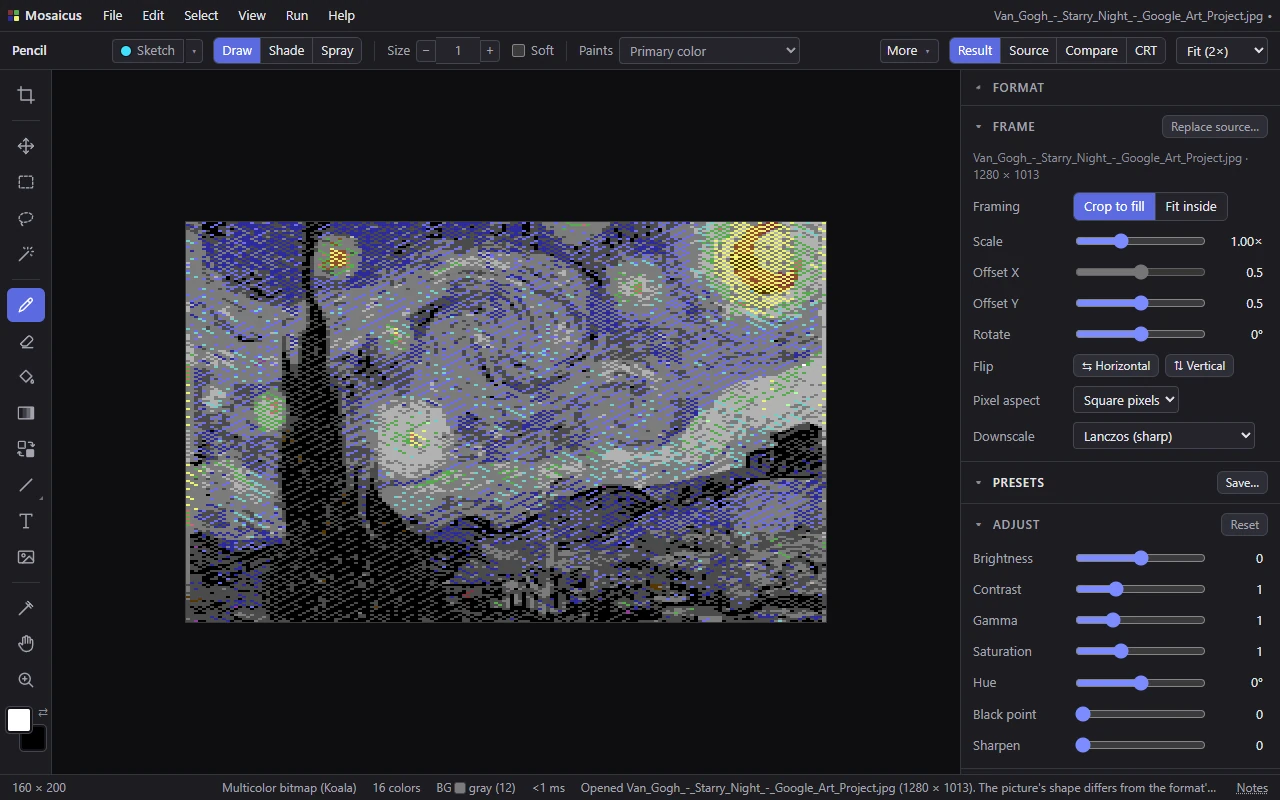
Mosaicus converts any picture into a real Commodore 64 picture: it frames the picture, adjusts it, and then picks the best colors each part of the format allows. Every setting is live: change one and the picture converts again at once, with your hand edits kept on top.
- Opening picturesFile ▸ Open picture, dropping files, the file types, C64 files and pictures already in a C64 format.
- FramingThe Frame panel and the Frame tool: crop or fit, scale, placement, rotation, pixel aspect, downscaling (Majority, for pixel art and game art) and the fill color.
- AdjustmentsBrightness, contrast, gamma, saturation, hue, black point and sharpen.
- Palettes and colorsThe palettes, loading a VICE palette, the allowed colors, and the background and shared colors.
- DitheringEvery dither, with comparisons, and its options: strength, Similar only, Wide pixels and Protect outlines.
- QualityAuto, Fast and Best: what the refinement does and how long it takes.
- PresetsKeep the settings that suit a kind of picture and start new pictures from them.
How a conversion goes
A conversion runs the same steps every time, in this order. Each step has its settings in a side panel.
- The source. The picture you opened stays as it is: Mosaicus never changes the file. The Frame panel shows its name and size, and says when it has transparency. See Opening pictures.
- The frame. The source is turned and flipped, then placed on the format's screen: cropped to fill it, fitted inside it, or placed freely with the Frame tool. It is scaled down to the format's own pixels, in their real shape on a TV. See Framing.
- Adjustments. Brightness, contrast and the other sliders of the Adjust panel change the framed picture, at the format's own resolution, before any color is chosen. A small change here can improve the result more than any other setting: moving the picture's tones toward the C64's 16 colors gives cleaner cells and less dither noise. See Adjustments.
- Palette and colors. The palette says how the C64's 16 colors look. Allowed colors keeps the converter to some of them, and the Format panel can fix the background or shared colors instead of leaving them automatic. See Palettes and colors.
- Each cell's colors. Most C64 formats allow only a few colors in each cell (for example 2 in each 8 × 8 cell of a hires bitmap). Mosaicus picks each cell's colors for how the chosen dither will mix them, judged by how the result looks on a screen. See Cell limits.
- Dithering. Each pixel then takes one of its cell's colors, mixed in the pattern of the dither you chose, so that areas show tones the 16 colors don't have. See Dithering.
- Quality. With Auto (the usual choice), Mosaicus shows a fast conversion while you work, then refines it to Best when you pause. See Quality.
- Your hand edits. Whatever you paint goes on top of the conversion. It stays there while you change any setting above, and the format's rules are applied to the whole picture, so it always stays a picture a C64 can show. See Painting.
The side panels
The panels on the right follow the work from top to bottom:
| Panel | What it holds |
|---|---|
| Format | The format and its size and options; for the multicolor formats the Background and Shared color. See Formats. |
| Characters | Only for a Charset logo or a picture in characters: its characters. See Charset logo, Pictures in characters. |
| Frame | The source's name and size, Replace source…, and how it is framed. |
| Presets | Your saved presets, and the one new pictures start from. |
| Adjust | The seven tone sliders, with Reset. It shows only when the picture has a source. |
| Colors & dither | Palette, Quality, Allowed colors, Dither and its options. |
| Paint palette | The colors you paint with. See Paint colors. |
| Selections and History | Saved selections and every step you can undo. |
In the CRT view, the CRT's own panels (Screen, Signal and Tube) come first: see CRT view.
Each panel remembers whether it was open or folded. View ▸ Side panels (Ctrl+\) hides them all, for a bigger picture.
Changes are live
Every change converts the picture again straight away. Koala and hires pictures follow a slider as you drag it; the formats that need more work (FLI, sprites) take a little longer.
Each change is one step in the History panel. A slider dragged from one place to another is a single step, however long the drag. See Undo and history.
TipView ▸ Source and frame (Alt+2) shows the source and the frame on it, and View ▸ Compare with source (Alt+3) puts the framed source beside the result. See Views.
Hand edits and the conversion
Your hand edits are kept apart from the conversion, so you can paint first and change the settings later. Two commands change that:
- Edit ▸ Freeze conversion into edits turns every pixel of the conversion into a hand edit. Changing the settings afterward leaves the picture as it is.
- File ▸ Remove source picture takes the source away: the conversion goes and only your hand edits stay. It asks first, and offers Freeze and remove, which keeps the conversion as hand edits. Undo brings the source back.