Keyboard shortcuts
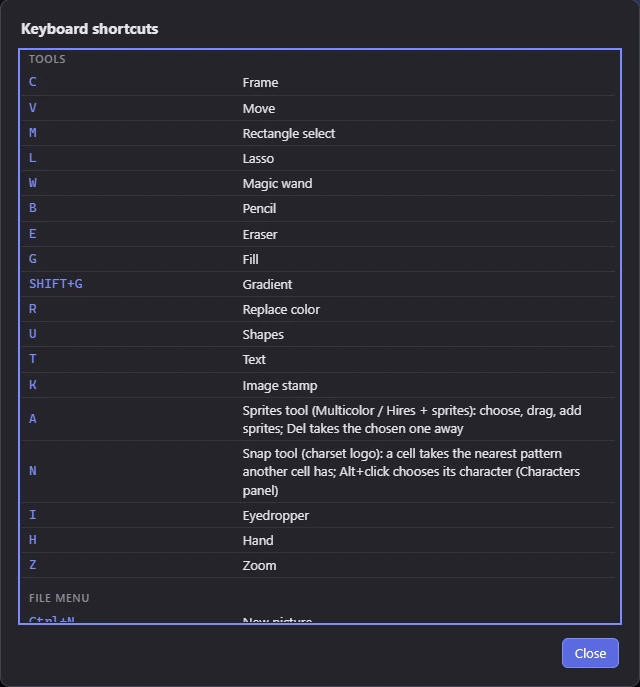
Every key Mosaicus answers to, grouped as the app's own list is. In the app, Help ▸ Keyboard shortcuts (F1) shows the same list.
NoteOn macOS press Cmd wherever this page says Ctrl (Ctrl works too), and Option for Alt; the app's menus, list and tooltips show them so (⌘Z, ⌥-click). Redo is also Shift+Cmd+Z, and Alt alone doesn't open the menu bar (F10 does).
Tools
A tool's key takes it up (with no other key held). The format's own tools answer only in their formats.
| Keys | Tool |
|---|---|
| C | Frame: place the source picture (Framing) |
| V | Move (Moving and transforming) |
| M | Rectangle select (Making a selection) |
| L | Lasso |
| W | Magic wand |
| B | Pencil (Pencil) |
| E | Eraser (Eraser) |
| G | Fill (Fill) |
| Shift+G | Gradient (Gradient) |
| R | Replace color (Replace color) |
| U | Shapes (Shapes) |
| T | Text (Text) |
| K | Image stamp (Image stamp) |
| A | Sprites tool (Multicolor + sprites, Hires + sprites): choose, drag and add sprites; Del takes the chosen one away (Sprite pins) |
| N | Snap tool (charset logo, pictures in characters): a cell takes the nearest character another cell has; Alt+click chooses its character in the Characters panel (Charset logo, Pictures in characters) |
| I | Eyedropper (Eyedropper, Hand and Zoom) |
| H | Hand |
| Z | Zoom |
File menu
| Keys | What they do |
|---|---|
| Ctrl+N | New picture… |
| Ctrl+O | Open picture… |
| Ctrl+Shift+O | Open project… |
| Ctrl+S | Save project |
| Ctrl+Shift+S | Save project as… |
| Ctrl+E | Export… |
| Ctrl+, | Preferences… |
Edit menu
| Keys | What they do |
|---|---|
| Ctrl+Z | Undo |
| Ctrl+Y | Redo (Ctrl+Shift+Z too) |
| Ctrl+X | Cut |
| Ctrl+C | Copy |
| Ctrl+V | Paste |
| Del | Clear: the selection becomes the background color |
| Shift+Del | Revert to conversion: the hand edits in the selection go |
| Alt+Backspace | Fill with fill style: the selection, in the Fill tool's fill style |
| X | Swap colors: the primary and secondary paint colors |
| Shift+H | Flip horizontally |
| Shift+V | Flip vertically |
| Shift+R | Rotate 90° clockwise |
| ] | Bigger brush |
| [ | Smaller brush |
| Ctrl+B | Use selection as brush |
| Ctrl+Shift+B | Use selection as fill pattern |
| Shift+M | Mirror painting: next (off, left ↔ right, top ↕ bottom, four ways, turned 4 ways, turned 8 ways) |
Select menu
| Keys | What they do |
|---|---|
| Ctrl+A | All |
| Ctrl+D | Deselect |
| Ctrl+Shift+I | Inverse |
| Enter | Place the floating piece |
| Esc | Put back / deselect: a floating piece goes back where it came from, else the selection goes |
View menu
| Keys | What they do |
|---|---|
| Alt+1 | Result |
| Alt+2 | Source and frame |
| Alt+3 | Compare with source |
| Alt+4 | CRT |
| F3 | Preview window |
| Shift+F3 | Preview in its own window |
| Ctrl+\ | Side panels: hide or show them |
| Ctrl+= | Zoom in (Ctrl++ too) |
| Ctrl+- | Zoom out |
| Ctrl+0 | Fit to window |
| Ctrl+1 | Actual pixels: the zoom nearest 2× that keeps pixels even on your display |
| Ctrl+' | Pixel grid |
| Ctrl+; | Format guides (cells, chars, sprites) |
| Q | Sprites: show the sprites, or the bitmap alone (the formats with sprites over a bitmap) |
| S | Draw on sketch layer |
| Shift+S | Show sketch |
| Y | Brightness only |
| Shift+Y | Luma levels (9) |
| Shift+O | Trace the source |
Run menu
| Keys | What they do |
|---|---|
| F5 | In VICE |
| Shift+F5 | On C64 Ultimate (asks first: it resets the machine) |
Help menu
| Keys | What they do |
|---|---|
| F1 | Keyboard shortcuts |
More keys
| Keys | What they do |
|---|---|
| Backspace | Clear the selection to the background color (as Del) |
| Arrow keys | Move the floating piece or the selected pixels a pixel (Move tool), or the selection outline (the selection tools) |
| Shift+arrow keys | The same, a cell at a time |
| Hold Space | Pan the view by dragging (the Hand tool for a moment) |
| Enter / Esc | A gradient being placed: apply it / drop it. While placing it: Shift-drag for whole 15° angles; Ctrl-drag an end for a new line from there; drag the line to move it |
| Hold O | Show the conversion without your hand edits |
| Shift-drag / Alt-drag | Add to / take away from the selection; both together: keep only what both have |
| Ctrl-drag | Move the selected pixels with a selection tool |
| Shift-drag (Move, the turning handle) | Turn the floating piece in 15° steps |
| Shift-drag (Move, a size handle) | Scale the floating piece, keeping its shape |
| Alt-drag (Move) | Move a copy of the selected pixels |
| Shift-click (Pencil) | A straight line from where the last stroke ended |
| Right button / Alt (Pencil, Shade) | Shade darker (Alt doesn't pick a color there) |
| Shift+H / Shift+V / Shift+R (Pencil) | Flip or turn the brush picked up from a selection (when nothing is selected) |
| Drag the mirror center (Pencil, Eraser) | Move the center that the Mirror option mirrors and turns about |
| Shift (Shapes) | Clean-angle lines (the Angles option: even steps, or slopes as seen), squares and circles |
| Enter / Backspace / Esc (Polygon, Curve) | Close the polygon (or double-click) or end the curve / take the last corner or bend back / drop it |
| Shift+[ / Shift+] | A dither mix a level less / more (the Pencil, Fill, Shapes and Image stamp, when they paint one) |
| 1–4 / Shift+1–4 | A sprite sheet: its roles (transparent, $D025, own, $D026) as the primary / secondary color |
| Shift+U | Next shape (the Shapes tool's) |
| Wheel | Zoom the view (with the Frame tool: scale the source on the screen; Ctrl+wheel zooms the view then) |
| Double-click a slider | Reset it |
Menus
| Keys | What they do |
|---|---|
| F10 / Alt | Go to the menu bar (its File); again: back to the picture. Alt pressed and let go on its own does this on Windows |
| Alt+F / Alt+E / Alt+S / Alt+V / Alt+R / Alt+H | Open that menu: File, Edit, Select, View, Run, Help |
Where the keys go
- In a text or number field, only these shortcuts still work (the field takes what you typed first): Ctrl+N, Ctrl+O, Ctrl+Shift+O, Ctrl+S, Ctrl+Shift+S, Ctrl+E, Ctrl+,, F1, the views (Alt+1 to 4), the preview (F3, Shift+F3), the side panels (Ctrl+\) and the zoom keys.
- On a list, checkbox or slider that has the focus, the arrow keys are the control's own (they don't move a selection); letters still go to the app's shortcuts.
- While a dialog is open, no key reaches the picture behind it.