Undo and history
Everything you do to a picture goes into one history: a slider moved, a format chosen, a stroke painted, a line sketched, a selection saved. Undo takes back the last thing, whatever it was, and the History panel lets you jump to any point.
Undo and redo
- Edit ▸ Undo (Ctrl+Z) takes back the last step. The menu names it: Undo Pencil, Undo Contrast, Undo Format: Hires bitmap.
- Edit ▸ Redo (Ctrl+Y, or Ctrl+Shift+Z) does it again.
The history covers:
- settings: the format and its size, framing, adjustments, palette and colors, dither, quality, an applied preset, a replaced or removed source picture;
- pixels: everything the painting tools, the selections and the Edit menu change;
- the sketch layer (Sketch layer);
- saved selections: saving, renaming and deleting them (Saved selections).
Dragging a slider makes one step, not one for each value it passes; a drag that ends where it started makes none.
Undo while something is under way
Ctrl+Z first finishes off what is in progress, and does only that:
- in the middle of a stroke or a drag, it cuts it short;
- a polygon or curve being drawn, or a fill waiting for its Cells choice, is dropped;
- a floating piece (pasted, or lifted with the Move tool): Undo takes back its turns, flips and scales one at a time, then puts the piece back where it came from. Redo brings each back (Moving and transforming);
- a gradient still being placed is dropped. Redo waits until it is applied (Enter) or dropped (Esc) (Gradient).
The History panel
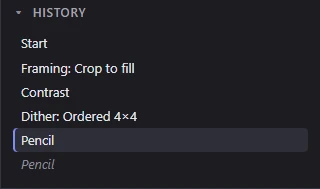
The History panel, the last of the side panels, lists every step from Start (the picture as it opened) to the newest. The current step is marked; steps you undid follow it, dimmed, until a new change drops them. Click any step to go straight there, undoing or redoing everything between.
How much it keeps
The history keeps up to 500 steps, and up to 512 MB of memory (a replaced source picture keeps the whole photo, so it can count for a lot). When it is full, the oldest steps go first, and a message says so the first time.
The history isn't saved in the project. Opening a picture or a project, or starting a new picture, starts a new history.
Hand edits over the conversion
What you paint is a hand edit, kept on its own layer over the conversion. Change any setting and the picture is converted again underneath, while your edits stay where you painted them. So you can paint a few pixels, then still change the contrast or the dither.
- Hold O to see the conversion without your edits.
- View ▸ Checks ▸ Mark hand edits marks the edited pixels (Checks).
- The status bar counts the pixels edited, and the pointer's readout says (edited) over one.
- With Quality: Auto, a picture you have painted on isn't refined to Best until you change a setting again, so the pixels around your edits don't shift under them (Quality).
When the size changes
A change of format or size moves your edits with the picture. With a source picture, when the picture takes up another size on the screen, they are scaled with it; otherwise each stays at the same place on the screen, so edits survive a change between formats pixel for pixel. A message says what happened:
- Hand edits were carried over to the new format.
- Hand edits were scaled with the picture: 1,200 edited pixels became 300.
- 40 hand-edited pixels fell outside the new size.
Each message ends by saying that Undo (Ctrl+Z) brings back the edits as they were painted, or the format they were painted in. The sketch layer and saved selections move the same way.
Taking edits away
- The Eraser (E) paints edits away (Eraser).
- Edit ▸ Revert to conversion (Shift+Del) takes away the hand edits inside the selection.
- Edit ▸ Clear all hand edits takes them all away: the conversion shows again. For a file opened from a C64 paint program, its picture comes back as it was opened.
Each is one step that Undo brings back.
Freeze conversion into edits
Edit ▸ Freeze conversion into edits turns every pixel of the conversion into a hand edit. From then on, changing the settings leaves the picture as it is: use it when the picture is right and you want to keep it while you try other settings, or before removing the source.
It also fixes what the converter chose by itself, so the frozen picture keeps it: the background color, the sprites' shared colors in the FLI + sprites formats, where the sprites are, and a sprite sheet's colors. The message lists them, for example Frozen: the background at 12 gray, so later settings leave the picture as it is. It is one step; Undo takes it back.
Remove the source picture
File ▸ Remove source picture lets the source go: the conversion goes, and the picture keeps only your hand edits. Unless every pixel is already a hand edit, it asks first:
- Remove removes it, with whatever isn't a hand edit going blank;
- Freeze and remove freezes the conversion into edits first, so the picture stays as it looks.
Either way it is one step: Undo (Ctrl+Z) brings the source back.