Gradient
The Gradient tool (Shift+G) fills the selection, or the whole picture, with a gradient: a run of C64 colors from one to another, dithered so the steps blend, or in clean bands. You drag the line it runs along, and it stays live: you can move its ends, change its colors and its kind, and see each change at once, until you apply it.
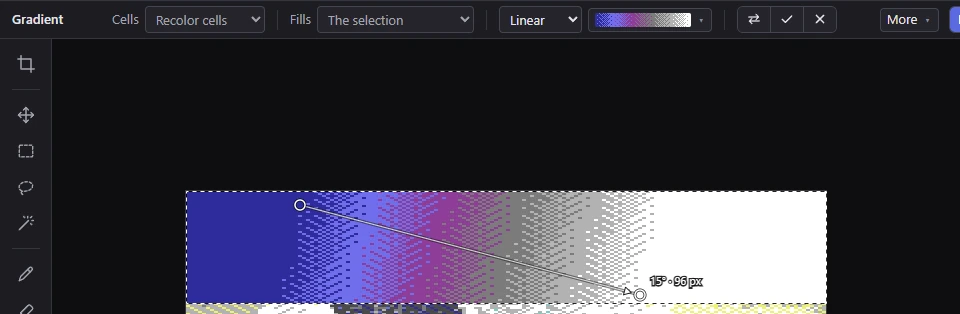
Drawing a gradient
- Select where the gradient goes, or select nothing to fill the whole picture.
- Press where the gradient starts and drag to where it ends. Hold Shift for whole 15° angles.
- Let go. The gradient is painted, and its line stays on the picture, live.
- Adjust it (below), then press Enter to put it in.
With Fills set to The selection (the default), you can start the line anywhere, outside the selection or outside the picture too; the gradient still fills only its area, and the colors past an end of the line are the end's. With the other Fills choices, you press on the area to fill, and the line starts there. A click without a drag places a gradient at the angle set in the gradient editor (90°, straight down, to start): a linear one across the whole area, the others from the area's middle to its edge.
Pressing with the right button starts a gradient that runs the other way.
The kinds
The menu on the options bar chooses the kind:
- Linear (the default): the colors change along the line, from its start to its end, in straight bands across it.
- Radial: circles around the start; the end color is reached at the line's length.
- Diamond: like radial, in diamond shapes turned with the line.
- Conical: the colors sweep around the start, a full turn, beginning in the line's direction.
Past its ends a gradient keeps its end colors, unless the gradient editor's Ramp option repeats it.
While it's live
- Drag an end to move it. Hold Shift for whole 15° angles. An end outside the view shows as a small triangle at the edge, pointing to it, and can be dragged from there.
- Drag the line to move the whole gradient.
- Ctrl-drag from an end draws a new line from that end.
- Drag anywhere else in its area to draw the line again.
- Change anything else and the gradient follows at once: the paint colors, the kind, the ramp and every setting of the gradient editor, Reverse, Fills, the selection and the Cells option. Typing an angle in the gradient editor turns the line around its start.
The handles are discs in the gradient's start and end colors, with an arrowhead before the end. Beside the end, the line's angle (0° points right, 90° down) and length in pixels are shown; the options bar shows them too, when it has room.
When you let go, the line's angle becomes the gradient editor's Angle, so a click places the next gradient the same way.
Putting it in, or dropping it
- Enter, the Apply button (✓), or a click outside what the gradient fills puts it in: one undo step, named Gradient.
- Esc, the Cancel button (✕) or Ctrl+Z drops it: nothing is painted. Pressed during a drag, Esc only takes that drag back (the drag that drew a new gradient drops it).
Taking up another tool, saving or exporting puts a live gradient in first. A change of the picture's size drops it, saying so, as does choosing a fill style that isn't a gradient. Redo waits until the gradient is put in or dropped.
When the gradient fills The selection and you press outside it, a click puts the gradient in and a drag draws its line again. When it fills The area clicked or That color everywhere, a press outside its area puts it in, and a drag from there starts a new gradient there.
The options bar
- Cells: the cell limits. With Recolor cells, the gradient is planned a whole cell at a time, so it keeps its look in each cell. In a format where painting a gradient takes long, a drag shows a quicker preview without the cell limits, and the gradient is painted in full when you let go.
- Fills: what it fills, the same choices as the Fill tool's: The area clicked (the area of one color you press on), That color everywhere, or The selection (the default; the whole picture when nothing is selected). Changing it changes a live gradient's area at once.
- The kind: Linear, Radial, Diamond or Conical.
- The ramp swatch: the gradient's colors as they'll be painted. Click it for the gradient editor.
- Reverse (⇄): paints the gradient from the other end of its ramp. The ramp itself stays as it is.
- Apply (✓) and Cancel (✕), for a live gradient.
- The line's angle and length while it's live, or a hint of how to start.
The gradient editor
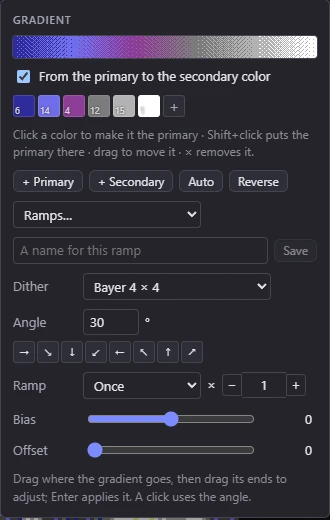
The ramp is the row of colors the gradient runs through, start to end, drawn at the top as it will be dithered.
From the primary to the secondary color (on to start): the gradient runs from the primary color to the secondary, through the colors that lie between them, as the eye sees colors, and only through allowed colors. It follows the paint colors: pick other paint colors and the gradient changes with them, live. Editing the ramp's colors turns it off, making those colors the gradient's own.
The ramp's colors, in a row:
- click a color to make it the primary color;
- Shift+click puts the primary color in its place;
- drag a color to move it along the ramp;
- × (or a right-click) removes it;
- + adds the primary color at the end.
Then:
- + Primary and + Secondary add a paint color at the end (up to 32 colors); Auto makes the ramp from the primary to the secondary color through the colors between them; Reverse is the bar's Reverse.
- Ramps… offers ready-made ramps: Primary → secondary (auto), All 16 by brightness, Gray, Blue, Purple, Red, Brown to gold, Green, Cyan, Acid, Fire, Sunset, Chrome, Rainbow, Night and Neon.
- Save: type a name and save the ramp. Saved ramps are listed with a ★ (click one to use it, × to forget it), kept on this computer for every project. The Pencil's Shade can step along them too.
- Dither: how the steps between two colors of the ramp are mixed: None (bands) for clean bands, or one of the dithers of a dither mix (Bayer 4 × 4 to start).
- Angle: where a click places the gradient, in degrees (0 right, 90 down), typed (the ↑ and ↓ keys step it by 15°) or chosen with the eight arrow buttons. A live gradient turns to it.
- Ramp: Once (the default), Repeats (the ramp starts again after its end) or There and back (it runs back the other way), and × how many times over the line's length (1 to 16).
- Bias (−2 to 2): leans the ramp toward its start (−) or its end (+).
- Offset (0 to 1): shifts the ramp along the line.
The tool remembers all of it between sessions.
Gradients in a charset logo
A charset logo shows two colors, the ink and the letter. There a gradient dithers from one to the other along its line, from the darker end of its ramp to the lighter, so the picture shows exactly what the live gradient did. See Charset logo.
Gradients in other tools
The Fill tool's fill style menu lists the four gradients too, marked (Gradient tool): choosing one takes up the Gradient tool with that kind, and the Fill tool's Fills choice.
Shapes, Text and the Image stamp can paint a gradient as their fill style. There it runs across each filled shape, text or stamp at the gradient's Angle: a linear one from edge to edge, the others from the middle to the farthest corner. Their gradient editors have no From the primary to the secondary color option (Auto builds the ramp from the paint colors instead), and their Reverse turns the ramp itself round.
Related
- Fill: fill styles, patterns and dither mixes
- Paint colors
- Cell limits and clashes
- Selecting