Moving and transforming
To move selected pixels, or to flip, turn or scale them, Mosaicus lifts them into a floating piece: a piece of picture that hovers over the rest. Nothing changes in the picture while it floats, so you can move it, turn it and try sizes freely. When it looks right, you place it, and that is one undo step.
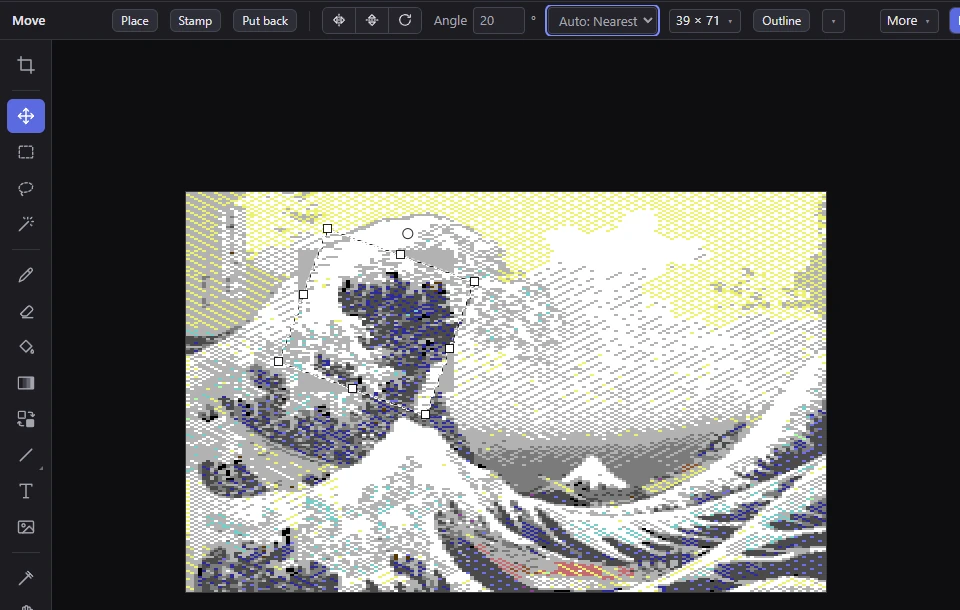
Lifting and moving
- Move tool (V): drag the selected pixels. They lift into a floating piece once the pointer really moves.
- Alt+drag with the Move tool: lifts a copy and leaves the original where it is.
- Ctrl+drag inside the selection with Rectangle select, the Lasso or the Magic wand does the same as the Move tool, without changing tools.
- Drag the floating piece itself to move it again, with the Move tool or any selection tool.
With the Move tool and nothing selected, a press says Move moves the selected pixels: select something first (Ctrl+A selects everything).
Some formats can't clear every pixel you lift (a pixel whose cell can't give up its color). Those pixels stay where they are, and a message counts them.
Nudging with the arrow keys
- With the Move tool, the arrow keys move the selected pixels a pixel at a time (lifting them first); Shift+arrows move them a cell (the format's cell, or 8 × 8 hires pixels in a format without cells).
- With any tool, the arrow keys move a floating piece that is already there.
- With the other selection tools and no floating piece, the arrow keys move the selection's outline, not the pixels.
What moving leaves behind
Leaves (on the options bar of the Move tool and the selection tools) chooses what the pixels you lift or cut leave behind:
- The background color (the default). The background color is free in every cell, so it never clashes.
- The secondary color.
- The conversion: your hand edits go there, and the converted picture shows through.
A copy (Alt+drag) leaves nothing behind.
A see-through color
See-through chooses a color of the floating piece that doesn't cover what is under it, so a sprite lifted with its background can be put down over something else:
- None (the default): every pixel of the piece covers the picture.
- The secondary color: whatever the secondary color is at the time.
- Any of the 16 colors.
The see-through color is left out when the piece is placed or stamped, and when an outline or a shadow is drawn around it.
Flipping and turning by 90°
These work on a floating piece, or lift the selection into one where it is first. They are on the Move tool's options bar and in Edit ▸ Transform:
| Command | Keys | What it does |
|---|---|---|
| Flip horizontally | Shift+H | Mirrors it left ↔ right. |
| Flip vertically | Shift+V | Mirrors it top ↕ bottom. |
| Rotate 90° clockwise | Shift+R | Turns the format's pixels a quarter turn: exact, with no pixel lost. |
On multicolor's wide pixels, a quarter turn of the pixels changes the piece's shape on the screen: what was 10 pixels across (20 hires pixels wide) becomes 10 lines tall. To turn it by 90° as seen, keeping its shape, type 90 in Angle instead.
Turning by any angle
- Angle on the Move tool's options bar turns the piece clockwise by any angle, as seen on the screen, to a tenth of a degree.
- The round handle above the floating piece (Move tool) turns it as you drag; hold Shift for whole 15° steps.
- Edit ▸ Transform ▸ Rotate or scale freely… takes up the Move tool, lifts the selection, and puts the cursor in Angle so you can type.
The piece is always turned from its pixels as they were when it began to float, so turning it again and again doesn't wear it down. Turns are made in the pixels' real shape: on wide pixels, a piece keeps its shape on the screen.
The menu next to Angle chooses how pixels are turned:
- Auto (the default): RotSprite for line art, Nearest for a dithered or noisy piece (a converted photo), which RotSprite would smooth away. While a piece is turned, the menu says which it chose, for example Auto: Nearest.
- RotSprite: keeps pixel art's 1-pixel lines clean and unbroken. The piece is scaled up 8× with edge-aware smoothing, turned, and scaled back; then doubled steps in thin lines are taken out and single pixels the turn lost are put back.
- Nearest: a plain turn, each pixel taking the color under it.
Scaling
- The size button on the Move tool's options bar (it shows the size, for example 41 × 76) opens the scale pop-up:
- ⅓ and ½: a third or half the size, each 3 × 3 or 2 × 2 block one color.
- 2×, 3×, 4×: twice, three or four times the size, each pixel repeated.
- Size: the size before the turn, in the format's pixels, to type. 1:1 goes back to the size it floated at.
- Shrink: how ½ and ⅓ choose each block's color, since the palette is fixed and can't average: Each block's most common color (the default), or Detail: its rarest color in the piece, which keeps 1-pixel lines.
- The square handles on the piece's box (Move tool) scale it as you drag, along its own sides even when it is turned; hold Shift to keep its shape. Sizes other than whole multiples and fractions are nearest neighbor.
- Edit ▸ Transform ▸ Scale 2× and Scale ½ do the same as the 2× and ½ buttons.
A floating piece can be at most 1,024 pixels each way.
Press Esc while you drag a handle to put the piece back as it was when the drag began.
Outline and drop shadow
Outline and Shadow (on the options bar of the Move tool and the selection tools, and in Edit ▸ Transform) draw around what is selected, in the secondary color:
- Outline draws a 1-pixel outline. Its pop-up (the small button beside it) sets Where: Outside (around it) (the default) or Inside (its edge pixels); and Touching: 8 ways (diagonals too) (the default) or 4 ways.
- Shadow (Drop shadow in the menu) draws the piece's shape again, offset, under it. Its pop-up sets Across and Down, each −8 to 8 pixels (the default is 1 and 1, down and right).
On a floating piece, the outline or shadow becomes part of the piece and follows it when you turn it later. On a selection that isn't floating, it is painted into the picture at once, as one undo step, and the selection grows to include it. Pixels of the see-through color are left out either way.
TipA piece lifted as a box with its background in it gets an outline around the whole box. Set See-through to the background color first, and the outline goes around just what is on it. Mosaicus says so when it happens.
Placing it
A floating piece goes into the picture when you:
- press Enter, click Place on the Move tool's options bar, or choose Select ▸ Place the floating piece;
- click outside it with a selection tool (that click also starts a new selection);
- choose any tool other than the selection tools, the Frame tool, the Hand and Zoom, or click with a painting tool while the piece floats (that click does nothing else);
- save the project, export the picture, or run it in VICE or on a C64 Ultimate.
Placing is one undo step (named Move, Duplicate or Paste, by where the piece came from), and it keeps the format's cell limits as painting does. Afterward the placed pixels are selected.
Stamp (Select ▸ Stamp a copy) puts a copy down and keeps the piece floating, so you can stamp it again and again.
Putting it back
- Put back (Esc, or Select ▸ Put back / deselect) takes the floating piece away without changing the picture: a lifted piece goes back where it came from, and a pasted piece is dropped. The selection is as it was before the piece floated.
- Edit ▸ Revert to conversion (Shift+Del) does the same while a piece floats.
- Edit ▸ Clear (Del or Backspace) deletes the floating piece: a lifted piece leaves its hole (the Leaves color, as one undo step), and a pasted piece just goes.
If the picture changes size or format while a piece floats, a lifted piece goes back where it came from and a pasted piece is dropped, and a message says which.
Undo while a piece floats
While a piece floats, Ctrl+Z takes back its last flip, turn, scale, outline or shadow, one at a time (the Edit menu shows which, for example Undo Rotate). With none left, it puts the piece back, as Esc does. Ctrl+Y redoes them, and brings back a piece Undo put back, as long as nothing else has changed since.
Moving the piece isn't an undo step of its own: it is part of placing it.
Related
- Making a selection
- Cut, copy and paste: floating pieces from the clipboard.
- Cell limits and clashes: why some pixels can't move, and how a placed piece is fitted to the cells.