Your first picture
This page takes one picture from a file on your computer to a C64 picture you can save, export and run. Each step links to the page that covers it in full.
1. Open a picture
Choose File ▸ Open picture… (Ctrl+O), click Open a picture… on the welcome card, or drop the file anywhere on the window. Mosaicus reads PNG, JPEG, GIF, BMP, WebP, TIFF and TGA pictures, and the files of classic C64 paint programs.
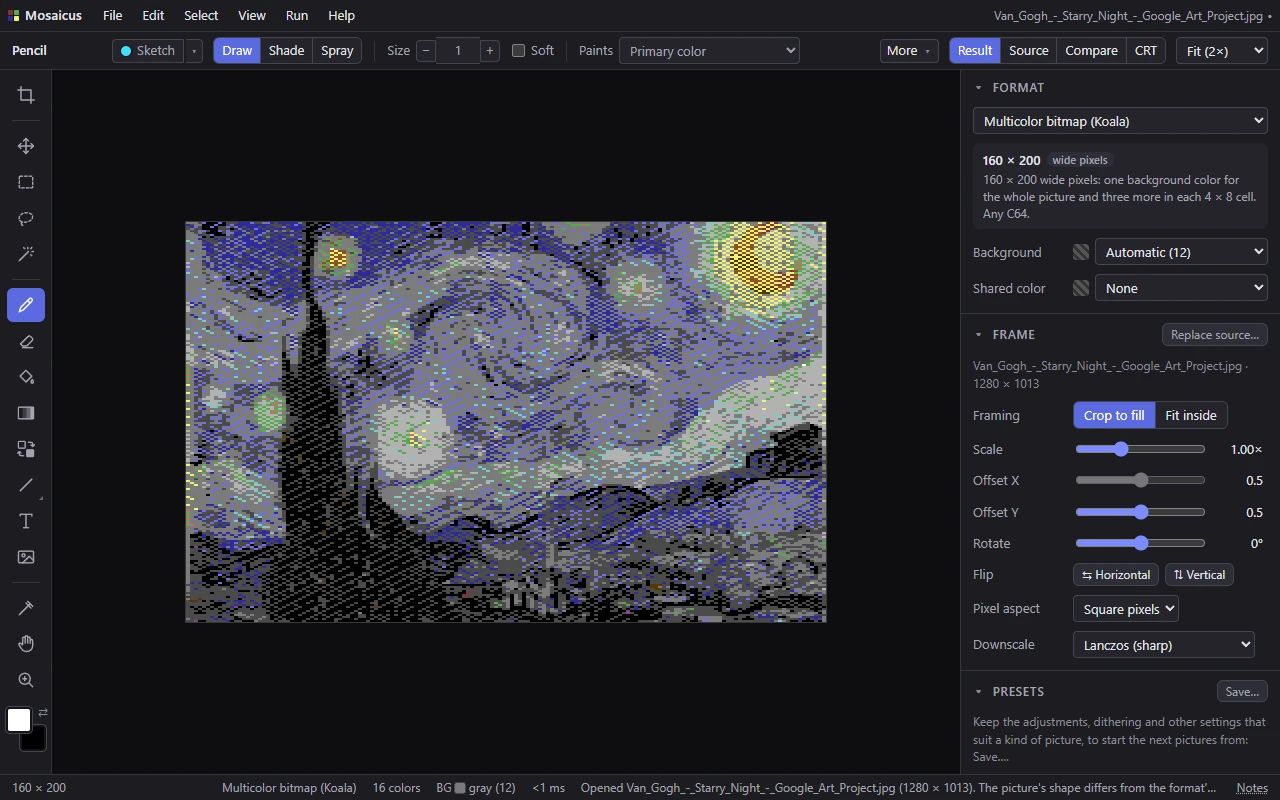
The picture is converted as soon as it opens. The status bar says what was opened and anything Mosaicus chose for it, for example:
- The picture's shape differs from the format's: it is fitted inside the frame. A picture much taller or wider than the format's screen is fitted whole, with the fill color around it. Crop to fill fills the screen instead.
- Looks like pixel art: framed to fit, scaled by majority, no dither. Small pictures with few, flat colors are kept crisp.
- Kept from the last picture: … Your settings carry over from one picture to the next (the format, the colors, the adjustments, the dither). The note lists the ones that change how this picture looks, so you know where they came from (what carries over).
A picture that is already a hires or Koala picture (a VICE screenshot, say) opens in its format exactly as it is, with nothing to frame. More in Opening pictures.
TipThe status bar's message fades after a few seconds. Click Notes at its right end to read the last ones in full.
2. Choose the format
The Format panel, at the top of the side panels, chooses which C64 picture format the picture becomes. A first picture is a Multicolor bitmap (Koala): 160 × 200 wide pixels, a background color shared by the whole picture and three more colors in each 4 × 8 cell. It works on any C64.
The list is grouped by the machine that can show the picture: Standard (any C64), Enhanced (any C64, sprites and FLI), Logos & sprites, C64 Ultimate / U64 Elite-II (turbo: 64 or 48 MHz) and SuperCPU (20 MHz). The card under the list sums up the format you chose. Formats explains each one.
3. Frame it
When a picture opens to be converted, the Frame tool (C) is in your hand: the source picture shows dimmed where it reaches past the screen, with handles around it.
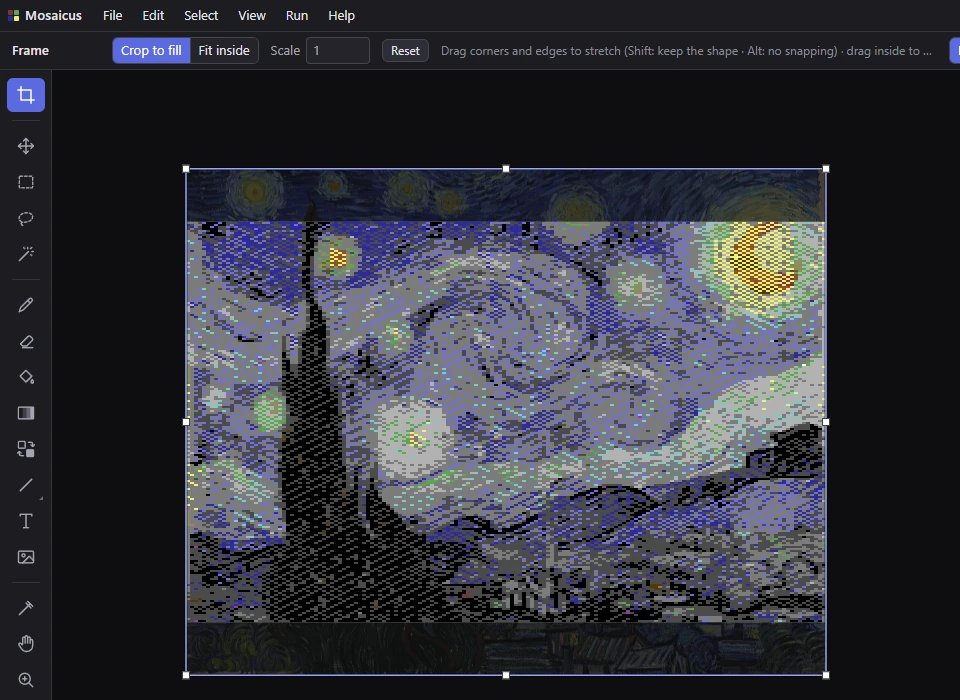
- Drag inside it to move it, drag its corners and edges to stretch it (Shift keeps its shape), or turn the mouse wheel to scale it.
- Crop to fill fills the screen and cuts off what doesn't fit; Fit inside shows all of it.
- The Frame panel has the same choices as numbers, plus rotation, flipping, the Pixel aspect (square, or a PAL or NTSC TV's pixels) and how the picture is scaled down (Downscale).
See Framing.
4. Adjust it
The Adjust panel has Brightness, Contrast, Gamma, Saturation, Hue, Black point and Sharpen. The picture is converted again as you drag a slider, so you see the C64 result, not the photo. Double-click a slider to reset it, or click Reset to reset them all. See Adjustments.
5. Colors and dither
The Colors & dither panel decides how the C64's 16 colors are used:
- Palette: how the 16 colors look (Colodore unless you choose another).
- Quality: Auto shows a fast conversion while you adjust and refines it to Best when you pause. See Quality.
- Allowed colors: leave colors out of the conversion.
- Dither: how in-between tones are mixed from the colors a cell has. The default is Two-color mix, fine; error diffusion (Floyd–Steinberg and others) gives more detail and more grain, the ordered dithers regular patterns. See Dithering and Palettes and colors.
When a group of settings suits a kind of picture, keep it as a preset (Presets panel ▸ Save…). See Presets.
6. Check it
- Compare (Alt+3, at the right of the options bar) shows the source and the result side by side, split by a slider. CRT (Alt+4) shows it on a model of a PAL or NTSC TV. See Result, source, compare and CRT and The CRT model.
- View ▸ Preview window (F3) keeps a second view open while you work. See Preview.
- View ▸ Checks ▸ Brightness only (Y) shows whether the picture still reads in gray. See Checks.
7. Touch it up
Paint over the conversion with the tools on the left: the Pencil (B), the Fill (G), shapes, text and more. What you paint is a hand edit: it stays on top of the conversion while you keep changing the settings, and the Eraser (E) takes it away again. Painting keeps the format's limits on colors per cell. See Painting, Cell limits and clashes and Undo and history.
8. Save the project
File ▸ Save project (Ctrl+S) saves a .mosaicus project: the settings, your hand edits,
the sketch layer and saved selections, and where the source picture is. The first save suggests a name beside
the source picture. See Projects and saving.
9. Export it or run it
- File ▸ Export… (Ctrl+E) writes a file for a C64 paint program (Koala Painter and
others), raw or assembly data, a PNG, or a C64 program (
.prg) that shows the picture. See Exporting. - Run ▸ In VICE (F5) shows the picture in the VICE emulator; Run ▸ On C64 Ultimate (Shift+F5) sends it to a C64 Ultimate or Ultimate 64 over your network. Set them up in Preferences; see Running on a C64.