Overlays
Overlays are lines and marks drawn over the picture in the Result view, to show how it's built: where each pixel and each color cell is, where the picture sits on the C64's screen, which pixels you painted by hand. They're never part of the picture, and you can paint with any of them on.
| Overlay | Menu | Key |
|---|---|---|
| Pixel grid | View ▸ Pixel grid | Ctrl+' |
| Format guides and rulers | View ▸ Format guides (cells, chars, sprites) | Ctrl+; |
| Sprites on or off | View ▸ Sprites | Q |
| Hand edits marked | View ▸ Checks ▸ Mark hand edits | none |
| The conversion without your edits | hold O |
Clashing cells (cells with more colors than the format allows) are outlined in red whatever overlays are on: see Cell limits and clashes.
Pixel grid
Faint lines between the picture's pixels, to count pixels and paint precisely. The grid shows only when you're zoomed in far enough for each pixel to be at least 5 screen pixels wide and tall. Below that it would cover the picture, so it stays hidden even when it's on.
The grid follows the format's own pixels: in a multicolor format each grid square is one wide pixel.
Format guides
The format's structure over the picture, and rulers around it that place it on the C64's screen. What the guides show depends on the format:
| Format | Guides |
|---|---|
| Hires bitmap, Multicolor bitmap (Koala) | The color cells the format's limits apply to: 8 × 8 pixels in hires, 4 × 8 wide pixels in multicolor. |
| The FLI formats and the SuperCPU format | The character rows drawn strong, and the smaller color cells inside them faint (8 × 1 in AFLI, 4 × 1 in multicolor FLI and the SuperCPU format, 8 × 2 or 4 × 2 in the FLI + sprites formats). |
| Multicolor + sprites, Hires + sprites | The bitmap's cells, and each sprite's box (below). |
| The C64 Ultimate formats | No cells: every pixel can be any color (Hires band + chunky shows its band, below). |
| Hires, Multicolor and ECM characters | The character cells (8 × 8; 4 × 8 wide pixels in multicolor). With the Snap tool in hand, the cells with a character of their own (orange, dashed); the character chosen or pointed at in the Characters panel is marked too. |
| Charset logo | The 8 × 8 character cells. Cells whose pattern no other cell has are outlined in orange, dashed: each costs a character of its own. Cells the fitting changed are outlined in blue. The character chosen or pointed at in the Characters panel is marked too. |
| Sprite sheet | Each 12 × 21 sprite boxed in magenta. Zoomed in far enough, each box is numbered (across, then down) and shows a chip of its column's own color. |
| Hires band + chunky | The hires band's top and bottom edges, dashed cyan. |
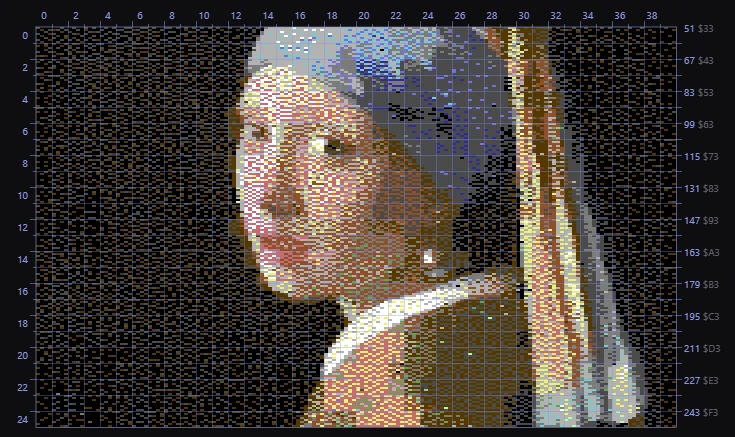
The sprites' boxes
In Multicolor + sprites and Hires + sprites, each sprite the picture puts over its bitmap gets a box:
- hires sprites in cyan, multicolor sprites in magenta;
- dashed: placed by the converter; solid: a sprite you pinned;
- gray, dotted: an area you told the converter to keep clear;
- red, dotted: a pin the converter had to leave out.
From 4× zoom up, each box is labeled: a pinned sprite with its pin's number, one the converter placed with h (hires) or mc (multicolor), followed by the hardware sprite it uses (HW 0 to HW 7). The Sprites tool draws these boxes itself, with its own choice shown, while it's in hand.
The rulers
Around the picture, the rulers say where each part of it lands on the C64's screen, the way the format's viewer program puts it there:
- Left: the screen's character rows, 0 to 24.
- Top: the character columns, 0 to 39. In Hires FLI (AFLI) and Multicolor FLI, columns 0 to 2 sit over the hatched FLI-bug band.
- Right: the raster lines, in decimal and, where there's room, in hex (
51 $33): each character row's first line, and finer lines as the zoom makes room.
When the picture is small on screen, the labels thin out to every 2nd, 5th or 10th row. When you zoom in and the picture reaches the canvas's edge, there's no margin left for a ruler: it's pinned in a strip along that edge, over the picture, and its labels follow the part of the picture in view.
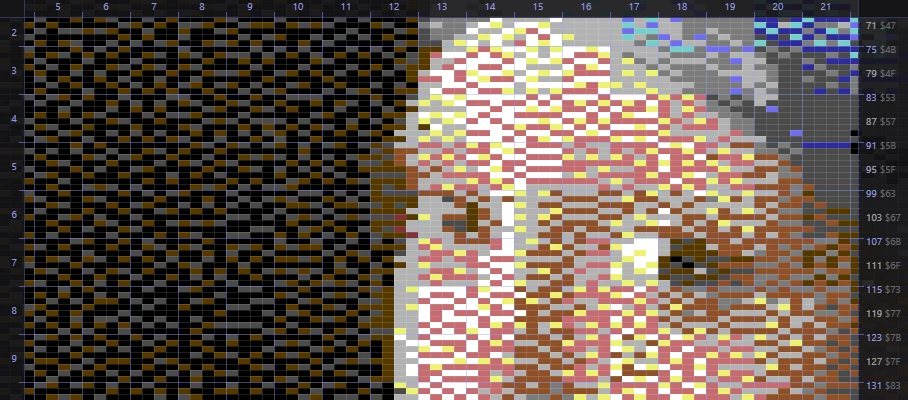
With the guides on, the status bar's readout under the pointer adds the same position: col 19, row 11 · line 140 $8C (a column outside 0 to 39 reads border). This is what you need to line up code of your own with the picture, such as a raster split or a sprite.
TipClicking the clash count in the status bar turns the format guides on, so you see the clashing cells against the cell grid.
Sprites on or off
View ▸ Sprites (Q) is for the formats that put sprites over a bitmap: Multicolor + sprites, Hires + sprites, Hires FLI + sprites and Multicolor FLI + sprites. Turn the sprites off to see the bitmap alone, and what the sprites add to it. A message says which is showing.
Hand edits marked
View ▸ Checks ▸ Mark hand edits tints every pixel you painted by hand in pink and outlines each painted area just outside its edge. The outline is 2 screen pixels wide over a dark line, so even a single edited pixel shows at Fit, on any color, with its own color still visible.
Hand edits stay on top of the conversion when you change its settings, so it helps to see where they are. Related:
- Hold O to see the conversion without your edits.
- The status bar counts them (1,234 pixels edited), and its readout under the pointer adds (edited) on an edited pixel.
- Edit ▸ Clear all hand edits and Edit ▸ Freeze conversion into edits are explained in Undo and history.
Related
- Checks: the brightness view, strays, jaggies and tracing.
- Cell limits and clashes: the red outlines and what to do about them.
- Bitmaps with sprites and Sprite pins: the sprites' boxes.