Sprite pins
In Hires + sprites and Multicolor + sprites the converter places the sprites itself (Bitmaps with sprites). The Sprites tool (A) lets you take over: choose any sprite, move it, give it a kind and a color, add sprites of your own, or keep the converter's sprites out of a place. A sprite you place or change by hand is pinned: it stays exactly where it is, as it is, through every new conversion, while the converter fits its own sprites around it.
The tool is in the toolbar only in those two formats.
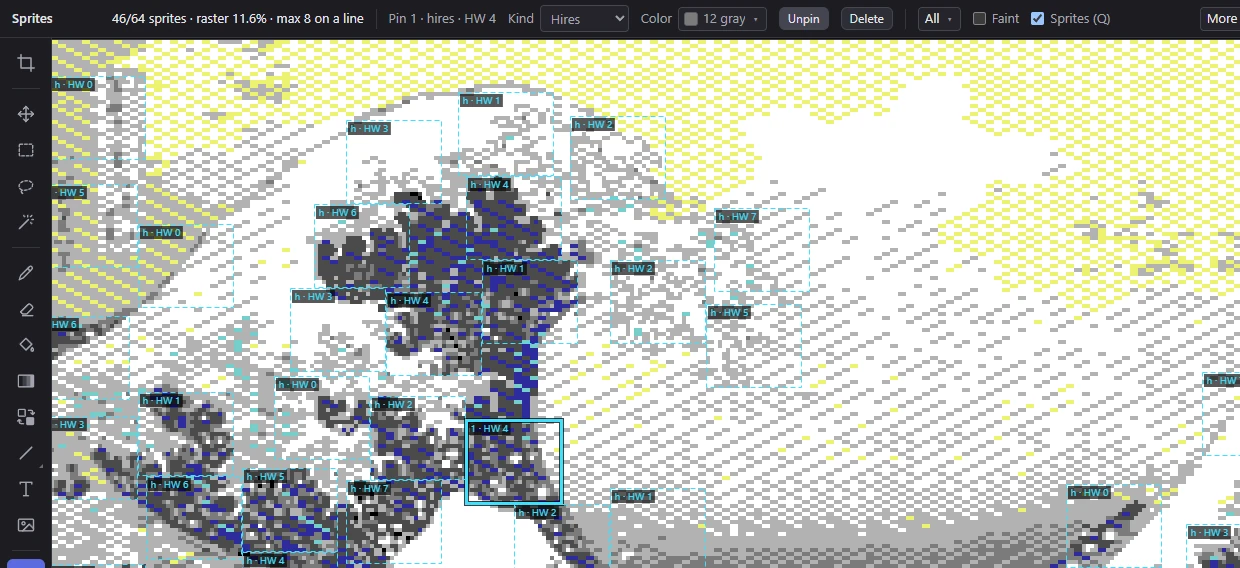
Choosing a sprite
Click a sprite to choose it. The options bar then says what it is: Pin 1 · hires · HW 4 for a pinned hires sprite on hardware sprite 4, or Auto-placed · multicolor · HW 2 for one the converter placed. HW is the hardware sprite (0 to 7) the program uses for it; HW – means the sprites can't be timed (below). Point at the words for the sprite's position and color too.
A click on a clear spot, a right-click, or Esc chooses nothing.
On the picture each sprite has a box:
| Box | Means |
|---|---|
| Cyan | A hires sprite |
| Magenta | A multicolor sprite |
| Dashed | Placed by the converter |
| Solid | Pinned: placed or changed by you |
| Thick, with a dark rim | The chosen sprite |
| Gray, dotted | A keep-out box: the converter puts none of its sprites there |
| Red, dotted | A pin the converter had to leave out |
From 4× zoom up, each box has a label: a pin's number, or h or mc for the converter's hires and multicolor sprites, then its hardware sprite (h · HW 4). Below 4× only the chosen sprite and the one under the pointer have a label. A pin keeps its number while other pins come and go.
Moving and adding sprites
- Drag a sprite to move it. It snaps to the sprite grid (an even pixel across, any line down) and is pinned where you let go. While you drag, a white box shows where it will go, red where it can't. The converter's own sprites in the way are placed elsewhere.
- Shift+click anywhere, or double-click a clear spot, to add a sprite centered there. It is pinned at once, with its kind and color left to the converter.
A sprite can't go where it would overlap a pinned sprite, put more than 8 sprites on a line, or leave the program no time to set it up. Then it stays where it was, and a message says why.
Its kind and color
With a sprite chosen, the options bar has:
- Kind: Auto (the converter's choice), Hires (24 × 21 pixels in its own color) or Multicolor (12 × 21 wide pixels in
$D025,$D026and its own color). - Color: its own color. Auto lets the converter choose the best one for its place; the swatch shows the color it has now. Colors it can't have are marked: for a multicolor sprite the two shared colors, and colors the converter isn't allowed to use (Allowed colors in the Colors & dither panel).
- Pin / Unpin: pin the sprite where it is, as it is, or let the converter place that sprite again.
- Delete (Del): take the sprite away. A pin is removed (the converter may put one of its own there). A sprite the converter placed becomes a keep-out box: the converter keeps its sprites out of that box from then on.
Choosing a kind or a color pins the sprite too.
The rest of the bar
- N/64 sprites · sprite code R% · max M on a line: how many sprites there are of the 64 the program can show, how much of a PAL frame their raster code takes (the status bar's Raster counts the whole viewer program), and the most sprites on any line (8 at most). Point at it for how many are pinned and how many pins were left out. It turns red when the sprites can't be timed, and says why.
- All ▾: Pin all (every sprite pinned where it is now), Unpin all (no pins: the converter places every sprite again) and Clear keep-out boxes (the converter may put its sprites anywhere again).
- Faint: draw the boxes not chosen faint, so they don't hide the picture.
- Sprites (Q): show the sprites, or the bitmap alone (the sprites view).
- The legend: what the box colors mean.
At smaller window sizes some of these move into the bar's More menu.
When a pin is left out
A pin that can no longer be shown (after a change to the settings, for example) is left out of the conversion and drawn as a red dotted box. Click inside it: a message says why (it overlaps another sprite, a line would have more than 8 sprites, or its raster code can't be done in time), and the pin is chosen. Press Del to remove it, or change what is in its way.
Pins and the rest of the picture
- Every change the tool makes (a move, a new sprite, a kind, a color, a pin, a delete) is a settings change: one undo step, and the picture converts again around it.
- Pins and keep-out boxes are saved with the project, and stay when you change the picture's other settings. The Format panel's Sprites limit counts only the converter's own sprites: pins come on top, up to 64 in all.
- Kinds in the Format panel limits the converter's own sprites; a pin of a fixed kind keeps its kind.
Related pages
- Bitmaps with sprites: how sprites add color, and the formats' other options.
- Cell limits and clashes: painting over the bitmap and the sprites.
- Undo and history.