The window
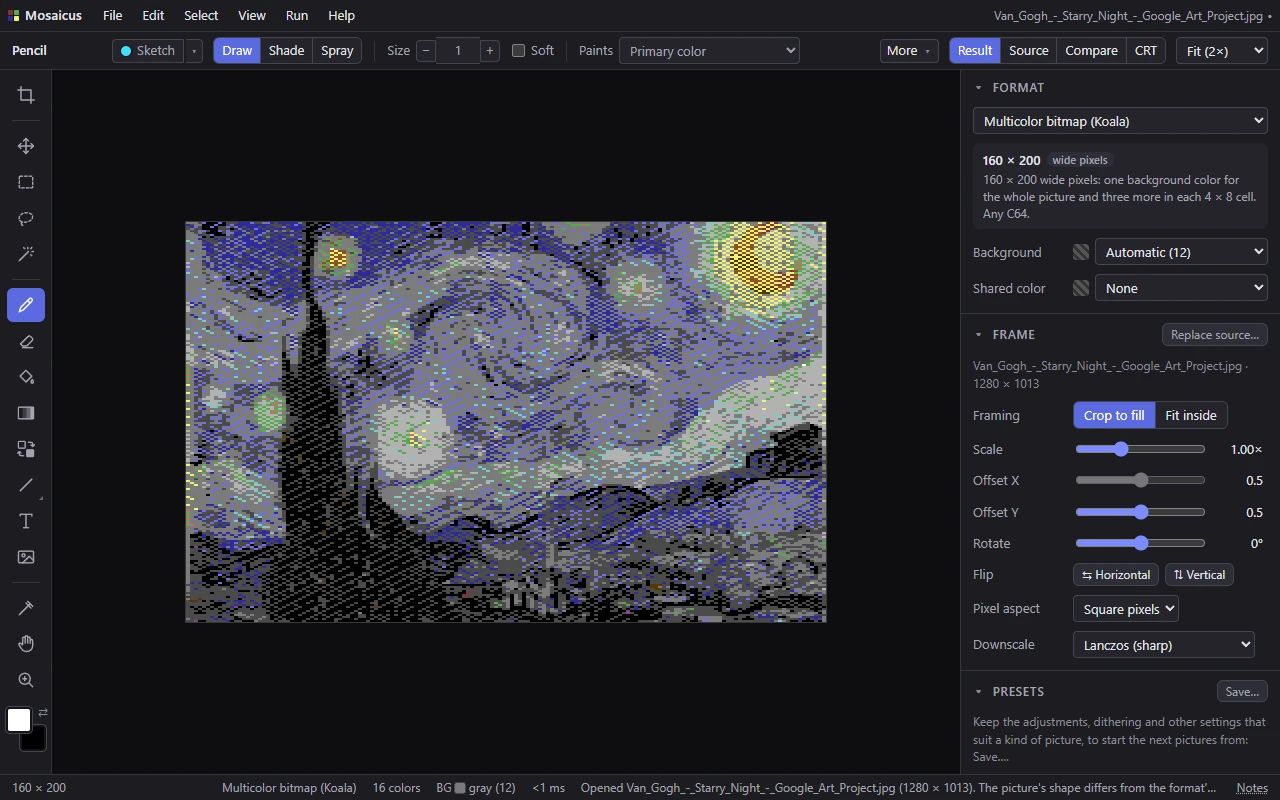
One window holds everything: the menus along the top, the tool in hand's options under them, the tools down the left, the picture in the middle, the settings down the right and the facts about the picture along the bottom.
Menu bar
File, Edit, Select, View, Run and Help. Menus lists every item.
- A submenu that is one choice (Cell limits, Pixel aspect) shows the current choice in its row.
- A grayed-out item's tooltip says why it's unavailable.
- From the keyboard: F10 (or Alt pressed and let go on its own, on Windows) puts the focus on File; press it again to go back to the picture. Alt+F, Alt+E, Alt+S, Alt+V, Alt+R and Alt+H open a menu directly. While a menu is open, no key reaches the picture.
- At the right end: the name of the project (or of the picture it came from, or Untitled), with a dot • when it has unsaved changes. Point at it for the project's full path. The same name and dot are the window's title in the taskbar.
On Windows the menu bar is the title bar. Its Close button works as File ▸ Exit: it asks before unsaved work is lost.
Options bar
Under the menus, from left to right:
- The tool's name, then the Sketch switch for the tools that can draw on the sketch layer (the Pencil, the Eraser, the Shapes and the Text). See Sketch layer.
- The tool's options. Each tool brings its own; its page in Painting or Selections explains them. A tool without options shows a hint about how to use it. When the window is too narrow, the least important options move into a More pop-up, so nothing is cut off.
- The view switch: Result (Alt+1), Source (Alt+2), Compare (Alt+3) and CRT (Alt+4). See Result, source, compare and CRT.
- The zoom box: Fit (with the zoom it gives) or a fixed zoom. Each step keeps every C64 pixel a whole number of your display's pixels, so pixels stay even. See Eyedropper, Hand and Zoom.
In the CRT view nothing is painted, so the bar shows how to zoom and pan the tube instead of tool options.
Toolbar and paint colors
The tools run down the left edge in groups:
| Group | Tools |
|---|---|
| Framing | Frame (C): only with a source picture to place |
| Selecting | Move (V), Rectangle select (M), Lasso (L), Magic wand (W) |
| Painting | Pencil (B), Eraser (E), Fill (G), Gradient (Shift+G), Replace color (R), Shapes (U), Text (T), Image stamp (K) |
| The format's own | Sprites (A) in Multicolor + sprites and Hires + sprites; Snap (N) in a charset logo and a picture in characters |
| Looking | Eyedropper (I), Hand (H), Zoom (Z) |
Point at a tool for its name, its key and how to use it (or why it can't be used now). The Shapes button shows the shape it draws; Shift+U goes to the next one. On a window too short for one column, the tools go into two or three columns.
Under the tools are the two paint colors: the primary in front, the secondary behind it. The left mouse button paints the primary and the right button the secondary. Click a color to choose another from the 16 (right-click: the secondary's), and click ⇄ or press X to swap them. A sprite sheet adds its four color roles, numbered 1 to 4, under them. See Paint colors.
Canvas
The picture, at the zoom the zoom box shows. Wherever you are:
- the mouse wheel zooms (with the Frame tool it scales the source; Ctrl+wheel zooms then);
- holding Space pans by dragging, whatever tool is in hand;
- holding O shows the conversion without your hand edits.
If a conversion fails, a card over the canvas says Couldn't convert the picture with the reason, and the picture shown is the last one that worked.
Side panels
The settings run down the right side, in the order you usually need them:
- Screen, Signal and Tube: only in the CRT view, the TV's settings (The CRT model).
- Format: the format and its own options (Formats).
- Characters: only for a charset logo or a picture in characters (Charset logo, Pictures in characters).
- Frame: the source picture and how it is placed, with Replace source… (or Open…, or Find it… for a source that wasn't found) (Framing).
- Presets (Presets).
- Adjust: only with a source picture (Adjustments).
- Colors & dither: palette, quality, allowed colors and dither (Palettes and colors, Dithering).
- Paint palette: the 16 colors; click one for the primary, right-click for the secondary (Paint colors).
- Selections: once there are saved selections, or a selection tool is in hand (Saved selections).
- History: every step you can undo (Undo and history).
View ▸ Side panels (Ctrl+\) hides them all for a bigger picture; the ‹ tab at the canvas's right edge brings them back.
Status bar

From left to right:
- The pointer's pixel: its position, its color (number and name), (edited) if it is a hand edit, and its cell. With the format guides on (Ctrl+;) it adds the C64 screen's column and row and the raster line, in decimal and hex. With the pointer off the picture: the picture's size.
- The format, the number of colors the picture uses, and BG: the background color, in the formats that have one.
- Sprites: in the formats with sprites, how many hardware sprites, and how many times they are placed when they are used again down the screen. Point at it for their roles and the sprites on each line.
- Raster: how much of each frame the viewer program's display code takes on a C64. Point at it for both PAL and NTSC in cycles, and what is left for other code. It is shown for the picture's Pixel aspect when that is PAL or NTSC, for both in the C64 Ultimate formats, else for the standard VICE runs (set in Preferences).
- Pixels edited: how many pixels are hand edits.
- ⚠ Clashes: cells with more colors than the format allows, outlined red on the picture. Click it to turn on the format guides and get a message with Recolor them, which recolors every clashing cell in one step. See Cell limits and clashes.
- ms: how long the picture shown took to make.
- The latest message, which fades after a few seconds (errors stay longer). Click it, or Notes at the right end, for the last eight messages in full, with their times.
When the bar is short, the least important items go first: the time, then the background, the colors, the raster time, the sprites, the edits and the format. The clash count goes last.
Messages over the canvas
Tools also speak in a message at the bottom of the canvas (up to three lines; point at it for the whole text). Some come with buttons, such as Recolor them. A message goes with your next action, an undo or a settings change, or by itself after a few seconds; one that asks a question waits for the answer.
The welcome card
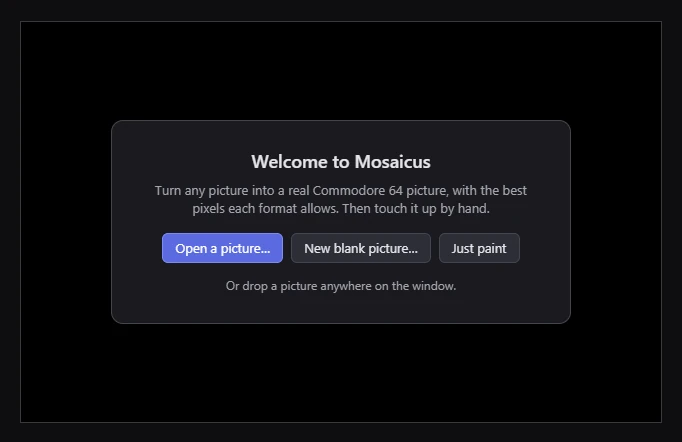
When Mosaicus starts with nothing open, a card offers Open a picture…, New blank picture… and Just paint (which closes the card and leaves you a blank multicolor picture to paint on), and lists your five most recent files. It goes away as soon as you open something or paint.
Dropping files
Drop a picture, a C64 picture file or a .mosaicus project anywhere on the window to open it. Drop several files and the
first one opens. Nothing opens while a dialog is showing.