Painting from blank
You don't need a picture to start from. A new picture is a blank screen in the C64 format you choose, ready to paint, with that format's rules about colors kept as you go.
Start a new picture
Choose File ▸ New picture… (Ctrl+N), or New blank picture… on the welcome card. The New picture dialog lists every format in its group, each with a short summary of its size and its color rules. Click one to start.
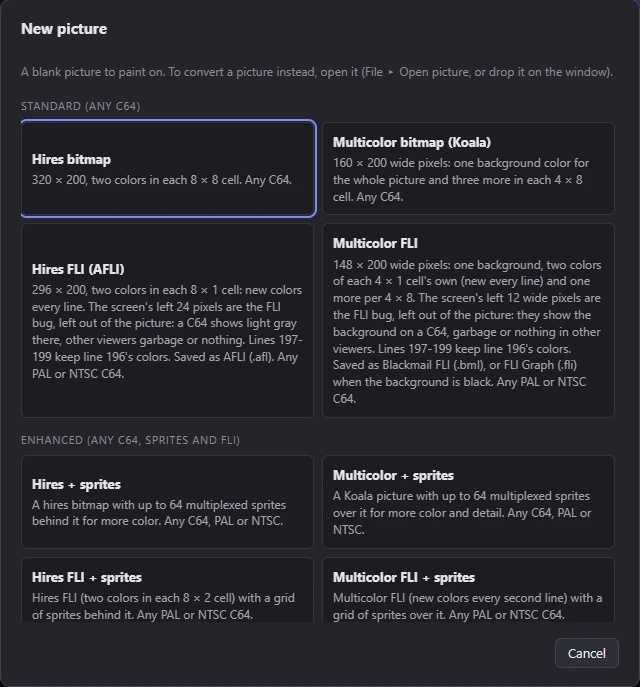
The groups are:
- Standard (any C64): Hires bitmap, Multicolor bitmap (Koala), Hires FLI (AFLI) and Multicolor FLI.
- Enhanced (any C64, sprites and FLI): the bitmaps with sprites over or behind them, and FLI with sprites.
- Logos & sprites: pictures in hires, multicolor and ECM characters, the charset logo and the multicolor sprite sheet.
- C64 Ultimate / U64 Elite-II (turbo: 64 or 48 MHz): the formats with 16 colors per pixel or block, which need a C64 Ultimate or Ultimate 64 Elite-II in turbo mode.
- SuperCPU (20 MHz): multicolor with a background for each 4 × 1 cell.
Formats explains what each one allows.
The new picture is the format's usual size, filled with black (a sprite sheet with the color of its transparent role), with the settings at their defaults (nothing carries over from the picture before). Its history starts empty.
NoteMosaicus also starts with a blank multicolor (Koala) picture. Just paint on the welcome card closes the card and leaves you painting on it.
Paint
Every tool works on a blank picture as it does on a converted one: the Pencil, Fill, Gradient, Shapes, Text, the Image stamp for placing another picture, and the selection tools. Choose colors from the paint colors under the toolbar or the Paint palette panel (Paint colors).
Everything you paint is a hand edit over the blank picture. The Eraser takes it away again, back to black.
The format's limits
Most C64 formats limit the colors in each cell: a Koala cell (4 × 8 wide pixels) holds the background and three colors of its own, a hires cell (8 × 8) two. While you paint, Edit ▸ Cell limits decides what happens when a pixel would give a cell one color too many:
- Recolor cells: the cell gives up the color that loses least, and its pixels take their nearest remaining color.
- Keep cell colors: the pixel is left out.
- Allow clashes: anything goes; the cell is outlined red, and exports recolor it.
See Cell limits and clashes. In the formats with a shared background (Koala and the other multicolor bitmaps), the Background setting in the Format panel chooses it; on a blank picture, Automatic gives black.
Size
Most formats have a fixed size. A few let you choose it: those show Size fields in the Format panel (Up and Down step them).
Change the format later
You can switch formats at any time in the Format panel. Your hand edits go with the picture: each stays at the same place on the screen, so a picture painted in hires can become multicolor and back, pixel for pixel where the new format allows it. A message says the edits were carried over, and Undo (Ctrl+Z) brings back the format they were painted in. If the new format is smaller, the message counts the pixels that fell outside it.
Plan with the sketch layer
The sketch layer holds construction lines and rough shapes in any color, over or under the picture. It is saved with the project and never exported. Press S to draw on it. See Sketch layer.
Converting instead
A blank picture has no source to convert, so the Adjust panel is hidden and the Frame panel offers Open…. That opens a picture as a new picture of its own, in place of this one; it doesn't go under your painting. To convert a picture, see Your first picture.
To edit a picture made in a C64 paint program, open its file with File ▸ Open picture…: it opens as it is, every pixel the file's, ready to paint on. See Opening pictures.