Adjustments
The Adjust panel changes the source's tones and colors before Mosaicus picks the C64's colors.
TipThe tone can change the result more than any other setting. The C64's fixed colors have wide gaps between them. Where a picture's colors fall between the C64's, the converter has to mix them with a dither, and grays often win. Move the picture's tones toward the colors the palette has, and away from those it lacks, and the cells get cleaner colors with less dither noise. Try Saturation, Contrast and Gamma first.
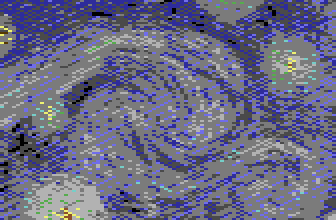
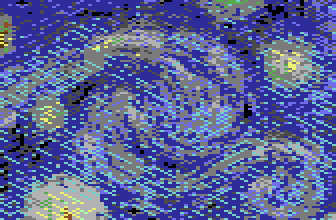
Van Gogh's Starry Night in Multicolor bitmap (Koala), every other setting the same; C64 pixels at 2×.
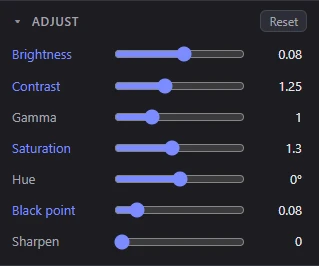
The panel shows only when the picture has a source to convert.
How the sliders work
The adjustments change the framed picture, at the format's own resolution, just before the colors are chosen. They work on lightness and color separately (in the CIELAB color space), so making a picture brighter doesn't shift its hues, and changing the hue doesn't change its brightness.
- Click the number at a slider's right to type a value; a value out of range is kept to the range.
- Double-click a slider or its name to put it back to its default.
- A slider moved from its default has its name highlighted.
- Reset, at the top of the panel, puts all seven back.
The picture converts again as you drag. A whole drag is one step in the history.
The sliders
| Slider | Range | Default | What it does |
|---|---|---|---|
| Brightness | -1 to 1 | 0 | Shifts every pixel's lightness, by up to half of the whole range at either end. |
| Contrast | 0.2 to 3 | 1 | Spreads the tones apart (above 1) or together (below 1), around mid-gray. |
| Gamma | 0.3 to 3 | 1 | Lifts the midtones (above 1) or sinks them (below 1), keeping black and white where they are. |
| Saturation | 0 to 3 | 1 | 0 is grays only. |
| Hue | -180° to 180° | 0° | Turns every color around the color wheel. |
| Black point | 0 to 0.6 | 0 | Everything darker than this becomes black, and the tones above it are stretched to fill the range again. It cleans up dark noise. |
| Sharpen | 0 to 3 | 0 | Crisper edges and detail, before the colors are chosen. It works on the format's own pixels, a pixel around each. |
They are applied in this order: sharpen, gamma, contrast and brightness, black point, then hue and saturation.
Tips
- Dark, muddy pictures: raise Gamma a little before Brightness. Gamma lifts the shadows and midtones without graying the blacks.
- Flat pictures: a little more Contrast gives the converter clearer steps between the C64's colors.
- Noise in the shadows: a small Black point (0.05 to 0.15) turns the near-black specks into clean black.
- Skin and skies: a slight Hue turn can move a color onto one of the C64's instead of between two.
- Small formats: Sharpen helps detail survive at 160 × 200; too much sharpens the noise too.
The Fill color around the source and in its transparent parts isn't touched by the adjustments: it converts to its own color. See Framing.
Carried over and kept
A new picture keeps the adjustments of the last one, and the status bar says so ("Kept from the last picture: its adjustments"). Press Reset to start from none. A preset can keep the adjustments too: see Presets.
A picture already in a C64 format opens with no adjustments, so it converts back exactly. See Opening pictures.
Related pages
- Palettes and colors: the next step, the colors the adjusted picture is matched to.
- Views: Compare with source shows the adjusted, framed picture beside the result.