Symmetry
With the Mirror option on, everything you paint is painted again, mirrored or turned around a center. One stroke makes a symmetric face, a four-way ornament or an eight-way star. The Pencil, the Eraser and the Shapes tool have it.
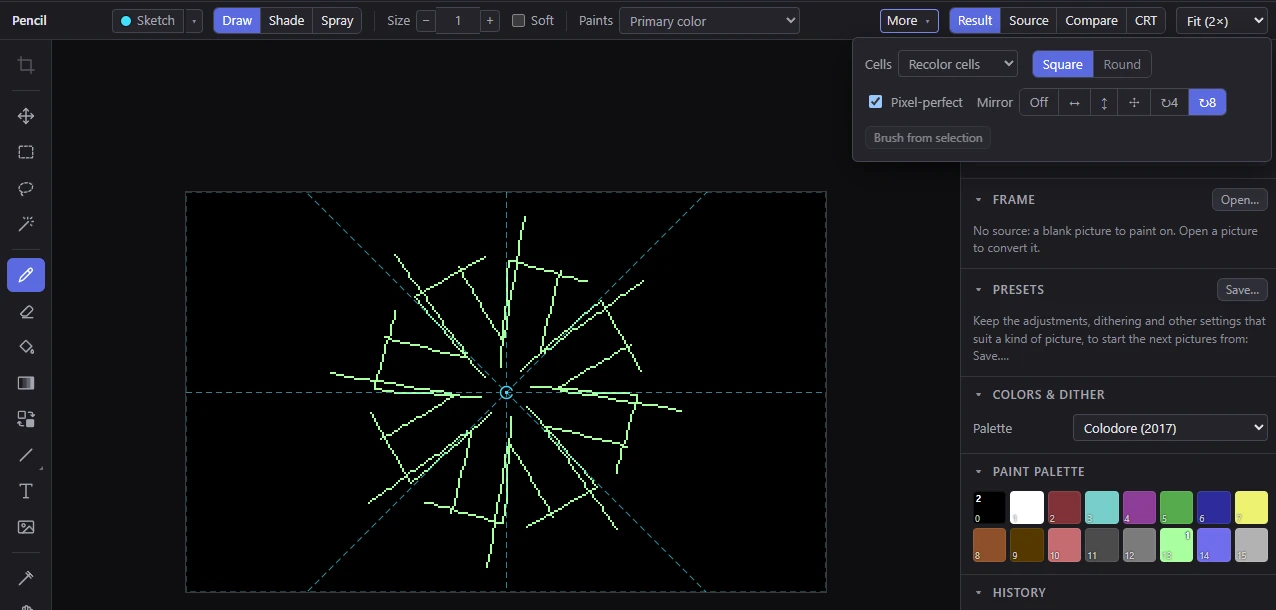
The Mirror option
Mirror is on the options bar of the Pencil, the Eraser and the Shapes tool (when the bar is narrow, it is under More). Its choices:
| Button | Mirror | What a stroke makes |
|---|---|---|
| Off | No mirror (the default) | The stroke alone. |
| ↔ | Left ↔ right | It and its mirror image across the upright axis. |
| ↕ | Top ↕ bottom | It and its mirror image across the level axis. |
| ✣ | Both: four ways | Mirrored across both axes: four copies. |
| ↻4 | Turned 4 ways | Turned around the center, 90° each: four copies, all turning the same way (a pinwheel, not a mirror). |
| ↻8 | Turned 8 ways | Turned around the center, 45° each: eight copies. |
The setting is shared by the three tools, and it is kept for the next time you use the app.
Edit ▸ Brush ▸ Mirror painting: next (Shift+M) steps through the choices in that order, from Off back to Off, and says which one is on.
While a mirror is on, the axes show as dashed lines through the center (with ↻8, the diagonals too), and the brush's outline under the pointer shows at every image, so you see where each copy will land.
Moving the center
The center starts in the middle of the picture. To move it, take up the Pencil or the Eraser and drag the center's handle, the ring at the crossing of the axes. (A click on the handle without moving paints, as anywhere else; it is a drag of more than a few screen pixels that moves the center.)
- The center snaps to a pixel's corner or a pixel's middle, whichever is nearer, so mirrors and quarter turns land on whole pixels.
- When you let go, a message gives the center's place (and the middle's, for comparison), with a Reset button.
- While the center is moved, a Center button next to Mirror puts it back in the middle.
Moving the center isn't an undo step. The center keeps its place, as a share of the picture's width and height, when you change the format or the picture's size; a new picture or a project you open starts with it in the middle.
The Shapes tool uses the same center but can't move it: switch to the Pencil to drag it.
How mirrored and turned strokes are drawn
- The Pencil and the Eraser: each copy of a size 1 brush is drawn as a line of its own, so turned strokes stay clean, pixel-perfect lines. A bigger brush, or a brush picked up from a selection, is turned pixel by pixel: there are no holes, but its 45° edges come out stepped. Patterns and gradients are mirrored with the strokes.
- The Shapes tool: each copy is drawn again from the shape's own mirrored or turned points (its ends, corners and bends), so every copy is as clean as the shape you drew.
NoteTurns are made on the pixels' real shape. On multicolor's wide pixels (twice as wide as tall), a quarter turn can't be exact: a turned pixel is half a pixel wide and two lines tall, so turned copies are rounded to whole pixels. Mirrors (↔, ↕, ✣) are always exact.
In Hires 240 (the 48 MHz Ultimate format whose columns are tied in pairs), the center sits between two columns where a mirror maps a pair of columns onto a pair.
Related
- Pencil and Eraser: freehand strokes.
- Shapes: lines, boxes, ellipses and polygons.
- Cell limits and clashes: mirrored copies follow the cell limits like any painting.