Palettes and colors
These settings say how the C64's colors look, which of them the converter may use, and which colors the whole picture shares. They are in the Colors & dither panel and, for the colors a format shares, in the Format panel.
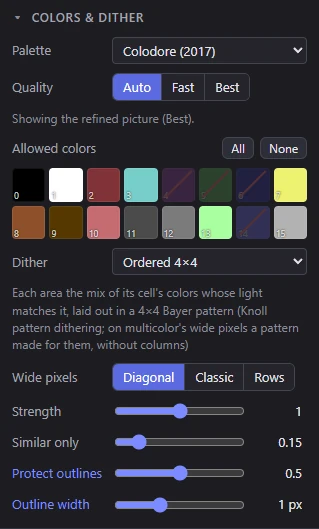
Palette
Palette says what the 16 colors look like. Measurements differ between C64 models and emulators, so the same color number can look a little different on each. Mosaicus matches the source's colors against the palette you choose, so the choice changes which color numbers the picture gets, not just how it's shown.
| Palette | What it is |
|---|---|
| Colodore (2017) | The default: Pepto's 2017 measurement of the C64's colors. |
| Pepto (PAL, 2001) | Pepto's older measurement of a PAL C64: its colors are darker and less saturated than Colodore's. |
| A loaded palette | A palette you loaded, listed by its file name. |
| Load a VICE palette (.vpl)… | Opens a VICE palette file. |
The palette also sets how the picture looks on screen, in exported PNGs and in the CRT view. What a C64 program shows depends on the machine and screen it runs on: the files hold color numbers, not colors.
Loading a VICE palette
A VICE palette is a text file with a line RR GG BB (hexadecimal, an optional fourth number ignored) for each of the 16 colors; lines and parts of lines after # are comments. A file that isn't one, or that doesn't have exactly 16 colors, is refused with a note saying why.
The loaded palette's colors are kept in the picture's settings (and its project), so the picture converts the same when you open it again. The palette list names it by the file it came from (or Loaded palette, when it was loaded on another computer).
NoteMosaicus also knows 22 of VICE's palettes without loading them: a picture already in a C64 format, saved with one of them, is recognized and opens with its own colors. See Opening pictures.
Allowed colors
Allowed colors are the colors the converter may use. Click a color to leave it out (it is crossed out) and again to use it. Your painting can still use every color: this only limits the conversion.
- All allows every color again.
- None leaves only black, to add colors to by clicking them.
At least one color stays allowed. Leave colors out to keep a picture to a few hues, or to keep a color free for something you paint later.
Allowed colors and the dither settings show only when the picture has a source. The Charset logo and Sprite sheet formats pick their colors by role instead: see Charset logo and Sprite sheet.
Background and shared colors
Some formats have colors the whole picture shares. Mosaicus picks them automatically, or you fix them in the Format panel.
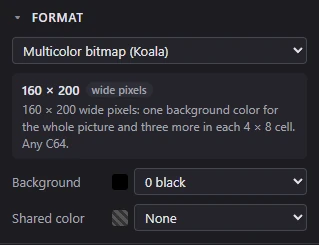
Background
Background is the one color every cell shares (the C64's register $D021), in Multicolor bitmap (Koala), Multicolor + sprites, Multicolor FLI and Multicolor FLI + sprites.
- Automatic (the default): the converter picks the background that leaves the cells' colors covering their pixels best. The list shows the one it picked, for example "Automatic (12)". With Quality: Fast it tries the four colors most of the picture is nearest to; Best tries every allowed color. See Quality.
- A color: every cell shares that one. Fix it when you know what the picture needs (a black background for a picture on a black screen), or to keep it from changing as you adjust.
The status bar also shows the background in use (BG).
Shared color
Shared color is a third color every cell has, in Multicolor bitmap (Koala) and Multicolor + sprites: the C64's color RAM filled with one color. Each cell then picks only two colors of its own. Some demos need this; usually leave it at None.
Multicolor, background per 4 × 1 (the SuperCPU format) has its own Shared color, which works the same way besides each line's backgrounds. See SuperCPU format.
Sprite colors
The formats with sprites have two colors all their sprites share, Sprite color 1 ($D025) and Sprite color 2 ($D026), in the Format panel of Hires + sprites, Multicolor + sprites, Hires FLI + sprites and Multicolor FLI + sprites. Each is Automatic or a color you fix. See Bitmaps with sprites.
Cell limits
Whatever the colors, each format allows only so many in each cell. The converter always keeps to them; when your painting goes past them, the cells are outlined. See Cell limits.
Kept with the picture
The palette, allowed colors, background and shared color are part of the picture's settings: saved in its project, and carried to the next picture you open. A fixed background or a set of allowed colors that carries over is named in the status bar ("Kept from the last picture: …"). A preset's Palette and colors keeps all four. See Presets.
Related pages
- Dithering: how the chosen colors are mixed.
- Paint colors: the colors you paint with.
- Formats: which colors each format allows.