Sketch layer
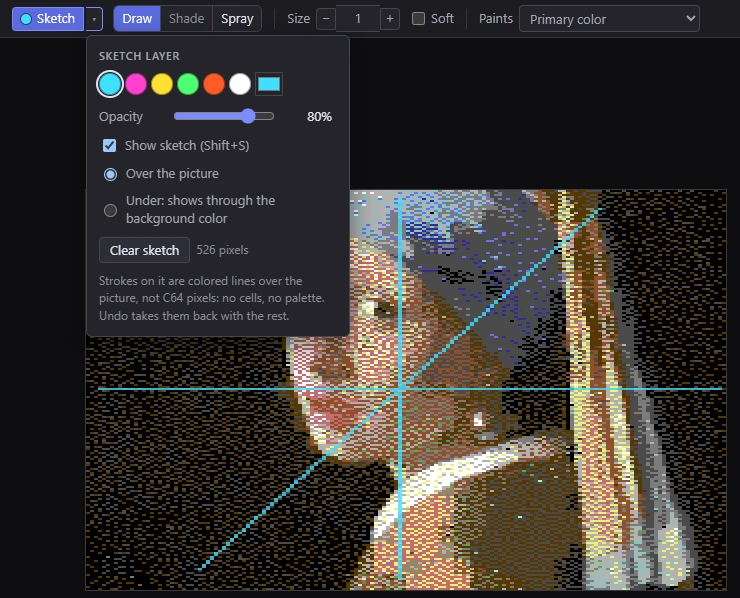
The sketch layer is a sheet of tracing paper over the picture. Draw construction lines, a horizon, a perspective grid or a rough figure on it in a bright color, then paint the real C64 pixels underneath. Its strokes are colored lines, not C64 pixels: no palette, no cells, no cell limits.
It's saved with the project, and it's never exported, never in a program run on a C64, and never shown in the Preview or the CRT view.
Drawing on it
Turn on Draw on sketch layer (S), from View ▸ Sketch layer or the Sketch button in the options bar, beside the tool's name (it's there while the Pencil, the Eraser, the Shapes or the Text is in hand). While it's on, these tools draw on the sketch layer instead of the picture:
- Pencil: freehand lines.
- Shapes: straight lines, rectangles, ellipses, curves.
- Text: labels and notes.
- Eraser: erases the sketch (not the picture).
Turning it on takes the Pencil if the tool in hand can't draw there, and shows the sketch. A message says where you're drawing.
Whatever color the tool is set to paint, the stroke draws in the sketch color. A stroke in two colors (a pattern of two colors, a dither mix) leaves its secondary color out, so its pattern shows as a pattern of sketch pixels rather than a solid patch.
Other tools still work on the picture while the sketch is on. With one of them in hand, the options bar says so (Sketch on: Fill paints the picture), with an Off button.
A sketch pixel is one pixel of the format, so in a multicolor format a sketch line is made of wide pixels, lined up with the picture's.
The sketch's options
The small ▾ beside the Sketch button opens its pop-up:
| Option | What it does |
|---|---|
| Colors | Six bright colors no C64 palette has (cyan, magenta, yellow, green, orange, white), so a guide never passes for a pixel; or any color from the color well beside them. Cyan at first. |
| Opacity | How strongly the sketch shows, 10% to 100% (80% at first). |
| Show sketch | Shows or hides the sketch (Shift+S). |
| Over the picture | The sketch over every pixel. |
| Under: shows through the background color | The sketch under the picture: it shows only through the pixels in the background color, so painting over a line hides it. |
| Clear sketch | Clears the whole sketch layer. The count beside it says how many pixels it has. |
Under shows through the format's background color, or, in a format without one, the picture's most common color. It's handy for a sketch you paint over: what you've painted covers the lines, and the lines still show where nothing is painted yet.
The color applies to the strokes you draw next; strokes already drawn keep theirs. The color, the opacity and over or under are remembered for next time. Each session starts with drawing off and the sketch shown, and a sketch shows by itself as soon as it has something in it (a project opened with one, your first stroke).
The same commands are in View ▸ Sketch layer: Draw on sketch layer (S), Show sketch (Shift+S), Sketch over the picture, Sketch under: shows through the background color, and Clear sketch.
Undo and projects
- Each sketch stroke (Sketch: … in the History panel), and Clear sketch, is a step in the same history as the picture's.
- The sketch is saved in the project.
- When the picture's size changes (another format, say), the sketch is carried to the new size the same way as your hand edits.
Where it shows, and where it doesn't
- It shows in the Result view only. Holding O (the conversion without your edits) hides it too.
- It's not in the Compare or CRT views, nor in the Preview.
- It's never in anything you export or run: the files, the PNGs and the C64 program have only the picture.