Checks
The checks help you find what's hard to see in a busy picture: weak contrast, single pixels left by a slip of the hand, uneven steps in a line. They mark what they find over the picture; some can fix it too. You can paint as usual with any of them on.
All of them are in View ▸ Checks:
| Check | Key | What it does |
|---|---|---|
| Brightness only | Y | The picture in grays: each color's own lightness |
| Luma levels (9) | Shift+Y | The picture in the C64's 9 brightness levels |
| Mark stray pixels | Rings lone pixels | |
| Mark jaggies | Boxes uneven steps in lines and edges | |
| Mark hand edits | Tints your painted pixels: see Overlays | |
| Trace the source | Shift+O | The source picture over your work, lined up with it |
Edit ▸ Clean up strays fixes the stray pixels, in the selection or the whole picture.
The checks belong to the view, not the picture: they aren't saved with a project, and turning one on or off isn't a step in the history. The tracing's opacity and its Over or Under choice, the Specks option and whether the card is folded are remembered for next time.
The Checks card
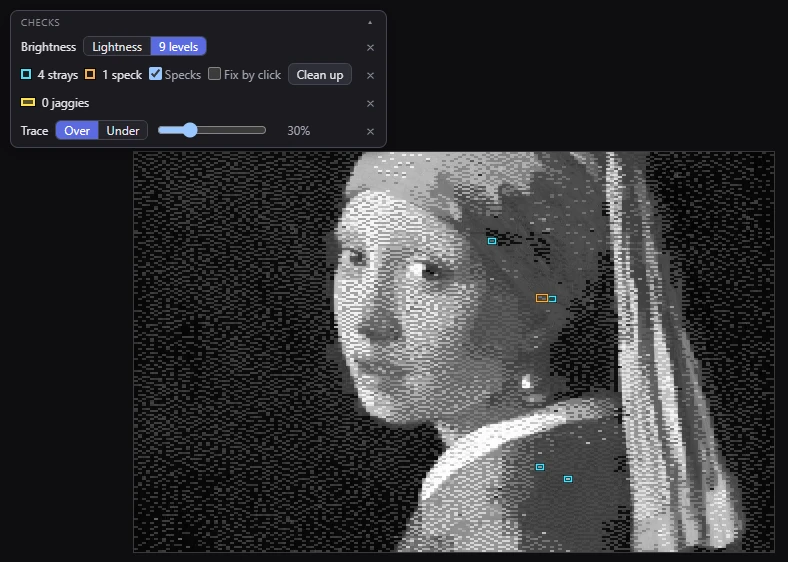
While a check is on, a card in the canvas's top left corner shows it, in the Result and Compare views. It has a row for each check that's on (all but Mark hand edits, which needs none), with what it found and its few settings. Each row's × turns that check off.
- ▴ folds the card to a pill that still shows the counts; click the pill to open it again.
- In a small window, where the card would cover more than a third of the picture, it opens folded.
- With the format guides on, the card moves clear of their rulers.
Brightness only
View ▸ Checks ▸ Brightness only (Y) shows the picture in grays: how C64 artists check contrast and readability. A picture that reads well in gray reads well in color. Painting works as usual, in the real colors.
The Brightness row on the card switches between two kinds of gray:
- Lightness: each color as the gray of its own lightness (CIELAB L*) in the palette you're using. Y turns this on, and off again.
- 9 levels: the VIC-II's 9 luma levels. The C64's video chip gives its 16 colors only 9 brightnesses (the very first VIC-IIs only 5), and the colors that share one show as one gray. Shift+Y turns this on, and off again.
The 9 levels, darkest first:
| Level | Colors |
|---|---|
| 1 | black |
| 2 | blue, brown |
| 3 | red, dark gray |
| 4 | purple, orange |
| 5 | gray, light blue |
| 6 | green, light red |
| 7 | cyan, light gray |
| 8 | yellow, light green |
| 9 | white |
Why it matters: two colors of the same level mix without a brightness pattern, so a dither or a checkerboard between them looks smooth on a real C64, especially on a TV. Two colors you meant to contrast that turn out to share a level won't stand apart.
The tracing, when it's on, is grayed too.
Stray pixels
View ▸ Checks ▸ Mark stray pixels rings every stray pixel in cyan. A stray is a pixel with no neighbor of its own color among the 8 around it, where a slip of the hand leaves one.
The finder leaves alone what is lone on purpose:
- pixels in a regular pattern: a checkerboard, an ordered dither;
- grain that comes in crowds, as error diffusion makes;
- pixels whose lightness is between their neighbors': anti-aliasing on an edge, a step of a shading ramp.
It still marks a lone pixel lighter or darker than everything around it, so a highlight or a star is marked too. Whether it's a mistake is your call.
The strays row on the card counts them and has its options:
- Specks: also mark specks, two touching pixels of a color with no other of it around, ringed in orange (and clean them up too). Off at first; remembered.
- Fix by click: when on, a plain click on a stray (or speck) fixes it alone, with any tool in hand but the Eyedropper, as one step in the history. A click beside it paints as usual. Off: the tools paint as usual, rings or not. When you're zoomed out, the area that takes the click is widened to about 3 screen pixels, so you can still hit a stray.
- Clean up (or Clean up selection with a selection): fixes them all, as below.
Cleaning up
Edit ▸ Clean up strays, or the card's Clean up button, gives each stray the color most of its neighbors have:
- With a selection, only in the selection. Without one, all over the picture; if that would fix more than 10, it asks first, since some may be on purpose.
- Specks too, when the marks are on and Specks is ticked.
- The cell limits are kept the way Edit ▸ Cell limits says, as for any painting.
- A pixel that goes back to the conversion's own color stops being a hand edit.
- It's one step in the history. A message says how many were fixed, with a Show button that flashes them.
It's disabled while a floating piece is out: place it first.
Jaggies
View ▸ Checks ▸ Mark jaggies boxes each step of a staircase that's out of line with the steps beside it, in yellow over a light wash, and the card counts them. A staircase is a 1-pixel line, or the edge between two areas. A jaggy is a step like the 1 in 3-3-1-3-3, or in 1-2-1-3: the kind of unevenness that makes a line look broken.
It's a heuristic, and careful about what it judges:
- Only clean lines and edges: two colors, or three where the third runs along the edge as an outline or a shading band. Never dithers or noisy areas.
- Steady curves (steps like 1-1-2-3-5) and straight lines made of two step lengths (2-2-3-2-2-3) pass.
There's no automatic fix: a jaggy is fixed by moving a pixel or two by hand.
Trace the source
View ▸ Checks ▸ Trace the source (Shift+O) lays the source picture over your painting, faint, exactly where the framing puts it. It's for painting from the source by hand, or redrawing a part the conversion lost. It's drawn in the Result view only, and needs a source picture: with a blank picture it's disabled.
The Trace row on the card has:
- Over: the source over the whole picture.
- Under: the source over the conversion only, with your hand edits on top of it. What you've painted stays clear, and the rest shows the source to paint from.
- A slider for the source's opacity: 5% to 100% (40% at first). Double-click it to go back to 40%.
The tracing follows the framing exactly, including the FLI bug's columns, so it lines up with the pixels at any zoom.
Related
- Overlays: the grids, guides and hand edits.
- The views: the Compare view shows the source beside the result instead.
- Cell limits and clashes: the other thing outlined over the picture.