Charset logo
A charset logo is a logo built from 8 × 8 characters: a charset (the characters' shapes) and a screen map (which character goes where), the way C64 demos and games often draw their logos. It is cheap to show, to scroll and to recolor line by line. The catch is the charset's size: every different 8 × 8 pattern in the logo costs a character, and a charset has room for only 64 or 256 of them.
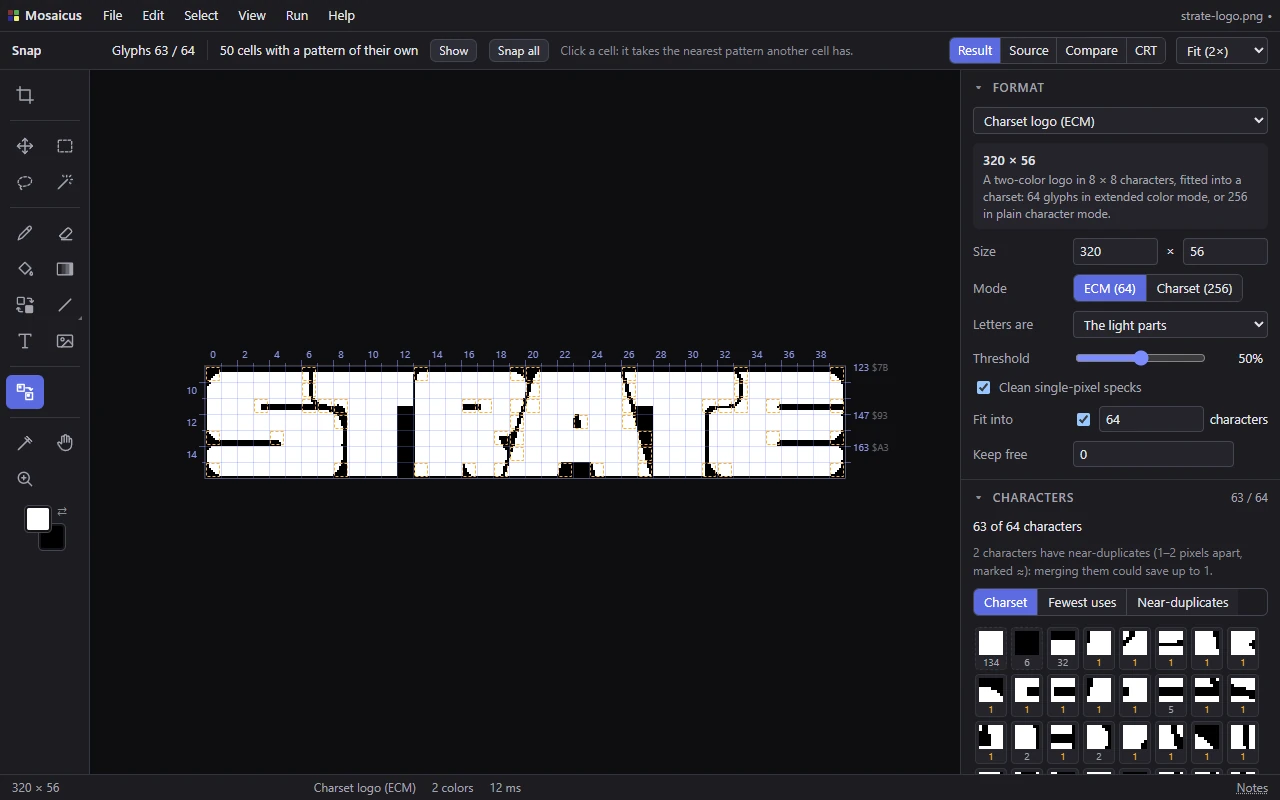
For a picture in characters with colors of its own (hires, multicolor or ECM), see Pictures in characters. The Charset logo (ECM) format makes a two-color logo from any picture: it finds the letter shape, cuts it into 8 × 8 cells, and merges the rarest patterns until the logo fits. The Snap tool and the Characters panel then let you touch it up by hand, character by character.
Two colors
A charset logo has two colors: the letters and the ink around them. Mosaicus shows the letters white and the ink black. On the C64 the ink is each character's color, and the letters are holes in it that show the background, so a program can give them any color. In extended color mode a program can even choose one of four background colors for each character, and change them line by line.
A hand edit in any color but black paints letter; black paints ink. The Colors & dither panel has no allowed colors or dithering for this format: the letter shape comes from the source by brightness or transparency, as the Format panel's options say.
ECM and plain charset
The Mode option chooses what the logo is for:
- ECM (64) (the default): extended color mode. The charset holds 64 glyphs: the character code's top two bits choose one of four background colors.
- Charset (256): plain character mode. The charset holds 256 glyphs, all on one background color.
Either way the logo itself is the same two-color picture: the mode only decides how many glyphs fit. Every charset Mosaicus makes starts with the glyphs you keep free (below), then a blank glyph (all letter) and a full one (all ink), which are always there, then one glyph for every other pattern in the logo.
The Format panel's options
- Size: the logo's width and height in pixels, in steps of 8 (a character), up to 320 × 200. It starts at 320 × 64; a picture you open in this format that fits in 320 × 200 sets the size itself, one source pixel per logo pixel (rounded up to whole characters), and is fitted inside. Up and Down step it (with Shift, ten steps).
- Mode: ECM (64) or Charset (256), as above. Switching it sets Fit into to the mode's whole charset.
- Letters are: which part of the source is the logo:
- Found automatically (the default): the opaque parts when the picture has transparency, else whichever of the dark or light parts isn't the ground around the edges;
- The opaque parts: for a logo on a transparent background, whatever its colors;
- The dark parts: dark letters on a light ground;
- The light parts: light letters on a dark ground.
- Threshold (5% to 95%, default 50%): how much of a pixel must be letter to count as letter. Lower it to make thin strokes thicker, raise it to thin them.
- Clean single-pixel specks (on by default): a pixel unlike all four of its neighbors is flipped, so no lone dots cost characters.
- Fit into N characters (on by default, 64 or 256): merge the rarest patterns into their nearest (the fewest pixels changed) until the logo fits this many characters. The count includes the glyphs kept free and the blank and full glyphs. Set it lower than the charset to leave room for your own characters; turn it off to see the logo with every pattern it has.
- Keep free (default 0): glyphs at the start of the charset left blank for your program's own use.
How many characters it needs
The Characters panel's header shows the characters the logo needs against the limit (64 / 64), and the line under it says the same in words, naming both numbers when the logo is over your limit or over what the charset holds.
When the logo needs more characters than the charset holds, the cells whose characters don't fit (the rarest ones) are the picture's clashes: they are outlined red on the picture and in the panel. Edit ▸ Recolor clashing cells can't fix them; merge or edit characters instead.
The Characters panel
The panel lists every character the logo uses, drawn in the picture's colors, each with the number of cells that use it. Its count follows every stroke you paint, as you paint it.
- Charset orders them as the charset has them (blank and full first). Fewest uses puts the rarest first: each costs a whole glyph for few cells. Near-duplicates shows only the characters that have a near-duplicate, in groups.
- A ≈ after the count marks a character with a near-duplicate: another character 1 or 2 pixels from it. The hint above the list says how many there are and how many characters merging them could save.
- Point at a character to mark its cells on the picture (cyan, with the format guides on or the Snap tool in hand; otherwise its cells flash). Click it to choose it: its cells are outlined yellow, its near-duplicates' cells yellow and dashed, and it opens in the editor below.
The character editor
The chosen character shows at 20×, with its glyph number and how many cells use it.
Paint in the editor: a click flips a pixel between letter and ink, and a drag paints every pixel it passes the same way. The stroke changes every cell that uses the character at once, as one undo step. If the character becomes the same as another, a message says so: the logo needs one character fewer.
Show flashes the cells that use it.
Near-duplicates lists the characters within 2 pixels of it, how far each is and how many cells use it:
- Merge into this one: that character's cells take this one's pattern.
- Merge this into it: this character's cells take that one's pattern.
- Merge all N into this one: every near-duplicate at once.
Each merge is one undo step and says how many cells and pixels it repainted, and whether the logo fits now. The button that would bring the logo within the limit, repainting fewer cells, is highlighted.
The blank and full characters are always in the charset and can't be edited here: paint a cell with the Pencil to make a new character.
The Snap tool
The Snap tool (N), in the toolbar for charset logos and pictures in characters, fixes cells on the picture:
- Click a cell: it takes the nearest pattern another cell already has (or blank or full), with the fewest pixels changed. When its own pattern was the only one, the logo needs one character fewer. A message says how many pixels changed.
- Alt+click a cell: choose its character in the Characters panel.
Its options bar shows:
- Glyphs N / 64 (or / 256), the limit when it is lower, and how many are too many;
- N cells with a character of their own: cells whose pattern no other cell has, outlined orange and dashed (each costs a glyph). Show flashes them; Snap all snaps each of them to the nearest pattern another cell has, as one undo step;
- N cells changed to fit: the cells the Fit into merging changed, outlined blue. Show flashes them.
What it exports as
- CharPad project (
.ctm): the charset and the screen map in ECM or hires character mode, for CharPad 2.7 or later and C64 Studio. The letters are white (CharPad's background 1,$D021), the ink black (the character color). - Charset and screen map (
.bin): the 64- or 256-glyph charset (8 bytes a glyph), then a glyph number for each cell, row by row. - Charset only (
.chr) and Screen map only (.bin). - Assembly source, PNG, a C64 program (the logo centered on the screen in ECM or character mode, white letters on black ink) and its viewer source.
See Exporting.
Related pages
- Framing: place the logo's source in its frame.
- Pictures in characters: pictures in hires, multicolor or ECM characters, in color.
- Sprite sheet: the other format made for programs.
- Pencil: paint letter and ink by hand.