Paint colors
Mosaicus paints with two colors at a time: the primary color and the secondary color. The left mouse button paints the primary, the right button the secondary.
The color chips
The two chips below the tools show the paint colors: the primary in front at the top left, the secondary behind it. A new session starts with white as the primary and black as the secondary.
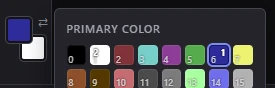
- Click a chip to choose its color from a pop-up of the 16. The pop-up marks the primary with 1 and the secondary with 2. A click on the picture while it is open only closes it: it paints nothing.
- Right-click either chip to choose the secondary color.
- Swap the two with the ⇄ button beside the chips, with X, or with Edit ▸ Swap colors.
The colors are those of the picture's palette (the Palette setting: see Palettes and colors).
Picking colors
- The Paint palette panel in the right column shows the 16 colors: click one for the primary, right-click it for the secondary. Point at a color to see how many of the picture's pixels have it.
- The Eyedropper (I) picks a pixel's color: left button the primary, right button the secondary. Dragging keeps picking. See Eyedropper, Hand and Zoom.
- Alt+click with the Pencil, Fill, Replace color, Shapes, Text or Image stamp picks a color the same way, without leaving the tool.
- The gradient editor: clicking a color of a gradient's ramp makes it the primary (see Gradient).
The Eyedropper picks the color the picture shows, whether it is a hand edit or the conversion.
NoteThe Allowed colors of the Colors & dither panel limit the converter, not you: you can paint with any of the 16. A few things do follow them: the Pencil's Shade ramp leaves out colors that aren't allowed, and the automatic gradient ramp goes only through allowed colors.
What the right button does
Most tools paint the secondary color with the right button where the left paints the primary. Where a tool paints two colors at once, the right button swaps them:
- A pattern or a dither mix puts the secondary where it would put the primary, and the other way round.
- The Pencil's Shade steps colors darker with the right button instead of lighter.
- A gradient started with the right button runs the other way.
- A brush picked up from the picture paints its shape in the secondary color.
Formats with their own colors
A charset logo has two colors only: the ink and the letter. When a picture becomes a charset logo, the paint colors snap to them: black is the ink, any other color the letter. See Charset logo.
A sprite sheet paints in four roles instead of 16 colors: 1 Transparent, 2 $D025 (shared by all sprites), 3 Own (each column of sprites its own color) and 4 $D026 (shared). In a sprite sheet:
- the role chips under the paint chips, and the Paint palette panel, show the four roles: click one for the primary, right-click it for the secondary;
- the keys 1 to 4 make a role the primary color, Shift+1 to Shift+4 the secondary;
- the chips' pop-up offers the four roles;
- any color you paint becomes one of the four its column can show: the column's own color stays, another column's own color becomes this column's, and any other color its nearest role.
See Sprite sheet.
Related
- Cell limits and clashes: what happens when a color doesn't fit its cell
- Pencil, Fill, Gradient