Opening pictures
Open any picture to convert it into a C64 picture, or open a file from a C64 paint program to touch it up. This page covers the ways to open a file, the file types Mosaicus reads, and what it does with each.
Ways to open a file
- File ▸ Open picture… (Ctrl+O) opens a picture, or a C64 picture file.
- Drop a file onto the window: a picture, a C64 file or a Mosaicus project. Drop several and only the first opens. Nothing opens while a dialog is open.
- File ▸ Open recent lists the last 8 pictures and projects you opened. One that isn't there any more says so and leaves the list.
- The Open… button in the Frame panel, when the picture has no source.
A picture opened this way becomes a new picture. If the one on screen has unsaved changes, Mosaicus asks first.
Projects (.mosaicus files) open with File ▸ Open project… (Ctrl+Shift+O). See Projects.
Pictures to convert
Mosaicus reads PNG, JPEG, GIF, BMP, WebP, TIFF and TGA pictures: photos, scans, drawings, pixel art, logos, of any size. A very large photo is made smaller first, just enough for the format, so it converts as quickly as a small one.
A PNG (or other picture) with transparency is fine: its see-through parts take the Fill color (see Framing), and the Frame panel says "has transparency" after its size. Select ▸ Transparent in the source selects those parts later. See Selecting.
A new picture starts from the last picture's settings, or from a preset (see Starting from the last picture). Then Mosaicus looks at the picture and frames it to suit:
| The picture | What Mosaicus does | What it says |
|---|---|---|
| For a sprite sheet, logo or picture in characters | The Sprite sheet, Charset logo or picture in characters is sized from the picture when it fits, one source pixel per pixel (two across for wide pixels) | "Sized from the picture: …" |
| Pixel art | Fit inside, Downscale: Majority (so no dither; your dither choice is kept for another Downscale) | "Looks like pixel art: framed to fit, scaled by majority, no dither." |
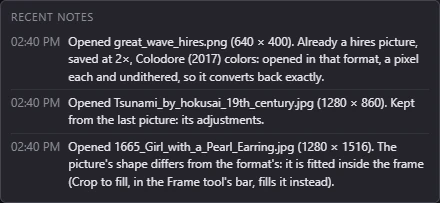
| Another shape | Fit inside, so nothing is cropped away | "The picture's shape differs from the format's: it is fitted inside the frame…" |
| Anything else | Crop to fill | nothing |
Pixel art here is a picture no more than four times the format's size each way, with at most 64 colors, most of its pixels the same color as the one beside them (or a tiny picture of a few colors). Another shape is one more than a quarter wider or taller than the format's. See Majority, for flat art and pixel art for why pixel art gets Majority.
The message shows in the status bar at the bottom of the window; the Notes button there lists the last few in full.
The Frame tool on opening
A picture to convert opens with the Frame tool (C) in hand, so you can place it straight away: drag its edges and corners, or scale it with the mouse wheel. Choose any other tool when it's placed. See Framing.
A picture already in a C64 format (below) doesn't take up the Frame tool: there's nothing to place. A C64 picture file puts the Frame tool down and gives you the Pencil.
Pictures already in a C64 format
Some pictures are C64 pictures already: a hires or Koala picture another program saved as a PNG, a logo drawn to the format's rules, or a screenshot from VICE or the C64 Ultimate. Mosaicus recognizes these and opens them in their format exactly, so converting gives every pixel back as it was.
A picture counts when:
- it has at most 16 colors, every one of them a C64 color in a known palette (Colodore or Pepto, or one of 22 of VICE's palettes), with no half-transparent pixels;
- every cell keeps to the format's limits (two colors in each 8 × 8 cell for hires; a shared background and three more in each 4 × 8 cell for Koala, its pixels in pairs);
- it is at the format's own size or smaller, or the same scaled up a whole number of times (up to 8×);
- or it is a screenshot of a whole screen with its border (384 × 272, 384 × 247, 384 × 240, 403 × 284 or 504 × 312, at 1× or scaled up): the border is cut away.
A picture smaller than the screen (a logo) is placed on the cell grid, centered, or where a screenshot had it.
It then opens as Hires bitmap or Multicolor bitmap (Koala) with its own palette (a palette that isn't built in is kept as a loaded one), its background, no adjustments, no dither, Downscale: Majority, and a free placement of one source pixel per format pixel. The color around it becomes the Fill color. The status bar says so, for example: "Already a hires picture, saved at 2×, Colodore (2017) colors: opened in that format, a pixel each and undithered, so it converts back exactly."
NoteRecognition is skipped while the format is Sprite sheet, Charset logo or a picture in characters: those size themselves from the picture instead.
C64 picture files
Files saved by C64 paint programs, and the data Mosaicus exports, open as pictures to edit as they are. They have no source to convert: the Frame panel says "opened as it is", and the Adjust panel and the dither settings don't apply. The picture is already hand edits, in the file's format, palette and background.
| Program or kind | File types | Opens as |
|---|---|---|
| Koala Painter | .koa, .kla |
Multicolor bitmap (Koala) |
| Advanced Art Studio | .ocp, .mpic |
Multicolor bitmap (Koala), with its border color |
| Interpaint multicolor | .ipt |
Multicolor bitmap (Koala) |
| Art Studio | .art, .aas |
Hires bitmap, with its border color |
| Doodle! | .dd, .ddl |
Hires bitmap |
| Hi-Eddi | .hed |
Hires bitmap |
| Interpaint hires | .iph |
Hires bitmap |
| AFLI | .afl |
Hires FLI (AFLI) |
| FLI Designer (load address $3C00) | .fli |
Multicolor FLI |
| FLI Graph (Blackmail FLI) | .bml |
Multicolor FLI |
| SpritePad | .spd |
Sprite sheet |
| Sprites | .spr |
Sprite sheet (a .spr keeps no shared colors: the sheet's defaults) |
| CharPad | .ctm |
Hires, Multicolor or ECM characters, as the project's mode, with its colors (a project in a charset logo's white and black, one color for the whole map: Charset logo); maps of up to 40 × 25 (Pictures in characters) |
| A charset | .chr |
Charset logo: its characters in order, 40 across |
| Mosaicus raw data and assembly data | .bin, .asm, .s |
The format the export was made in |
| Mosaicus PNG exports | .png |
The format the export was made in, exactly |
A note in the status bar says what was read, and anything the file couldn't keep (for example, sprites of different colors in one column of a sprite sheet). An FLI file's left 24 pixels show as a C64 shows them.
Some files don't open, and say why: a C64 program (.prg), a viewer's source, the data of a bitmap + sprites or FLI + sprites picture (it doesn't keep where the sprites went: open its project or PNG instead), a charset's screen map or colors on their own.
When you open a picture to convert after a C64 file, it starts from your own settings, not the file's format, palette and background.
Starting from the last picture
A new picture to convert keeps the last picture's settings: the format and its size, the palette, the allowed colors, the background and shared colors, the adjustments, the dither and quality, and the pixel aspect. The framing starts over: Crop to fill, centered, unturned, Lanczos, a black fill.
What only suited the last picture doesn't carry over: the framing Mosaicus chose for it when it opened, the format and palette of a recognized C64 picture or a C64 file, the sprites placed by hand, and a sprite sheet's colors. You get your own choices back.
When something carried over changes how the new picture looks, the status bar says so: "Kept from the last picture: its adjustments, its background (0 black) and its pixel aspect (PAL)." It names the adjustments, a fixed background, the allowed colors, a PAL or NTSC pixel aspect, and the sprite count and shared sprite colors of the sprite formats.
If you chose a preset under New pictures in the Presets panel, every new picture starts from it instead, and the note says so. See Presets.
Replace source…
Replace source… in the Frame panel puts another picture under the one you are working on. Your hand edits, the format and every setting stay. It is one step in the history. The dialog starts in the source's folder and offers pictures only: a C64 picture file can't be a source.
If the source was placed freely with the Frame tool and the new one has another shape, the placement keeps its center and height, and its width follows the new picture's shape. The status bar says so.
When a project's source picture has moved or can't be read, the button reads Find it…: pick the picture, or another one, and the project carries on with it. See Projects.