Presets
A preset keeps the settings that suit a kind of picture (scanned magazine covers, dark photos, pixel art) under a name, so the next picture of that kind converts the same way in one click. Presets belong to the app, not to a picture: every picture and project can use them.
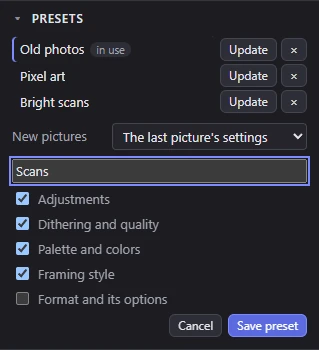
What a preset keeps
A preset keeps the groups of settings you choose when you save it:
| Group | What it holds | On by default |
|---|---|---|
| Adjustments | Brightness, contrast, gamma, saturation, hue, black point, sharpen | Yes |
| Dithering and quality | The dither and its options (Strength, Similar only, Serpentine, Wide pixels), Protect outlines and Outline width, and Quality (Best, or the fast conversion) | Yes |
| Palette and colors | The palette (a loaded one with its colors), the allowed colors, and a background or shared color chosen for every cell | Yes |
| Framing style | Crop to fill or Fit inside, Downscale, Pixel aspect and Fill color, but not where the picture is placed (Scale, Offset, Rotate, Flip or a free placement) | Yes |
| Format and its options | The format, its size and options, and Turbo, but not a picture's own sprite places or a sprite sheet's columns | No |
A preset never keeps what belongs to one picture: where it is placed, sprites placed by hand or kept clear, a sprite sheet's columns.
Saving a preset
- Set the picture up as you like it.
- Click Save… at the top of the Presets panel.
- Type a name (for example "Scanned covers") and tick the groups to keep.
- Click Save preset.
Save preset needs a name and at least one group. Names are the same in any case: saving under a name that's taken asks first, and Replace puts the current settings in its place.
Applying a preset
Click a preset's name. Its settings replace yours, the picture converts again, and it is one step in the history. The status bar says what was applied, for example "Applied Old photos: adjustments, dithering and quality, palette and colors, framing style."
- A framing style ends a free placement: the source is framed in its own shape again, as Crop to fill and Fit inside do.
- A format of another size can leave some hand edits out, or scale them. A note counts them.
- A picture with no source (a blank picture, or a C64 file opened as it is) takes only a preset's Palette and colors and Format and its options: the rest sets how a source converts. A preset with none of those two is grayed out there.
Hover over a preset's name to see what applying it sets here.
In use
A preset whose settings your picture already has is marked in use. Change one of its settings and the mark goes. A framing style doesn't count as in use while the source is placed freely.
Updating and deleting
- Update keeps the current settings in the preset, for the groups it already holds. It asks first.
- × deletes the preset. It asks first. Pictures already converted with it keep their settings.
New pictures
Once you have a preset, New pictures in the panel chooses what each picture you open to convert starts from:
- The last picture's settings (the default): see Opening pictures.
- Start from a preset: every picture opened to convert starts from it. The preset's format comes first, then Mosaicus frames the picture for it. Where the framing it would choose for the picture (Fit inside for an odd shape, Majority for pixel art) differs from the preset's, the preset wins, and the status bar says so: "Started from the preset Scans, over the framing this picture would get (…)."
A picture already in a C64 format still opens exactly as it is, whatever the choice. See Opening pictures.
Where presets are kept
Presets are kept in one file, presets.json, in the app's own folder:
| System | Folder |
|---|---|
| Windows | %LOCALAPPDATA%\Mosaicus |
| macOS | ~/Library/Application Support/Mosaicus |
| Linux | $XDG_DATA_HOME/Mosaicus, or ~/.local/share/Mosaicus |
Every window of the app shares them: a preset saved in one shows in the others. Copy the file to take your presets to another computer.
If the file can't be read, the panel says why and changes nothing in it. Set it aside and start over renames it (to presets.json.bad, kept for you to look into) and begins a new one.
On the command line
mosaicus convert takes a preset by name:
mosaicus convert photo.jpg --preset "Old photos"
The preset's settings apply to the picture; options given on the command line (--format, --dither, --wide, --palette) go over them. Without --format, the format is the preset's, else Koala. --preset is ignored when converting a project. See Command line.
Related pages
- Adjustments, Dithering, Palettes and colors and Framing: the settings a preset keeps.
- Undo and history.