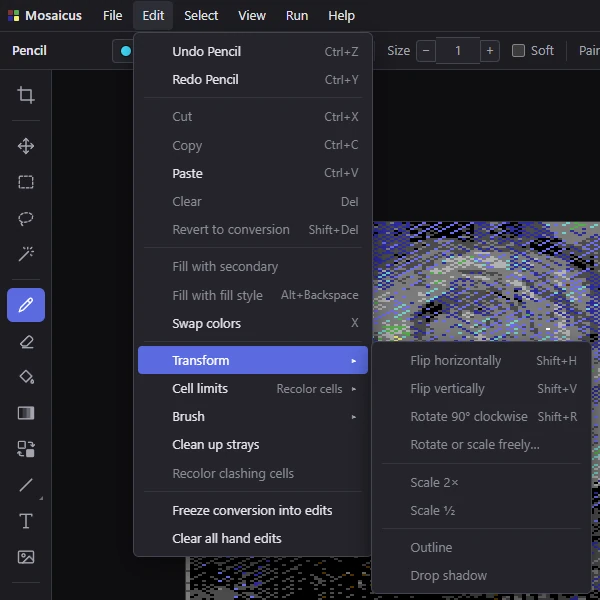
Every menu item, in the order the menus show them, with its shortcut and a link to the page that covers it.
Edit ▸ Transform: its items are grayed out until something is selected
The menus' own keys are in The window . On macOS, read
Cmd for Ctrl .
# File
Item
Keys
What it does
New picture… Ctrl +N A blank picture in the format you choose. Painting from blank
Open picture… Ctrl +O A picture to convert, or a C64 paint program's file to edit as it is. Opening pictures
Open project… Ctrl +Shift +O A .mosaicus project. Projects and saving
Open recent ▸ The last eight pictures, C64 files and projects opened. Projects and saving
Save project Ctrl +S Saves the project (asks where the first time). Projects and saving
Save project as… Ctrl +Shift +S Saves it under another name. Projects and saving
Export… Ctrl +E Files for C64 paint programs, data, assembly, PNG or a C64 program. Exporting
Remove source picture The conversion goes and only your hand edits stay (asked first; Freeze and remove keeps the picture as it looks). Undo and history
Preferences… Ctrl +, Where VICE is, the standard it runs, the C64 Ultimate's address. Preferences
Exit Closes Mosaicus.
# Edit
Item
Keys
What it does
Undo Ctrl +Z Takes back the last step; the item names it (Undo Pencil ). Undo and history
Redo Ctrl +Y Does it again. Undo and history
Cut Ctrl +X The selected pixels to the clipboard, cleared from the picture. Cut, copy and paste
Copy Ctrl +C The selected pixels to the clipboard. Cut, copy and paste
Paste Ctrl +V A floating piece from the clipboard, ours or another program's picture. Cut, copy and paste
Clear Del The selection becomes the background color (a floating piece goes). Making a selection
Revert to conversion Shift +Del The hand edits in the selection go: the conversion shows there again. Undo and history
Fill with secondary The selection in the secondary color. Fill
Fill with fill style Alt +Backspace The selection in the Fill tool's fill style, in the primary color first. Fill
Swap colors X Swaps the primary and secondary paint colors. Paint colors
Transform ▸ Turning, scaling and outlining the selection (below). Moving and transforming
Cell limits ▸ What painting does when a cell would get too many colors (below). Cell limits and clashes
Brush ▸ The brush's size and shape, and mirror painting (below). Pencil
Clean up strays Each stray pixel takes the color most of its neighbors have, in the selection or the whole picture. Checks
Recolor clashing cells Every cell with too many colors keeps the colors most of its pixels have, and the rest take their nearest, as the C64 shows it (one step). Cell limits and clashes
Freeze conversion into edits Every pixel of the conversion becomes a hand edit, so later settings leave the picture as it is. Undo and history
Clear all hand edits Every hand edit goes: the conversion shows again. Undo and history
These work on the selection or the floating piece; the flips, turns and scales lift a selection into a
floating piece first. Moving and transforming
Item
Keys
What it does
Flip horizontally Shift +H Mirrors it left to right.
Flip vertically Shift +V Mirrors it top to bottom.
Rotate 90° clockwise Shift +R Turns it a quarter turn.
Rotate or scale freely… The Move tool, with the angle, a turning handle and size handles on the floating piece.
Scale 2× Twice the size.
Scale ½ Half the size, each 2 × 2 block one color.
Outline A 1-pixel outline in the secondary color around it.
Drop shadow A shadow in the secondary color under it.
# Edit ▸ Cell limitsOne choice; the row shows the current one. Grayed out in formats without cell limits.
Cell limits and clashes
Item
What it does
Recolor cells A color a full cell can't take replaces the cell color that loses least; its pixels take their nearest remaining color.
Keep cell colors A pixel that would give its cell one color too many is left out.
Allow clashes Paint anything; cells with too many colors are outlined red and recolored on export.
# Edit ▸ Brush
Item
Keys
What it does
Bigger brush ] One size bigger (up to 32). Pencil
Smaller brush [ One size smaller (down to 1).
Usual brush Back to the usual brush from one picked up from a selection.
Use selection as brush Ctrl +B The Pencil paints with the selected pixels.
Use selection as fill pattern Ctrl +Shift +B The selected pixels become the fill pattern, in their own colors, lined up with where they are. Fill
Mirror painting: next Shift +M The next mirror mode: off, left ↔ right, top ↕ bottom, four ways, turned 4 ways, turned 8 ways. Symmetry
# Select
Item
Keys
What it does
All Ctrl +A Selects the whole picture. Making a selection
Deselect Ctrl +D Selects nothing.
Inverse Ctrl +Shift +I Selects what wasn't selected.
Transparent in the source The pixels where the source picture is see-through or doesn't reach, whatever their color now. Making a selection
Grow… Makes the selection bigger by a number of pixels.
Shrink… Makes it smaller by a number of pixels.
Save selection… Keeps the selection by name, saved with the project. Saved selections
Load selection ▸ A saved selection. Click: replace the selection; Shift -click: add to it; Alt -click: take it away; Shift +Alt -click: keep only what both have. Saved selections
Place the floating piece Enter Puts the floating piece down. Moving and transforming
Stamp a copy Puts a copy down; the piece floats on.
Put back / deselect Esc A floating piece goes back where it came from; else the selection goes.
# View
Item
Keys
What it does
Result Alt +1 The converted picture. Result, source, compare and CRT
Source and frame Alt +2 The source picture and its frame.
Compare with source Alt +3 Source and result side by side, split by a slider.
CRT Alt +4 On a model of a PAL or NTSC TV or monitor. The CRT model
Preview window F3 A floating preview over the canvas. Preview
Preview in its own window Shift +F3 The preview in a window of its own. Preview
Side panels Ctrl +\ Hides or shows the side panels: hidden, the canvas takes their room. The window
Zoom ▸ Zooming the view (below). Eyedropper, Hand and Zoom
Pixel aspect ▸ The shape of a pixel on the screen the picture is for: Square pixels , PAL TV or NTSC TV . It frames and shows the picture. Framing
Pixel grid Ctrl +' Lines between the pixels. Overlays
Format guides (cells, chars, sprites) Ctrl +; The format's cells, characters or sprite boxes, with rulers. Overlays
Sprites Q Shows the sprites, or the bitmap alone (the formats with sprites over a bitmap). Bitmaps with sprites
Sketch layer ▸ The sketch layer (below). Sketch layer
Checks ▸ Views and marks for checking the picture (below). Checks
# View ▸ Zoom
Item
Keys
What it does
Zoom in Ctrl += One zoom step in, about the middle of the canvas (in the CRT view, the tube's zoom).
Zoom out Ctrl +- One step out.
Fit to window Ctrl +0 The whole picture in the canvas.
Actual pixels Ctrl +1 The zoom nearest 2× that keeps pixels even on your display; the item shows which (Actual pixels (2×) ).
# View ▸ Sketch layer
Item
Keys
What it does
Draw on sketch layer S The Pencil, the Eraser, the Shapes and the Text draw on the sketch layer instead of the picture.
Show sketch Shift +S Shows or hides the sketch layer.
Sketch over the picture The sketch shows over the picture.
Sketch under: shows through the background color The sketch shows only through the pixels in the background color, so painting over a line hides it.
Clear sketch Clears the sketch layer (one step).
# View ▸ Checks
Item
Keys
What it does
Brightness only Y The picture in brightness only, to check its contrast; painting works as usual.
Luma levels (9) Shift +Y The later VIC-II chips' 9 brightness levels: colors with the same brightness show as one gray.
Mark stray pixels Marks lone pixels: pixels with no neighbor of their own color.
Mark jaggies Marks jaggies: steps of a line or an edge out of line with the steps beside them.
Mark hand edits Marks the pixels you painted.
Trace the source Shift +O The source picture over your painting, lined up with it.
# Run
Item
Keys
What it does
In VICE F5 Runs the picture in the VICE emulator (x64sc, or xscpu64 for the SuperCPU format). Not for the C64 Ultimate formats. Running on a C64
On C64 Ultimate Shift +F5 Sends the picture to your C64 Ultimate or Ultimate 64 over the network, after asking (it resets the machine). The item shows the address. Not for the SuperCPU format. Running on a C64
# Help
Item
Keys
What it does
Mosaicus help Opens these help pages in your browser.
Keyboard shortcuts F1 Lists every shortcut. Keyboard shortcuts
About Mosaicus The version, the license and credits. About Mosaicus