Preview
The preview shows the whole picture at its real size while the canvas is zoomed in on a few pixels: you see what a change does to the picture as a whole. It also shows it the way a viewer will see it: sharp, on a modern flat screen with scan lines, or on a CRT TV. It follows every change, your strokes included.
| Command | Key | What it does |
|---|---|---|
| View ▸ Preview window | F3 | Opens or closes the floating Preview panel. With the preview in its own window, brings that window to the front. |
| View ▸ Preview in its own window | Shift+F3 | Opens the preview in a window of its own, for example on a second monitor. |
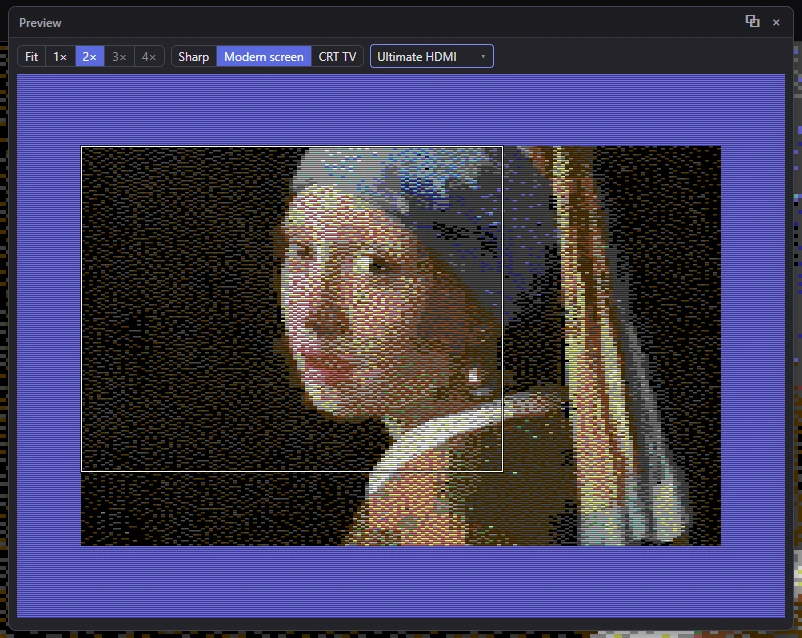
The Preview panel
On the panel's title bar, ⧉ opens the preview in its own window.
Its bar has three groups:
- The size: Fit, then sizes such as 1×, 2×, 3× and 4×.
- The mode: Sharp, Modern screen or CRT TV.
- The options: a pop-up whose button says Options, or in Modern screen the look in use.
Sizes
The sizes count screen rows per C64 line: at 2×, each line of the picture is 2 rows of your display. Every line gets a whole number of rows and every pixel a whole number of columns, so the pixels are exact at any display scaling. On a scaled display, the buttons are the whole numbers of the display's own rows that come nearest 1× to 4×: at 125% they read 0.8×, 1.6×, 2.4×, 3.2× and 4×. On a display below 200%, 2 rows (the fewest that show scan lines) is always one of them.
- Fit makes the panel as big as it can be while it covers about 40% of the canvas at most. In Modern screen it takes 2 rows a line when they fit (up to half the canvas), so the scan lines show.
- When even the smallest size would hide much of the picture, the panel says so and offers Open it in its own window.
The navigator
When the canvas is zoomed in, the preview shows the canvas's view as a rectangle. Drag on the preview to move the canvas's view there: the fastest way around a big zoom. The navigator works with the Result and Compare views, in the Sharp and Modern screen modes.
Modes
Sharp
The C64's pixels, sharp and square-edged, as an emulator shows them with no filter.
Modern screen
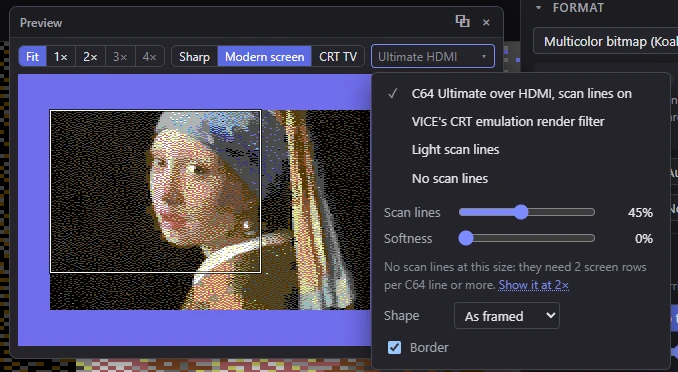
The picture as a flat LCD or OLED screen shows it: a C64 Ultimate over HDMI, or VICE. The gaps between the C64's lines are darkened (scan lines), and the pixels can be softened along each line, as VICE's render filter does. It's much lighter than the CRT model.
The options pop-up lists four looks, then the two sliders they set:
| Look | Scan lines | Softness |
|---|---|---|
| C64 Ultimate over HDMI, scan lines on (the first one) | 45% | 0% |
| VICE's CRT emulation render filter | 33% | 50% |
| Light scan lines | 18% | 15% |
| No scan lines | 0% | 0% |
- Scan lines: how dark the gaps between the lines are, 0% (none) to 100% (black).
- Softness: blur along each line, 0% (sharp pixels) to 100% (each pixel blended with its neighbors).
Moving a slider makes your own look, and the button then says Custom look. The looks are approximations: an Ultimate over HDMI with its Scan lines setting on, and VICE's default render filter.
Scan lines need at least 2 screen rows per line. At a size with only 1, the pop-up says so, and offers to show the preview at a size with 2 when it fits (or to make the window bigger, or to open the preview in its own window).
CRT TV
The picture on the TV set in the CRT view, with all of its Screen, Signal and Tube settings. Its options pop-up only points there: Show them switches to the CRT view and shows the side panels, where those settings are.
- A TV shows the C64's border always.
- The tube is drawn at 4:3, and at Fit it takes any size that fits.
- A size button makes the TV as tall as the sharp view at that size.
- It updates when a stroke ends, not while you paint it: the TV's signal is made again for each change.
- On an NTSC C64 with a composite cable, the dot crawl isn't animated here: the preview shows one frame, or the blend of both when the CRT view's Dot crawl is Blended.
Shape and border
In Sharp and Modern screen, the options pop-up also has:
- Shape: the pixels' shape. As framed (the picture's own pixel aspect, at first), PAL pixels, NTSC pixels or Square pixels. The PAL and NTSC shapes are as exact as whole screen pixels allow: exact from about 8 screen rows a line up.
- Border: the C64's border around the picture (on at first). Its color is the Border color in the CRT view's Screen panel, light blue at first.
The preview in its own window
View ▸ Preview in its own window (Shift+F3), or ⧉ on the panel, moves the preview into a window of its own: in the app a second window you can put on another monitor, in a browser a browser window. The floating panel closes.
- It opens at Fit, as big as fits in most of the screen, centered on it. At Fit, the preview takes the most rows that fit the window.
- It has the same sizes, modes and options as the panel. The mode, the look, the shape and the border are shared (a change in one shows in the other); the window's size buttons are its own.
- It has no navigator: pan the canvas itself to move around.
- It follows every change, strokes included (CRT TV when a stroke ends).
- On top (in the app) keeps it above the other windows.
- Ctrl+Z and Ctrl+Y (or Ctrl+Shift+Z) in it undo and redo in the main window.
- Esc or F3 in it closes it.
F3 in the main window brings the preview's window to the front instead of opening the panel.
What the preview shows
The preview shows the picture as it will be: your hand edits and a floating piece as you move it, but not the sketch layer, the overlays, the checks' marks or the brightness view. Its settings (where the panel is, the sizes, the mode, the look) are remembered for next time.
Related
- The CRT model: the settings the CRT TV mode uses.
- The views: the CRT view, and the pixel aspect.
- Running on a C64: the real thing, in VICE or on a C64 Ultimate.