Fill
The Fill tool (G) fills with one click: the area of one color you click, every pixel of that color, or the whole selection. It fills in its fill style: a plain color, a pattern, a dither mix, or a generated fill such as a maze or bricks. Gradients have a tool of their own: Gradient (Shift+G).

Filling
- Click to fill with the fill style, using the primary color.
- Right-click to fill with the two paint colors swapped: a plain fill in the secondary color, a pattern or a mix the other way round.
- Alt+click picks the color under the pointer instead.
With a selection, a fill never goes outside it. Each fill keeps the cell limits as the Cells option says: with Recolor cells, a fill is planned a whole cell at a time, so a pattern or a mix keeps its look in each cell; with Keep cell colors, a fill with many pixels that don't fit (more than a tenth of it) waits for you to choose.
What it fills
Fills chooses what a click fills:
- The area clicked (the default): the pixels of the clicked color that touch it, side by side or above and below (not across corners). Only exactly that color counts: there's no tolerance.
- That color everywhere: every pixel of the clicked color, wherever it is.
- The selection: the whole selection, whatever its colors; the whole picture when nothing is selected.
The first two stay inside the selection when there is one. They go by the colors the picture shows, hand edits and conversion alike.
Fill styles
The menu after Fills chooses the fill style. Each tool that fills has its own (the Fill tool, Gradient, Shapes, Text, Image stamp and the Pencil), and Mosaicus remembers them between sessions. Beside the menu, a swatch shows the style; for every style but the plain color, click the swatch to edit it.
| Fill style | What it paints |
|---|---|
| Primary color | The primary color (right button: the secondary) |
| Pattern | A small pattern of the two paint colors, repeated |
| Pattern in its own colors | A tile picked up from the picture, repeated in its own colors |
| Dither mix | The two paint colors mixed at a level, in a dither |
| Linear, Radial, Diamond, Conical gradient | Take up the Gradient tool |
| Generated (maze, bricks…) | One of 26 generated fills |
Patterns, pattern tiles, dither mixes and generated fills are all laid from the picture's top left corner, in the format's own pixels (a multicolor pixel counts as one; Multicolor + sprites' bitmap pixel pairs count as one). So two fills side by side line up, and filling over a fill with the same style changes nothing.
Choosing a gradient in the Fill tool's menu takes up the Gradient tool, with that kind of gradient and the same Fills choice: gradients have one home. (A gradient style the Fill tool still has from before is placed live, just as the Gradient tool places it.)
Pattern
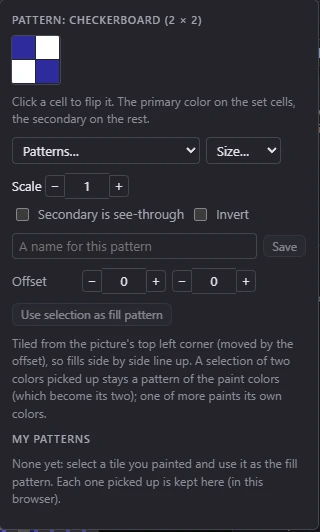
A pattern is a small grid of set and clear cells: the primary color goes on the set cells, the secondary on the rest. In its editor:
- The tile: click a cell to flip it. A pattern you change this way is named yours.
- Patterns… offers the built-in ones: Checkerboard; Checkerboard, wide pixels; Checkerboard 2 × 2; Checkerboard 4 × 4; 75%; 25%; 12%; 6%; Horizontal lines (PAL blend); Horizontal lines, thin; Vertical lines; Vertical lines, thin; Diagonal /; Diagonal \; Diagonal / wide; Grid; Grid, small; Crosshatch; Dots; Bricks; Diamonds; Zigzag; Waves; Scales; Weave; Stars.
- Size… gives the pattern a new size (2 × 2 up to 16 × 16, or 8 × 4, 4 × 8, 4 × 2, 2 × 4), the pattern repeated into it.
- Scale: each cell of the pattern this many pixels (1 to 8).
- Secondary is see-through: the clear cells paint nothing, so only the set cells change pixels.
- Invert: set and clear cells swapped.
- Save: type a name and save the pattern; your saved patterns are listed with a ★ (click one to use it, × to forget it). They are kept on this computer, for every project.
- Offset: where the pattern's top left corner lands, counted from the picture's top left corner. A pattern picked up from the picture also has Lined up with where it was picked up: on, it continues the pixels it came from; off, it starts from the picture's corner.
- Use selection as fill pattern and My patterns: below.
Horizontal lines of two colors of the same brightness blend into one on a PAL screen; the Horizontal lines (PAL blend) pattern is made for that.
Pattern in its own colors
A pattern in its own colors is a tile you painted, picked up from the picture: it paints its own colors, not the paint colors, and its clear pixels (those outside the selection it was picked up from) paint nothing. It keeps the cell limits like any other paint. In its editor:
- the tile, its size and how many colors it has;
- Use selection as fill pattern, to pick up another;
- Scale (1 to 8) and Offset, with Lined up with where it was picked up, as for a pattern;
- As a pattern of the paint colors, for a tile of two colors: the same pixels as a pattern of the two paint colors, which become its two colors, so you can recolor it. A message offers to bring the paint colors you had back.
- My patterns.
A tile can be up to 64 × 64 pixels. Picked up in one pixel shape and used in another (wide multicolor pixels in a hires picture, say), its pixels are the new format's pixels as they are, so it shows twice or half as wide; the editor says so. Until you pick one up, the style has no pattern, and filling with it says how to pick one up.
My patterns
Every pattern picked up from the picture is kept in My patterns, newest first (up to 48, on this computer, for every project). They show in the editors of both kinds of pattern:
- click a pattern to use it (in the pattern editor, one of two colors becomes a pattern of the paint colors, and they become its two; one of more colors is used in its own colors);
- ✎, or a double-click on its name, renames it;
- × forgets it (a fill style using it keeps it).
To pick one up, select a small tile you painted, then click Use selection as fill pattern in either editor, press Ctrl+Shift+B, or choose Edit ▸ Brush ▸ Use selection as fill pattern. The selected pixels become the fill style of the tool in hand (with a tool that doesn't fill, the Fill tool's, and the Fill tool is taken up), lined up with where they were. The selection goes and the picture stays as it was. The tool is made to paint its fill style: Shapes takes up the filled version of its shape, the Pencil paints the pattern, the Image stamp uses the fill style for its colors.
Dither mix
A dither mix spreads the two paint colors over the area in a fine pattern, the primary on a share of the pixels (the level) and the secondary on the rest, so the eye sees a color between them. In its editor:
- a preview of the mix, and a row of levels to click, from all secondary to all primary;
- Level: the primary color's share, in the steps the dither has; Shift+[ and Shift+] step it a level less or more while the tool fills with a mix (50% to start);
- Dither: the pattern it mixes in (Bayer 4 × 4 to start):
| Dither | Levels | Its look |
|---|---|---|
| Bayer 2 × 2 | 4 | A few clean, even mixes |
| Bayer 4 × 4 | 16 | The classic crosshatch look |
| Bayer 8 × 8 | 64 | Many fine steps |
| Checker only (50%) | 2 | Nothing but the checkerboard |
| Clustered dots 4 × 4 | 16 | Halftone: the pixels grow in dots |
| Clustered dots 8 × 8 (45°) | 64 | Halftone on a 45° screen, like print |
| Horizontal lines (PAL blend) | 16 | Whole lines first: colors of the same brightness blend on a PAL screen |
| Vertical lines | 16 | Whole columns first |
| Diagonal lines | 16 | Whole diagonals first |
| Blue noise | 64 | Even, without a pattern to see |
| Random (white noise) | 64 | Grainy, like Deluxe Paint's dithered gradients |
- Secondary is see-through (mix over the picture): the secondary paints nothing, so the primary is mixed into what's already there.
On multicolor's wide pixels, the Bayer dithers follow the picture's Wide pixels choice in the dithering settings, as the converter's do.
Generated fills
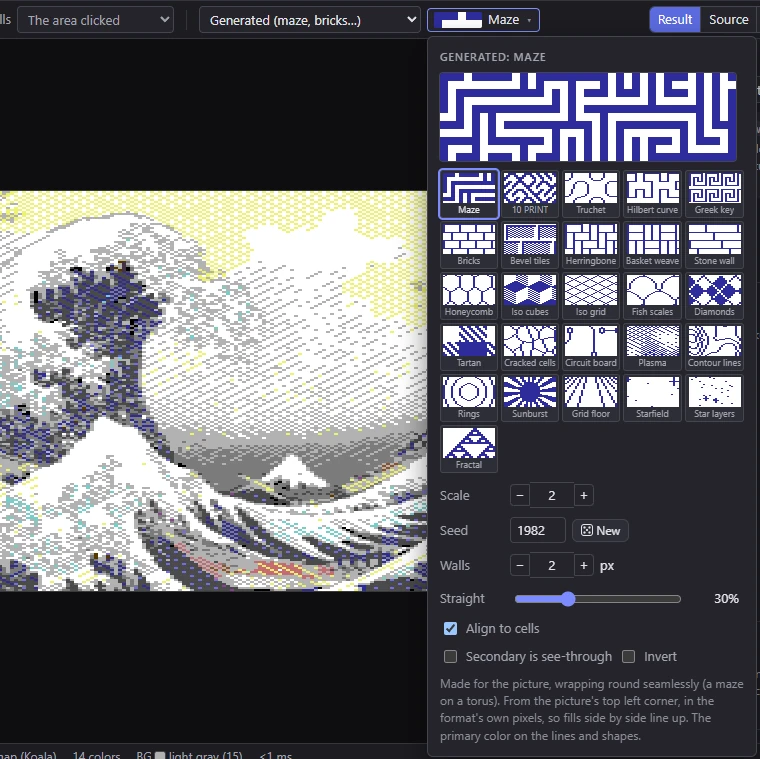
Generated fills draw a structure over the whole area: mazes, masonry, tilings, plasma, starfields. They're made for logo backgrounds and filler. Each paints the primary color on its lines and shapes and the secondary on the rest, like a pattern; some can instead run their shades through a ramp of colors.
The 26 generators, and the settings each adds:
| Generator | What it draws | Its own settings |
|---|---|---|
| Maze | A perfect maze: every corridor reachable, by one way only | Walls (thickness), Straight (how long corridors run before turning) |
| 10 PRINT | The C64 classic: a ╱ or a ╲ in every cell | Line (width), Balance (╱ against ╲) |
| Truchet | Quarter arcs joining into winding curves | Style (Arcs or Filled), Line |
| Hilbert curve | One line winding through every cell of a square | Line, Order (how often it folds) |
| Greek key | A meander: a line turning into square spirals | Line |
| Bricks | Bricks with one-pixel mortar | Length, Bond (½, ⅓, ¼ or Stacked) |
| Bevel tiles | Raised bricks or tiles lit from the top left | Shape (Bricks or Tiles), Bevel (edge width) |
| Herringbone | Bricks in a herringbone | |
| Basket weave | Pairs of bricks, flat and upright in turn | Bricks (in each square) |
| Stone wall | Stones of random sizes, one or two courses tall | Longest, Tall (share of tall stones) |
| Honeycomb | Hexagons | Line |
| Iso cubes | Tumbling blocks: 2:1 isometric cubes in three shades | Style (Shaded or Edges) |
| Iso grid | A 2:1 isometric grid | Style (Diamonds or Triangles) |
| Fish scales | Overlapping scales; with more rings, Japanese waves (seigaiha) | Rings |
| Diamonds | Diamonds outlined, checkered, or argyle | Style |
| Tartan | Stripes crossing in a weave | Stripes, Weave (Twill or Plain) |
| Cracked cells | Cells around scattered points: cracked mud, stone, a giraffe | Jitter, Line |
| Circuit board | Traces straight and at 45°, never crossing, ending in pads | Density, Length |
| Plasma | The demo-scene plasma: waves summed and warped | Waves, Warp |
| Contour lines | The contours of smooth noise, like a map | Lines, Detail |
| Rings | Rings round the picture's middle | Style (Rings, Bands or Moiré), Apart (the moiré's two middles) |
| Sunburst | Rays from a center, with a sun in the middle | Style (Rays or Lines), Center (its height) |
| Grid floor | A floor of squares running to the horizon, the retro grid behind many a logo | Style (Lines or Checkered), Horizon |
| Starfield | Single pixels, crosses and a few bright sparkles | Density, Big (share of big stars) |
| Star layers | A parallax starfield: far stars small and many, near ones big and few | Layers, Density |
| Fractal | A Sierpinski triangle, a Sierpinski carpet or Cantor dust | Kind, Order |
In the editor:
- the large preview and the thumbnails show each fill as it will be painted, in your paint colors;
- Scale: the size of the structure (each generator says what it measures: a corridor, a brick, a tile). Each generator keeps its own scale and settings;
- Seed and New: the random generators (a maze, stones, cells, stars…) make the same fill from the same seed; New rolls another;
- Align to cells: the scale snaps so the structure repeats on the format's color cells. Each cell then holds the same piece of it, so a later recolor changes whole cells and a charset logo reuses its characters. Disabled in formats without cells and for fills that don't repeat;
- Secondary is see-through (the secondary paints nothing) and Invert (the two colors swapped);
- Dither, for the fills with shades between the two colors (Plasma, Bevel tiles, Tartan, Iso cubes shaded, Grid floor checkered): how those shades are dithered.
Through the ramp: Bevel tiles, Iso cubes, Fish scales, Tartan, Cracked cells, Plasma, Contour lines, Rings, Sunburst and Star layers can take their colors from a ramp, as a gradient does, instead of the two paint colors. Then the editor shows the ramp with a Ramps… menu (shared with the gradient fills) and its dither, and:
- Keep to the cell (on to start): each color cell uses only the ramp colors it may have, those its part of the fill needs most, dithered between, so painting it recolors nothing. Off, every pixel takes its own ramp color and the cell limits recolor what doesn't fit; the editor then warns how much of the picture would be recolored;
- Reverse: the ramp the other way round.
In a charset logo, the editor counts the characters the fill would need over the whole picture against the charset's limit, and says how many too many.
From the Edit menu
With a selection, Edit ▸ Fill with fill style (Alt+Backspace) fills it in the Fill tool's fill style, and Edit ▸ Fill with secondary fills it with the secondary color, whatever tool is in hand. See Selecting.
Related
- Gradient
- Paint colors
- Cell limits and clashes
- Pencil, Shapes, Text and Image stamp, which paint fill styles too