Text
The Text tool (T) puts words into the picture: a title, a signature, a caption. Type the text on the options bar, move the pointer over the picture to see it in place, and click to stamp it.
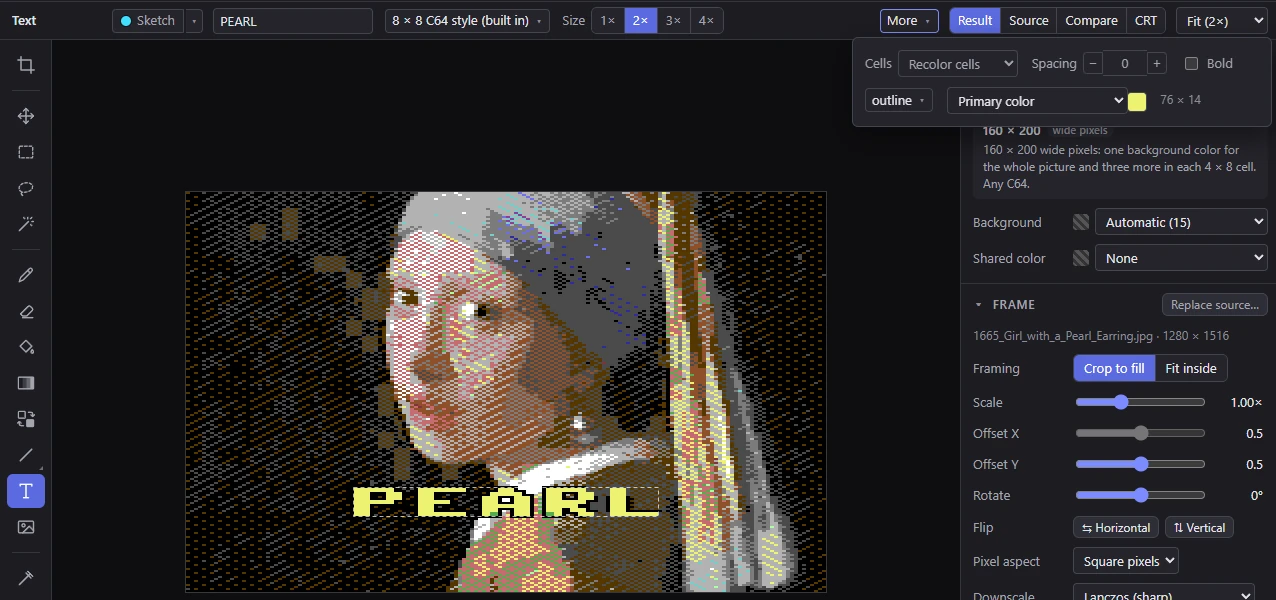
Placing text
- Type the text in the field on the options bar. Enter starts a new line; the field shows the line you are typing, and a count such as 2 lines says how many there are. The picture shows all of them.
- Move the pointer over the picture. The text follows it, centered on the pointer, inside a dashed box, exactly as it will be stamped.
- Click to stamp it. The text keeps following the pointer, so you can stamp it again elsewhere.
Clicking with the right button stamps it in the other color: the body in the secondary color (or the fill style with the colors swapped), and the outline and shadow in the primary. Alt+click picks up a color instead, as the Eyedropper does.
The size of the text in pixels shows at the end of the options bar (for example 76 × 14).
NoteStamped text becomes pixels of the picture: it can't be edited as text afterward. Everything you change before you click shows at once in the preview.
The text is drawn a moment after you change it. A click before the tool has drawn any text at all says The text is still being drawn: a moment.; wait for the preview, then click.
Fonts
The font button on the options bar opens the font list. Type to search it (every word you type must be in the name). The list has three groups:
Built in: Mosaicus's own two pixel fonts.
- 8 × 8 C64 style (built in) (the default): bold capitals, lowercase, digits and punctuation in the manner of the C64's own characters, with stems two pixels wide. (It was drawn for Mosaicus; it isn't the C64's character set.)
- 3 × 5 pixels (built in): a tiny font for small labels. It has capitals (lowercase is drawn as capitals), digits and common punctuation.
A character a built-in font doesn't have is drawn as ?.
Pixel fonts: installed fonts whose names suggest pixel fonts (names with words like pixel, 8-bit, C64, Commodore, PETSCII, bitmap or retro), listed first for convenience.
Installed: every other TrueType or OpenType font installed on your computer. The list shows the first 400 by name; type part of a name to find the others.
Size
- A built-in font comes in whole multiples of its size: 1× to 4× (the 8 × 8 font is 8, 16, 24 or 32 pixels high; the 3 × 5 font 5, 10, 15 or 20). Its dots are the format's own pixels, so on multicolor's wide pixels it is twice as wide as on hires. The default is 1× for the 8 × 8 font and 2× for the 3 × 5.
- An installed font has a Size in pixels, 4 to 200 (the default is 16): its em in hires pixels. On wide pixels it is squeezed into them, so the letters keep their shape on the screen.
Spacing and bold
- Spacing adds pixels between the letters, from −4 to 16 (the default is 0); a negative spacing draws them closer.
- Bold thickens every letter by one pixel to the right.
Edges, outline and shadow
The Edges, outline and shadow pop-up (its button names what is on, for example outline) has:
- Edges (installed fonts only; the built-in fonts always have hard edges): how the letters' soft edges land on whole pixels.
- Hard (whole pixels) (the default): a pixel is ink when the letter covers at least half of it.
- Smooth, dithered: partly covered pixels are dithered.
- Smooth, blended to the nearest color: partly covered pixels take the color nearest to a blend of the text and what is under it.
- Outline: a one-pixel outline all round, in the secondary color.
- Shadow: a one-pixel shadow down and to the right, in the secondary color.
The letters' fill
The body of the letters is painted in the Text tool's own fill style: the primary color (the default), a pattern, a pattern in its own colors, a dither mix, a gradient across the text, or a generated fill. Fill describes them all.
Cells and the sketch layer
- Cells says what happens when the text's colors are too many for a cell. Text is planned cell by cell, like a fill: in Recolor cells mode each cell keeps the colors that lose the least. See Cell limits and clashes.
- The Sketch button (S) stamps the text on the sketch layer instead, with hard edges. See The sketch layer.
When the options bar is too narrow, Spacing, Bold, the style pop-up and the fill style move under More at its right end.
Related
- Image stamp: stamping a picture, such as a logo, the same way.
- Shapes: lines and boxes to go with your text.
- Charset logo: a logo made of characters.