Cell limits and clashes
The C64's bitmap modes don't let every pixel be any color. The screen is cut into small cells, and each cell can show only a few colors. When you paint a color into a cell that already has all the colors it may have, something has to give. The Cell limits choice says what.
Cells and clashes
How big a cell is and how many colors it may have depends on the format. A few examples:
| Format | A cell | Its colors |
|---|---|---|
| Hires bitmap | 8 × 8 pixels | 2 |
| Multicolor bitmap (Koala) | 4 × 8 wide pixels | the background (one for the whole picture) and 3 more |
| Hires FLI (AFLI) | 8 × 1 | 2 (new colors every line) |
| Multicolor FLI | 4 × 1 | the background, 2 of its own and 1 shared by each 4 × 8 |
| Hires characters | 8 × 8 | the background and 1 of its own |
| Multicolor characters | 4 × 8 wide pixels | the 3 shared colors and 1 of its own (0-7) |
| ECM characters | 8 × 8 | 1 of the 4 backgrounds and 1 of its own |
In the formats with sprites, a pixel that shows a color of the sprite over it needs no color of its cell. The Ultimate's 16-color formats and the chunky formats have no cells at all: every pixel can be any color. A charset logo and a sprite sheet have rules of their own instead (the charset's room for characters, the sprites' four roles). Each format's page says what its cells allow: see Formats.
A cell with more colors than its format allows is a clash. The C64 can't show it as painted. Mosaicus outlines clashing cells in red, counts them in the status bar, and when you export, recolors them to colors each cell can have.
Cell limits: Recolor, Keep or Allow
What painting does with a color a full cell can't take is set in two places, which are the same setting:
- the Cells option on the options bar of every tool that paints the picture (the Pencil, Fill, Gradient, Replace color, Shapes, Text and Image stamp);
- Edit ▸ Cell limits, with the same three choices.
In a format without cell limits, both are disabled and say why. The setting is the same for all tools, and Mosaicus remembers it between sessions.
Recolor cells (the default)
The color you paint goes in, and the cell makes room for it: one of the cell's colors gives up its place, the one whose pixels lose least by it, and those pixels take their nearest remaining color.
- The color that gives way is chosen by how many pixels it has and how far they move to their nearest remaining color (measured as the eye sees colors). A color the same stroke painted gives way last.
- The background and other colors every cell has for free never give way.
- Fills, gradients, stamps, text and pastes are planned a whole cell at a time instead: each cell keeps the set of colors that loses least, the painted pixels' new colors and the others' own, and every pixel takes its nearest color of that set. A gradient or a pattern then keeps its look in each cell.
- The selection protects what's outside it. Pixels outside the selection keep their colors, so a color they use can't give way. When no other color can give way, the pixel you paint is left out instead, and the message (as in Keep cell colors, below) says that the pixels outside the selection leave no room.
Recoloring changes pixels you didn't paint. When it changes some of your own hand edits, or pixels outside the selection, or 16 pixels or more, a message says how many, with Show (the pixels flash) and Undo. A few recolored pixels just flash.
Keep cell colors
A pixel that would give its cell one color too many is left out: it keeps the color it had. Nothing you didn't paint changes. Use it when the cells' colors are right and you only want to paint within them.
After a stroke with pixels left out, a message says how many didn't fit their cells:

- Show flashes the pixels that were left out.
- Recolor cells paints them again as Recolor cells would (as one more undo step).
- Allow clashes paints them as they were asked, clashes and all (one more step).
A big fill, gradient, stamp or paste that doesn't fit (16 pixels or more, and more than a tenth of what it paints) waits for your choice instead of going in: you see it painted with the pixels that fit, and the message asks Recolor cells, Keep what fits or Allow clashes. Enter, a click on the picture or any other key keeps what fits; Esc or Ctrl+Z drops it.
Allow clashes
Anything goes: every pixel takes the color you paint, and cells with too many colors are outlined in red. Use it to sketch freely, or to paint first and decide later; Recolor clashing cells (below) or the export makes the picture legal afterwards.
Some things are never refused, in any mode: taking an edit away (the Eraser), and painting in a cell that is already over its limit, as long as it doesn't get worse. A stroke on the sketch layer has no cell limits at all.
The clash outlines
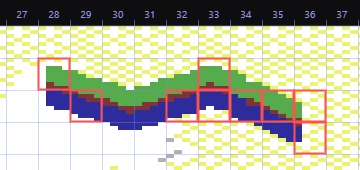
Each clashing cell has a red outline, whatever the Cells option. The outlines are a cell in size: a sprite sheet's clashes are whole sprites (12 × 21), a charset logo's are characters (8 × 8). Edits can clash when you paint with Allow clashes, and also after a settings change, when the conversion under an edit gives its cell other colors.
The status bar's count

When any cell clashes, the status bar says how many, in the format's words:
- N color clashes in the bitmap formats;
- N cells can't show as painted in the sprite, FLI + sprites and SuperCPU formats;
- N sprites with colors their roles can't show in a sprite sheet;
- N cells don't fit the charset in a charset logo;
- N cells can't show as painted, N cells don't fit the charset, or both, in a picture in characters.
Click it to turn on the cell grid (View ▸ Format guides (cells, chars, sprites), Ctrl+;) and get a message with Recolor them, which runs Recolor clashing cells. When they can't be recolored, the message says why instead.
Recolor clashing cells
Edit ▸ Recolor clashing cells fixes every clashing cell in the picture at once, whatever is selected, in one undo step. Each cell keeps the colors most of its pixels have, and the rest take their nearest of those: exactly what the C64 shows and what an export writes. The pixels that change become hand edits. A note says how many pixels in how many cells changed.
It is disabled while a floating piece is out (place it first), when nothing clashes, and in a charset logo, where a clash means the charset has no room for another character: recoloring can't fix that (the Snap tool or fewer shapes do; see Charset logo). The same goes for a picture in characters whose only clashes are characters the charset has no room for (Pictures in characters).
Related
- Paint colors
- Overlays: the format guides and the cell grid
- Formats: what each format's cells allow
- Exporting