Saved selections
A selection that took work to make (a face outlined with the Lasso, a sky picked with the wand and cleaned up) can be kept by name, so you can select the same pixels again later. Saved selections are stored in the project file, and they follow the picture when you change its format.
Saving one
Make a selection, then choose Select ▸ Save selection… (or Save… in the Selections panel). The name offered is Selection 1, Selection 2 and so on.
- Names can be up to 60 characters (a longer one is cut short). Two names that differ only in capitals (or in spaces around them) are the same name.
- Saving under a name that is taken asks first: Replace the selection? Replace keeps the new one in the old one's place (the undo step is then Update selection “…”); Cancel takes you back to the name, so you can type another.
- What is saved is the selection as the screen shows it: a floating piece counts where it floats now (its see-through color left out).
Saving a selection is an undo step (Save selection “Sky”), as are renaming and deleting one. They are saved with the project (File ▸ Save project).
The Selections panel
The Selections panel, in the side panels, lists the saved selections in the order they were saved. It shows while a selection tool or the Move tool is in hand, and whenever the picture has saved selections.
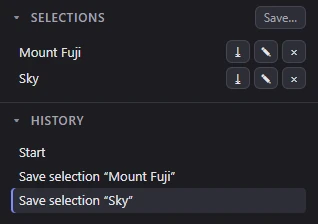
- Click a name to load it (below).
- ⤓ (Update) puts the current selection under that name, in its place in the list.
- ✎ (Rename…) asks for a new name. A name another saved selection has asks again.
- × (Delete) deletes it. Undo (Ctrl+Z) brings it back.
- Save… saves the current selection under a new name.
Loading one
Choose Select ▸ Load selection ▸ and a name, or click the name in the Selections panel. As for the selection tools, the keys you hold as you click decide how it meets the selection there:
| Click | The saved selection… |
|---|---|
| Plain click | replaces the selection (whatever the selection tools' mode is). |
| Shift+click | is added to it. |
| Alt+click | is taken out of it. |
| Shift+Alt+click | keeps only what both have. |
A floating piece is placed before a selection loads. Loading changes only the selection, so it isn't an undo step.
Following format changes
Saved selections follow the picture as your hand edits do. When you change the format or the picture's size, each saved selection is carried over to the new picture's pixels, so it still covers the same part of the picture.
A saved selection whose size doesn't match the picture's still loads: it is placed at the same spot of the screen. Load selection shows such a selection's size next to its name, and its tooltip says it was saved in another format. If none of it falls inside the picture, a message says Nothing of … is inside this picture and the selection stays as it was.
Related
- Making a selection
- Projects: what a project file keeps.
- Undo and history