Dithering
Dithering mixes a few colors in a fine pattern so that, seen from a little way off, an area shows a tone none of the 16 colors has: a skin tone from light red and white, a soft gray from two grays. On the C64 it matters even more than elsewhere, because each cell can use only a few colors. Mosaicus offers ordered patterns, two-color mixes and error diffusion, each with its own look.
The dither is chosen in the Colors & dither panel, under Allowed colors. The line under it describes the method you chose.
How the samples are shown
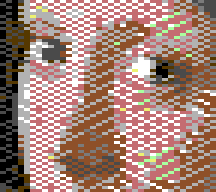
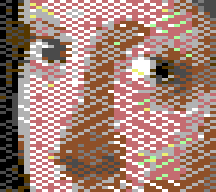
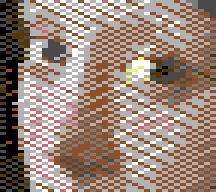
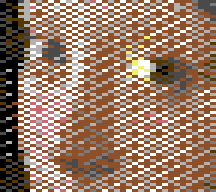
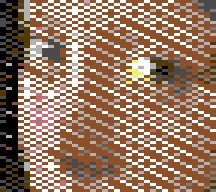
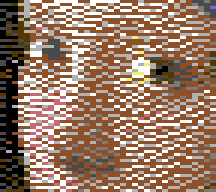
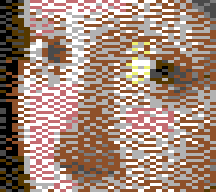
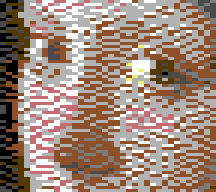
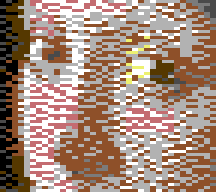
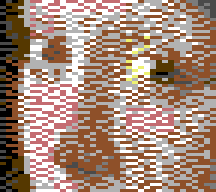
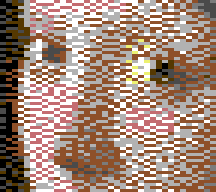
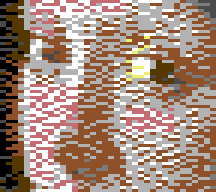
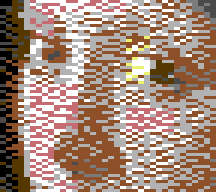
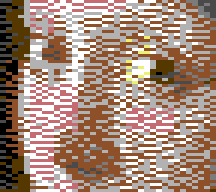
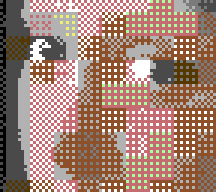
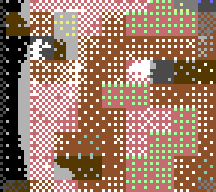
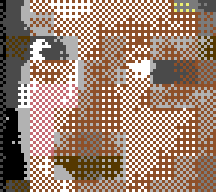
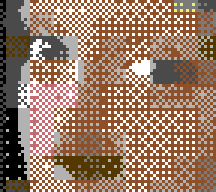
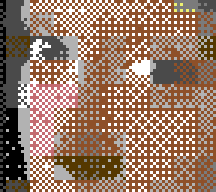
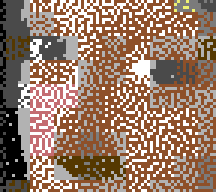
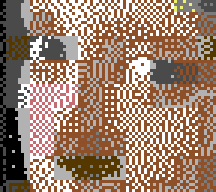
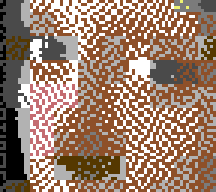
The samples of each method below are all the same part of Vermeer's Girl with a Pearl Earring, converted with every other setting at its default. They show the C64's pixels enlarged without blending, three times: each multicolor pixel, twice as wide as tall, is 6 × 3 screen pixels; each hires pixel 3 × 3. That's what the C64 puts out, before a TV softens it: the CRT view shows that.
TipThe dither can only mix the colors the picture's tones lead to. Before trying every dither, try the adjustments: a little more saturation or contrast often cleans up a picture more than any dither can.
The methods
None
None: each pixel takes its nearest color. Flat areas stay flat and smooth gradients turn into bands. Use it for flat art and logos, or for a posterized look.
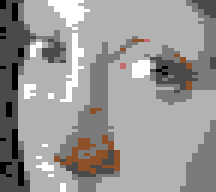
Two-color mixes
Each area mixes the two colors that best make its tone, in a regular pattern. These are made for the C64: clean, even textures, with the look of hand-drawn C64 art.
| Method | Pattern |
|---|---|
| Two-color mix, fine | The default. A fine, even pattern: 2 × 2 on square pixels; on multicolor's wide pixels a pattern made for them, without columns. |
| Two-color mix, more tones | More in-between steps between the two colors: 4 × 4 on square pixels, 8 × 8 on wide pixels. Smoother gradients, a slightly coarser texture. |
Ordered dithers
Each area becomes the mix of its cell's colors whose light matches it, laid out in a fixed pattern (Knoll pattern dithering, as in Photoshop). Unlike the two-color mixes, a mix can take in more than two colors.
| Method | Pattern |
|---|---|
| Ordered 2×2 | A 2 × 2 Bayer pattern: few steps, the finest texture. |
| Ordered 4×4 | A 4 × 4 Bayer pattern. |
| Ordered 8×8 | An 8 × 8 Bayer pattern: the finest steps between tones. |
| Blue noise | Mixes as the ordered dithers do, in a random-looking but even pattern: no visible grid. |
On multicolor's wide pixels, the Bayer patterns use patterns made for wide pixels: see Wide pixels.
Error diffusion
Each pixel takes its nearest allowed color, and the difference (the error) is passed on to the pixels not yet done. The result holds the most detail, with a grainy, organic look and no regular pattern.
| Method | What it's like |
|---|---|
| Floyd–Steinberg | The classic: the most detail, a grainy look. |
| Atkinson | Passes on only 3/4 of the error: keeps more contrast. |
| Sierra | Spreads the error over three lines: smooth. |
| Sierra two-row | Over two lines. |
| Sierra Lite | To three neighbors only: light and fast. |
| Jarvis–Judice–Ninke | Over a wide area: smooth. |
| Stucki | Over three lines, a little sharper than Jarvis–Judice–Ninke. |
| Burkes | Over two lines. |
On multicolor's wide pixels, where the neighbor across is twice as far away on screen as the one below, Mosaicus weighs each neighbor by its distance on screen, and breaks up the rows and "worms" a fixed pattern of error would otherwise leave.
In hires
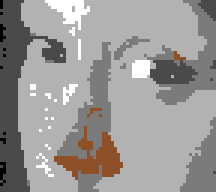
The same methods on square pixels: a hires bitmap, two colors in each 8 × 8 cell, the same part of the picture. Here the Bayer patterns are the classic ones, and the two-color mixes 2 × 2 and 4 × 4. Two of the error diffusions stand for the rest.
Which to choose
- Photos and paintings: start with Two-color mix, fine. Try Two-color mix, more tones or Ordered 8×8 for smoother gradients, and Floyd–Steinberg or Jarvis–Judice–Ninke for the most detail.
- A clean, classic C64 look: the two-color mixes and the Bayer patterns.
- No grid at all: Blue noise, or an error diffusion.
- Flat art, logos, pixel art, and art from other computers' games: Downscale: Majority in the Frame panel, which keeps flat colors and hard edges and turns dithering off (see below), or None. Framing has a game's title screen brought down both ways.
Cell colors are chosen for the dither: Mosaicus picks each cell's colors for what the chosen dither will actually mix from them, so changing the dither can change a cell's colors too. With an ordered dither it also tries cell colors chosen by nearest color, and keeps whichever looks closer to the source.
Options
The options under the dither change with the method; only those that apply show.
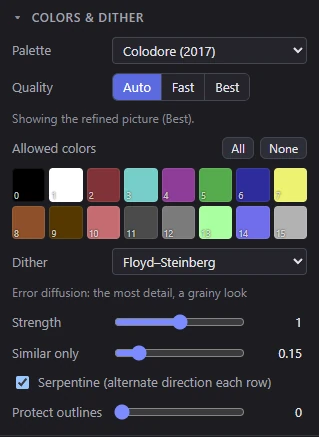
Strength
Strength (0 to 2, default 1), for the ordered dithers and error diffusion:
- Ordered dithers and Blue noise: how far each pixel's mix of colors reaches. 0 is no dither; higher mixes in colors further from the pixel's own.
- Error diffusion: how much of each pixel's error passes to its neighbors. Below 1 is cleaner and flatter; above 1 is noisier.
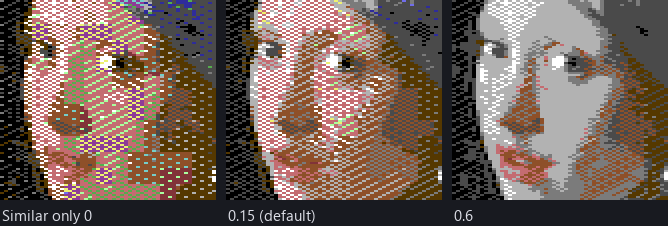
Similar only
Similar only (0 to 1, default 0.15) keeps the mixes to colors near each other. Low values allow any mix; high values keep to neighboring colors, which is smoother but has fewer tones.
- Two-color mixes: which pairs may mix. Low allows any pair (black and white for a gray: noisy); high keeps mixes between neighboring colors.
- Ordered dithers: keeps far colors out of each area's mix. Low lets a lone dark dot into a flat light area when its light helps; high keeps mixes to the colors nearest the area's.
- Error diffusion, in formats with cells: how each cell's colors are chosen before the diffusion. Low lets a cell take colors far apart (more contrast, more grain); high keeps a cell's colors near each other (smoother).
Serpentine
Serpentine (alternate direction each row), for error diffusion, on by default: each line is worked in the opposite direction from the one before, so the error isn't always pushed the same way.
Wide pixels
Wide pixels shows for the two-color mixes and the Bayer patterns (Ordered 2×2, 4×4 and 8×8) in formats whose pixels are twice as wide as they are tall: the multicolor formats and Chunky 160 × 200. On such pixels every regular pattern makes some lines at the in-between levels; this chooses which:
| Choice | What it makes | When to use it |
|---|---|---|
| Diagonal (default) | A checkerboard at half, diagonal lines at the quarters, no rows or columns: the finest texture | Photos and smooth gradients |
| Classic | The Bayer pattern as on square pixels: columns at the quarters | The look most multicolor art has |
| Rows | Whole lines first: horizontal lines at the in-between levels | A PAL screen: its delay line blends the color of neighboring lines, not their brightness, so rows of two colors of similar brightness read as one tone. Lines of colors of different brightness stay visible. |
The same crop with each choice, in Koala: first Two-color mix, fine, then Ordered 4×4.
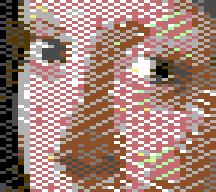
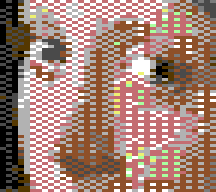
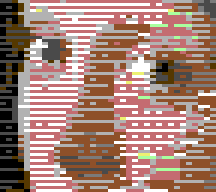
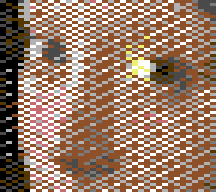
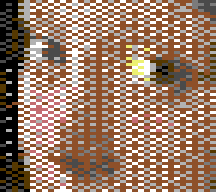
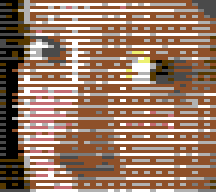
Diagonal reads as the finest, even texture; Classic shows the columns at the in-between tones; Rows lays the tones out in lines, which a PAL TV blends where their colors are of about the same brightness (the CRT view in PAL shows it).
Blue noise has its own pattern for wide pixels, so the choice doesn't apply to it.
Protect outlines
Protect outlines (0 to 1, default 0) keeps hard edges free of dither: pixels on a sharp color step take their nearest allowed color, so outlines stay clean while the areas between them are still dithered. Higher values count more color steps as edges; at 1 nearly every step is one. In error diffusion, protected pixels also pass no error on and take none.
Outline width (0 to 3 pixels, default 0) appears once Protect outlines is above 0: it widens the protected edges by that many pixels.
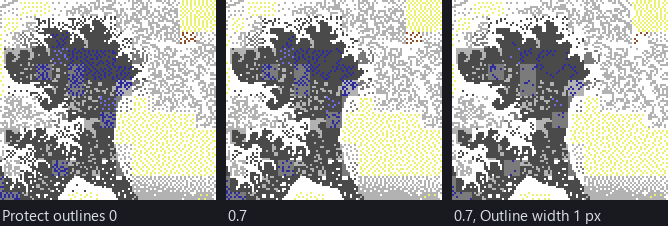
Use it for line art, cartoons and pictures with lettering. Neither option shows with None.
When there is no dither
- Downscale: Majority in the Frame panel gives each pixel the C64 color most of its area has, so there is nothing to dither: the Dither list shows "None (Majority keeps flat colors)". Choose another Downscale to dither again. See Majority, for flat art and pixel art, with an example.
- Charset logo and Sprite sheet pick their colors by role, not by dithering: the panel says so instead.
- A picture already in a C64 format opens with no dither, so it converts back exactly.
Dithering when you paint
The painting tools can paint dither too: the Pencil's dither paints, and dithered fills and gradients. See Pencil, Fill and Gradient.
Related pages
- Quality: Best quality refines each cell's colors for the dither you chose.
- Palettes and colors: the colors that are mixed.
- Command line:
mosaicus converttakes--ditherand--wide.