Making a selection
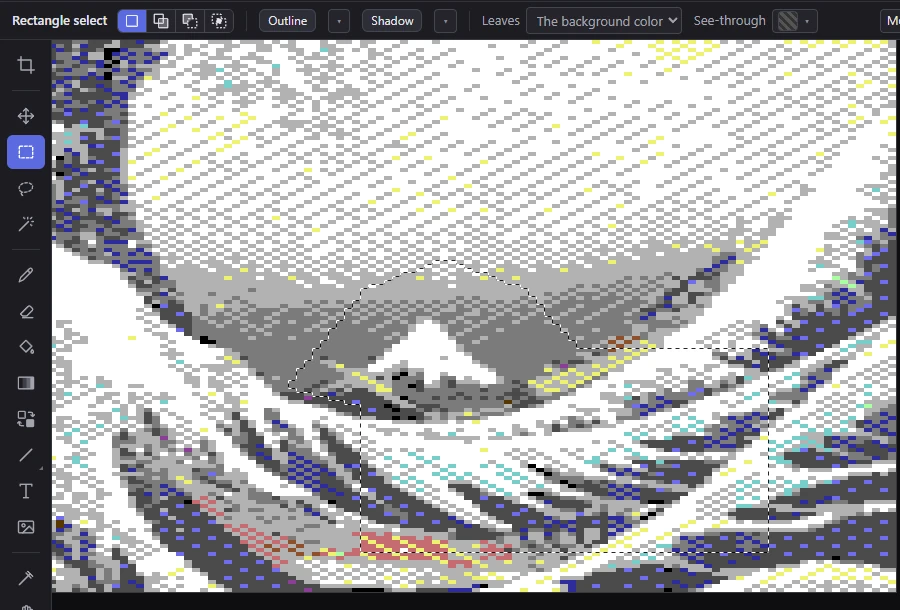
Three tools select: Rectangle select for boxes, the Lasso for any shape, and the Magic wand for areas of one color. Hold Shift or Alt to add to a selection or take away from it, and use the Select menu for the whole picture, the inverse, and growing or shrinking what you have.
The tools
The selection tools take the left button only.
Rectangle select
Rectangle select (M) selects a box. A label by the pointer gives its size while you drag. In New selection mode, a click without dragging selects nothing (it clears the selection).
Lasso
The Lasso (L) selects a shape you draw. The shape closes itself with a straight line back to where you started. Every pixel whose middle is inside the shape is selected; where the line crosses itself, the parts inside it twice are left out. In New selection mode, a click selects nothing.
Magic wand
The Magic wand (W) selects by color: click a pixel, and the area of that color around it is selected. Its option:
- Contiguous (on by default): only the area of that color connected to the pixel you click (pixels touching across or down, not only diagonally). Off: every pixel of that color in the picture.
The wand takes exactly the color you click, as the screen shows it; there is no tolerance. In a dithered conversion, an area of "one color" can be very small: select by shape with the Lasso there, or select a color everywhere with Contiguous off.
Adding, taking away and keeping the overlap
A new selection replaces the one there, unless you hold a key as you start it:
| Hold | Mode | The new selection… |
|---|---|---|
| (nothing) | New selection | replaces the old one. |
| Shift | Add to the selection | is added to it. |
| Alt | Take away from the selection | is taken out of it. |
| Shift+Alt | Keep what both have | keeps only the part both have (the intersection). |
The four buttons at the left of the options bar set the same modes without holding a key; the keys still win for the drag you hold them on.
Moving the selected pixels or the outline
With a selection tool in hand:
- Ctrl+drag inside the selection lifts the selected pixels and moves them, as the Move tool does (see Moving and transforming).
- The arrow keys move the selection's outline (not the pixels) one pixel, or a floating piece if there is one; Shift+arrows move it a cell (the format's cell, or 8 × 8 hires pixels in a format without cells). With the Move tool, the arrows move the pixels themselves.
The options bar
Besides the modes (and the wand's Contiguous), the selection tools' options bar has:
- Outline and Shadow, with their pop-ups: an outline or a drop shadow around what is selected, in the secondary color. See Moving and transforming.
- Leaves: what moving or cutting the selected pixels leaves behind (the background color, the secondary color, or the conversion). See Moving and transforming.
- See-through: a color of a floating piece that doesn't cover what is under it. See Moving and transforming.
- What is selected, or floating.
The Select menu
| Command | Keys | What it does |
|---|---|---|
| All | Ctrl+A | Selects the whole picture. |
| Deselect | Ctrl+D | Selects nothing. |
| Inverse | Ctrl+Shift+I | Selects what wasn't selected, and nothing of what was. With nothing selected, it selects everything. |
| Transparent in the source | Selects what was see-through in the source picture (below). | |
| Grow…, Shrink… | Make the selection bigger or smaller by a number of pixels (below). | |
| Save selection…, Load selection | Keep a selection by name and load it again: see Saved selections. | |
| Place the floating piece | Enter | Puts a floating piece down: see Moving and transforming. |
| Stamp a copy | Puts a copy of the floating piece down; the piece floats on. | |
| Put back / deselect | Esc | Puts a floating piece back where it came from; with none, selects nothing. |
A floating piece is placed first by All, Deselect, Inverse, Transparent in the source, Grow and Shrink.
Transparent in the source
Transparent in the source selects the pixels where the source picture is see-through or doesn't reach: the transparent parts of a PNG, the borders around a picture framed with Fit inside, the corners a turned frame leaves. It follows the framing, as the Downscale setting samples the source, and it ignores what you have painted since: it selects those pixels whatever their color is now.
How it combines with the selection depends on the keys you hold as you click the menu row: a plain click replaces the selection, Shift+click adds to it, Alt+click takes it away, and Shift+Alt+click keeps only what both have.
It can't be used when there is nothing to take: with no source picture (a blank picture, or a C64 file you opened), when the project's source picture wasn't found, or when the source is opaque and covers the whole picture. If the framing leaves nothing transparent, a message says so.
Grow and Shrink
Select ▸ Grow… and Select ▸ Shrink… make the selection bigger or smaller by a number of pixels.
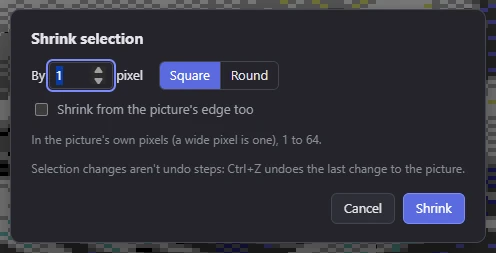
- By … pixels: 1 to 64, whole pixels of the picture's own (a wide multicolor pixel counts as one).
- Square: as far each way and diagonally, so corners stay square.
- Round: as far in every direction in the picture's pixels, so corners round off. (On wide pixels, the rounding is twice as wide as tall on the screen.)
- Shrink from the picture's edge too (Shrink only, off by default): off, a selection that reaches the picture's edge doesn't shrink away from it; on, the edge counts as unselected and the selection shrinks from it too.
The dialog remembers its settings for next time.
A message says so when growing changes nothing (everything is selected already), when shrinking leaves nothing selected, and when nothing shrinks because the selection's only edges are the picture's (turn on Shrink from the picture's edge too).
Related
- Selections: what a selection does to painting and the Edit menu.
- Moving and transforming: lifting the selection into a floating piece.
- Framing: Fit inside, turning the source, and Downscale.