Framing
Framing decides which part of the source picture becomes the C64 picture, and how it is scaled down to the format's pixels. You set it in the Frame panel, or by hand on the picture with the Frame tool.
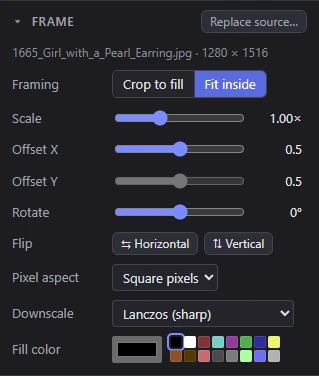
The Frame panel's settings show only when the picture has a source. At its top are the source's name and size (and "has transparency" when it has see-through parts), and the Replace source… button (see Opening pictures).
Crop to fill and Fit inside
Framing chooses how the source's shape meets the format's:
- Crop to fill (the usual choice): the source fills the whole picture, and whatever sticks out past its shape is cropped away.
- Fit inside: the whole source shows, and the Fill color fills the picture around it.
Mosaicus picks Fit inside on opening when the source's shape differs from the format's by more than a quarter, or when it looks like pixel art. See Opening pictures.
Both keep the source's own proportions on a real screen: see Pixel aspect.
Scale and offset
- Scale (0.25× to 16×, 1 by default) is how much of the source the frame takes in. Above 1 the frame takes in a part of it, larger: you zoom into the source. Below 1 the source shows smaller, with the fill color around it.
- Offset X and Offset Y (0 to 1, 0.5 by default: centered) move the frame across and down the source. When an offset has nothing to move, it is grayed out: at Scale 1, Crop to fill takes in the source's whole width or height, and Fit inside shows it edge to edge one way.
As with every slider, double-click its name or the slider to put it back to its default, or click the number at its right to type a value.
The Frame tool
The Frame tool (C, the top tool in the toolbar) places the source by hand on the screen. It shows the source's rectangle with eight handles, and the parts of the source outside the picture faintly, so you can see what is cropped away. When you choose the tool the view zooms out, if it needs to, to show every handle.
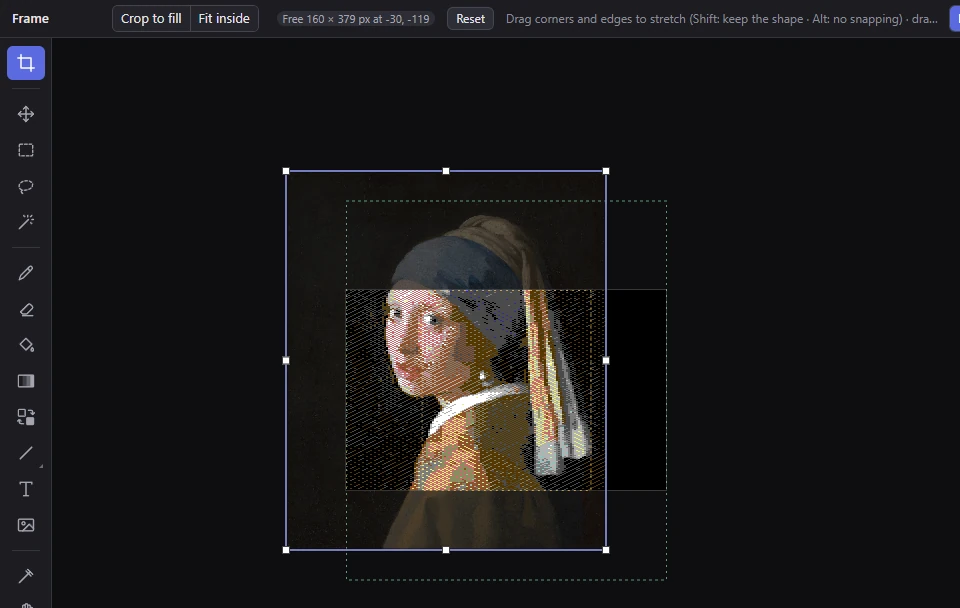
- Drag a corner or an edge to stretch the source to any rectangle. Hold Shift to keep its shape.
- Drag inside it to move it.
- Turn the mouse wheel over the picture to scale the source about the pointer. Ctrl+wheel zooms the view instead.
- Press Esc during a drag to call it off.
Moving or stretching the source makes a free placement: the source is stretched to the rectangle you made, whatever its shape. Each drag, and each run of wheel turns, is one step in the history; a drag that ends where it began leaves none.
Snapping
While you drag, the edges you move snap to:
- the picture's edges and its middle, across and down;
- the edges of where Crop to fill and Fit inside would put the source, drawn as dashed rectangles while you drag;
- in the FLI formats, the edge of the FLI bug's columns (see below).
A line you snapped to is drawn across the view. Moved edges also land on whole pixels of the format. Hold Alt to place them anywhere, with no snapping.
If a drag ends exactly on the Crop to fill or Fit inside rectangle, the framing goes back to that choice.
The Frame tool's bar
- Crop to fill and Fit inside, as in the panel. From a free placement, they go back to framing the source in its own shape, at Scale 1 and centered.
- Scale: the same as the panel's, typed as it is (0.05 to 64; Up and Down step it by 0.05). With a free placement, a badge shows its size and place instead, for example "Free 160 × 379 px at -30, -119".
- Reset: back to the framing's own shape, unrotated and unflipped.
The tool needs a source. On a blank picture, or a C64 file opened as it is, it is disabled.
TipIn View ▸ Source and frame (Alt+2) you can drag the frame over the source with any tool, and scale it with the wheel. See Views.
Free placement
While the source is placed freely, the panel shows Placement: free, and four fields in place of Scale and the offsets:
- X and Y: where the source's top left corner is, in the format's pixels from the picture's top left (as the status bar counts them).
- W and H: its width and height.
The source may reach past the picture's edges, but not more than a few screens away.
A free placement follows the picture through other changes: another format or size, another pixel aspect, or a turn keeps its center and the source's size on the screen. Replace source… keeps its center and height. Click Crop to fill or Fit inside to leave it.
In the formats with an FLI bug (Hires FLI (AFLI) and Multicolor FLI), the screen's leftmost columns show no picture. The Frame tool shows them hatched, and you can place the source behind them: X is then negative.
Rotate and flip
- Rotate turns the source from -180° to 180°, in half-degree steps (clockwise for positive values).
- ⇆ Horizontal and ⇅ Vertical mirror it.
With Crop to fill at Scale 1, a turned source is cropped just enough that its corners never show: the frame stays inside the turned picture, as a photo editor's crop does. Scaled up, you can move the frame within it. Scaled below 1, or with Fit inside, the corners show the fill color.
Pixel aspect
Pixel aspect is the shape of a pixel on the screen the picture is for. Framing keeps the source's proportions for that screen, and the canvas shows the picture in that shape.
| Choice | A hires pixel's width : height | When to use it |
|---|---|---|
| Square pixels (default) | 1 : 1 | Emulators and screenshots shown with square pixels, and pixel art |
| PAL TV | 0.94 : 1 | A European (PAL) C64 on a TV or monitor |
| NTSC TV | 0.75 : 1 | An American (NTSC) C64 on a TV |
Multicolor pixels are two hires pixels wide in every case. The same choice is in View ▸ Pixel aspect. A new picture keeps the pixel aspect of the last one.
Downscale
Downscale decides how the source's pixels are turned into the format's, which are usually far fewer. Every filter except Majority averages light, as a screen and the eye do, so fine stripes and thin bright lines keep their brightness.
| Choice | What it does | When to use it |
|---|---|---|
| Lanczos (sharp) (default) | Sharp, keeps fine detail | Photos and paintings |
| Lanczos, no halos | As sharp, without the light and dark halos Lanczos can put beside hard edges | Pictures with hard outlines: logos, line art, text |
| Bilinear (soft) | Softer | Noisy pictures, or a gentler look |
| Box (average) | Each pixel the average of the area it covers | Scans and pictures with fine texture |
| Nearest | Each pixel one source pixel, no blending | Pixel art that is an exact multiple of the format's size |
| Majority (flat and pixel art) | Each pixel takes the C64 color most of its area has: edges stay where they are and no in-between colors appear | Flat art, cartoons and pixel art |
Majority, for flat art and pixel art
Use Majority when the source is made of flat colors with hard edges: pixel art, cartoons, logos, or a title screen from a 16-bit game brought down to the C64. The other filters average the pixels they take in, so wherever two colors meet they invent an in-between color, and the dither then has to imitate that color with a pattern: edges come out fuzzy and speckled. Majority never mixes colors, so edges stay hard and flat areas stay flat.
How it picks a pixel's color:
- The part of the source that one format pixel covers is sampled at 6 × 6 points, each the average of its own small part of the area.
- The adjustments are applied to the samples, and each sample is matched to its nearest allowed C64 color.
- The pixel takes the color most of its samples have. A tie goes to the lower color number. Transparent samples vote together, as the fill color.
- In the formats with cells, each cell then keeps its most fitting colors by nearest color, and each pixel takes the nearest of its cell's colors.
Majority goes with no dither, and Mosaicus sees to that: while it's on, the Dither list is grayed out and reads "None (Majority keeps flat colors)", and the dither's options are hidden. Your dither choice is kept: choose another Downscale and it comes back. When you open a picture that looks like pixel art, Mosaicus chooses Majority and Fit inside for you (see Opening pictures).
Here is a 320 × 224 title screen in 28 flat colors, the kind a 16-bit game has, brought down to Multicolor bitmap (Koala) with Crop to fill at Scale 1. That crops it to 320 × 200, and each wide C64 pixel covers exactly two of its pixels, so Majority has whole pixels to count. Every picture is shown at 2×. The source is star-runner.png, drawn for this page: open it in Mosaicus and try it. It looks like pixel art, so it opens with Majority and Fit inside: click Crop to fill for the pictures below, and for the first one choose Lanczos (sharp) (with the default dither, Two-color mix, fine).
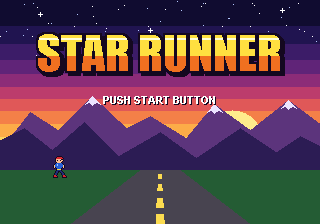
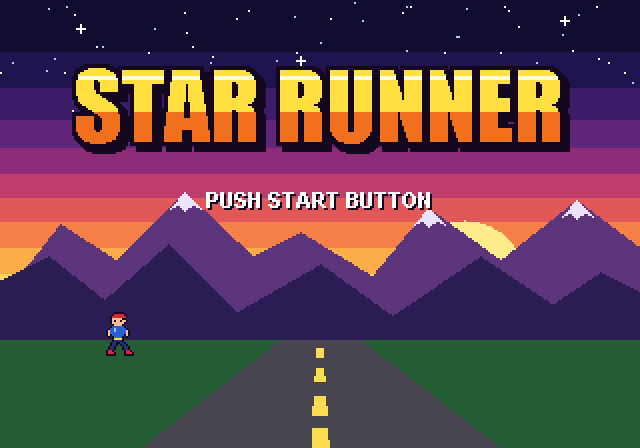
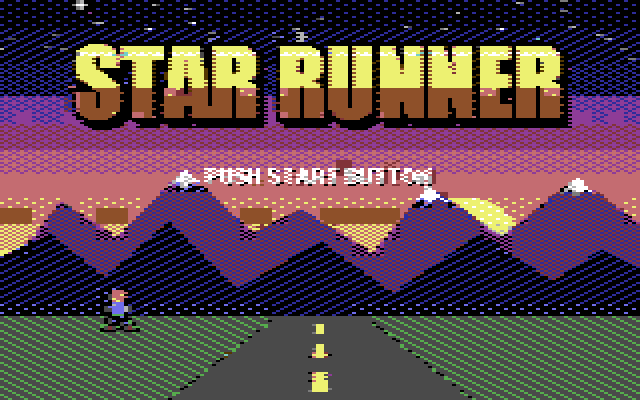
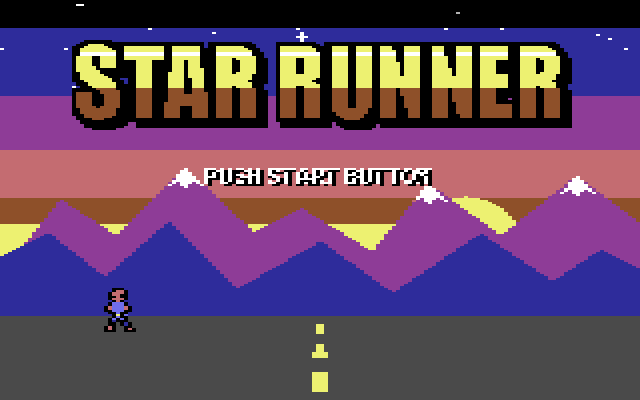
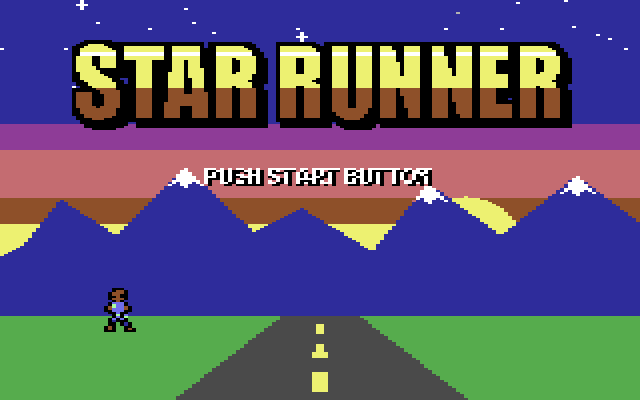
Each color goes to its nearest C64 color, so colors the C64 lacks can merge or change, as the grass did. Steer them with the Adjust panel (Saturation and Hue move colors toward the C64's), leave colors out with Allowed colors, or paint over what's left afterward: a picture that was flat art stays easy to touch up by hand.
Fill color and transparency
The Fill color is what the source's transparent parts become, and what shows wherever the source doesn't reach: around it with Fit inside, a free placement or a Scale below 1, and in a turned picture's corners. The row shows only when one of these applies.
- Click the color box to choose any color.
- Click one of the 16 small swatches to fill with one of the C64's colors: it converts to exactly that color.
The fill color keeps its color whatever the Adjust sliders do. It is black by default; a picture already in a C64 format opens with the color around it as its fill.
Half-transparent pixels are blended with the fill color. With Downscale: Majority, the transparent parts vote as one color, so a pixel that is mostly see-through becomes the fill color.
Related pages
- Opening pictures: what happens to the framing when a picture opens.
- Presets: a preset's "framing style" keeps Crop to fill or Fit inside, Downscale, Pixel aspect and Fill color.
- Formats: each format's size and pixel shape.