Shapes
The Shapes tool (U) draws lines, curves, rectangles, rounded rectangles, ellipses and polygons, outlined or filled. Its lines are drawn the way pixel artists draw them by hand: no doubled pixels, and with Shift, slopes whose steps are all the same length.
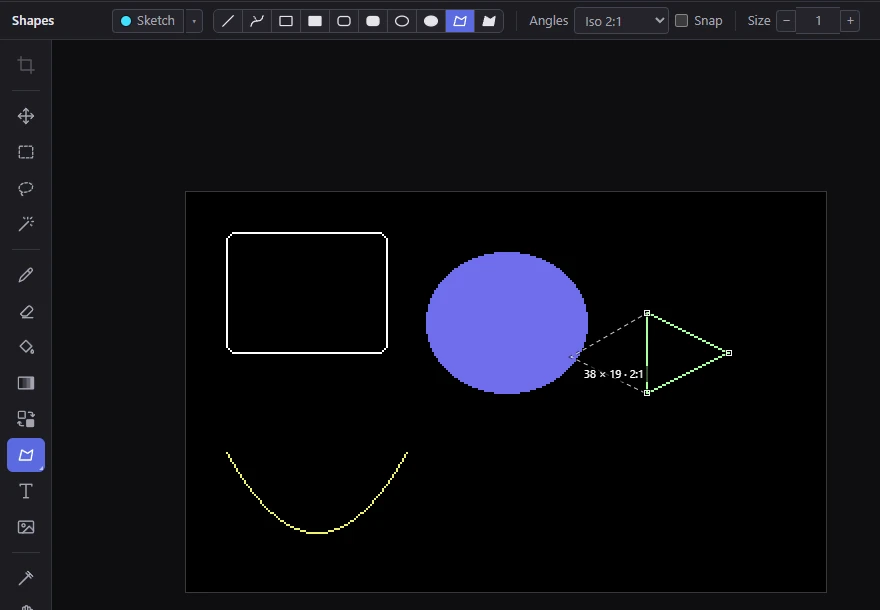
The shapes
The row of buttons on the options bar picks the shape. Shift+U (Next shape) steps to the next one and takes up the Shapes tool if it isn't in hand. The tool's button in the toolbar shows the shape it draws.
| Shape | How you draw it |
|---|---|
| Line | Drag from one end to the other. |
| Curve | Drag its line, let go, then move the pointer to bend it and click. |
| Rectangle, Filled box | Drag from corner to corner. |
| Rounded rectangle, Filled rounded box | Drag from corner to corner; Radius sets the corners. |
| Ellipse, Filled ellipse | Drag the box it fits in, corner to corner. |
| Polygon, Filled polygon | Click its corners one by one, then close it. |
While you drag, a label by the pointer gives the size in pixels (for a line, also its slope when it is a clean one, such as 2:1, level or upright). What you see while drawing is exactly what goes into the picture.
Press Esc before you let go to drop the shape.
Outlined and filled
- Outlined shapes (Line, Curve, Rectangle, Rounded rectangle, Ellipse, Polygon) are drawn in the primary color with a square brush. Size sets the brush, 1 to 32 pixels ([ and ] change it too).
- Filled shapes (Filled box, Filled rounded box, Filled ellipse, Filled polygon) are painted in the Shapes tool's own fill style: the primary color, a pattern, a pattern in its own colors, a dither mix of the two paint colors, a gradient across the shape, or a generated fill. The fill style's controls take the place of Size on the bar. Fill describes every fill style. With a dither mix, Shift+[ and Shift+] make the mix a level less or more (less or more of the primary color).
Drawing with the right button swaps the paint colors: the outline is drawn in the secondary color, and a fill takes the secondary color first. Alt+click picks up a color instead of drawing, as the Eyedropper does.
Clean angles with Shift
Hold Shift while you draw:
- Lines, a curve's line and a polygon's sides snap to the nearest slope in the Angles set. Every step of a snapped line is the same length, so it looks clean on the C64.
- Rectangles and rounded rectangles become squares, and ellipses become circles. On wide pixels (multicolor), the shape is square as seen: half as many pixels across as down.
Angles chooses the slopes Shift snaps to, measured as seen on the screen (so on multicolor's wide pixels, a slope that looks like 1:1 is one pixel across for two down):
| Angles | Slopes |
|---|---|
| Clean (the default) | Level, upright, and 1:1, 2:1 and 1:2. Their steps are even in every format. |
| Clean (fine) | The clean slopes, plus 3:1 and 4:1 and their steep versions where their steps are even (on multicolor's wide pixels, 3:1 is left out). |
| Iso 2:1 | Isometric: two across for one down as seen, with level and upright. A side snapped after another along the same runs starts after the corner, so the runs at the corner stay whole. |
| 45° | 45° as seen, level and upright (on multicolor: one pixel across for two down). |
Turn on Snap to snap lines to the Angles all the time, without holding Shift. Angles and Snap show only for the shapes made of lines (Line, Curve, Polygon, Filled polygon).
TipFor isometric pixel art, choose Iso 2:1, turn on Snap, and draw your outlines with the Polygon. Every side comes out as clean runs of two.
Curves
A curve is drawn in two or three moves:
- Drag its line from one end to the other and let go.
- Move the pointer: the curve bends so that it passes through the pointer.
- Click to finish it.
Bends sets how many bends it has:
- 1 (the default): one bend, as above. The click finishes it.
- 2: an S or a wave. The first click fixes one bend; then the curve passes through that point and the pointer, and the second click finishes it.
While a curve is being bent, Enter finishes it as it is shown, Backspace takes back the last bend you fixed (or, with none, drops the curve), and Esc drops it.
Polygons
- Click the first corner. You can press and drag before letting go: the drag draws the first side.
- Click each next corner. A dashed line shows the side to the pointer, and another the side that will close the polygon.
- Close it: double-click where the last corner goes, click the first corner (or the last one again), or press Enter. Over a corner that closes it, the label says Click: close.
Backspace takes back the last corner, and Esc drops the whole polygon. A Filled polygon is filled once it has three corners; you can switch between Polygon and Filled polygon while you click and the shape follows.
If you pick another tool, or a shape other than a polygon, part way through, a polygon with two corners or more (or a curve being bent) is kept as drawn. A message says so, with an Undo button.
Ctrl+Z and Ctrl+Y in the middle of a polygon or a curve drop what is being drawn, as Esc does; they don't undo anything else.
Rounded corners
Radius (for the rounded rectangle and the filled rounded box) sets the corners' radius as seen, in pixels down; across, it uses as many pixels as look as long. On multicolor's wide pixels the radius goes in steps of two. Steps that would draw the same corners are skipped, and a box narrower than its radius gets round ends. The default is 4.
More options
- Cells says what happens when a shape's color is one too many for a cell: recolor the cell, keep the cell's colors, or allow the clash. See Cell limits and clashes. Filled shapes are planned cell by cell, so a fill keeps each cell's best colors.
- Mirror draws the shape again, mirrored or turned around the symmetry's center. Each image is drawn from its own mirrored points, as cleanly as the shape itself. See Symmetry.
- The Sketch button (S) draws the shapes on the sketch layer instead of the picture: construction lines that are never exported. See The sketch layer.
When the options bar is too narrow for every option, the rest are under More at its right end.
Related
- Pencil: freehand lines, and Shift+click straight lines.
- Fill: the fill styles a filled shape uses.
- Text and Image stamp: letters and pictures stamped into the picture.