Whole cells and Cell color
A C64 bitmap picture is easiest to plan cell by cell: block in each cell's main color first, then paint the detail inside the cells. Three things help:
- Whole cells makes painting fill every cell it reaches, all of it, so each cell gets one color (or one pattern) at a time.
- Cell color, a mode of the Pencil, changes one color of each cell it passes over and leaves the pixels' pattern as it is, so you can change a block's color after you've painted detail into it.
- Select ▸ Grow to whole cells grows the selection to all of every cell it reaches.
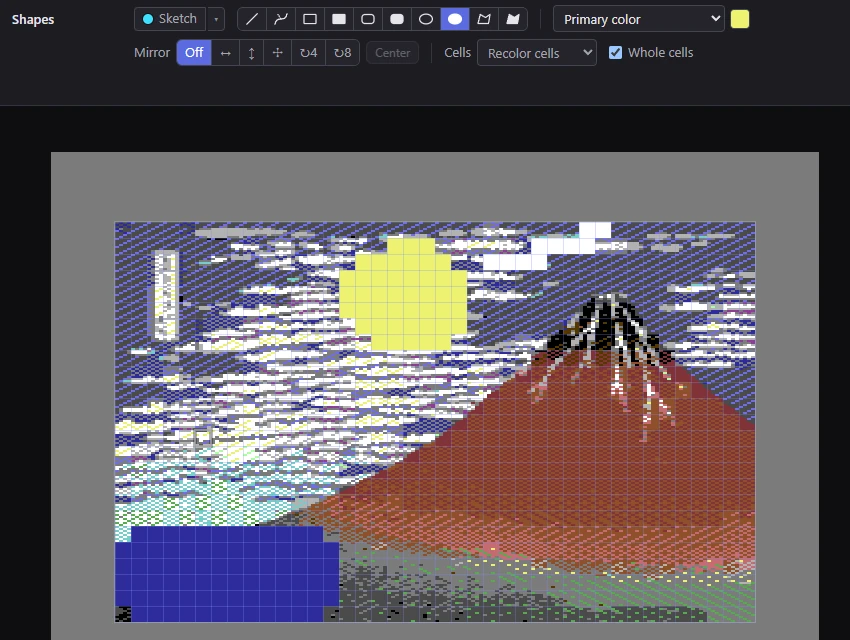
Whole cells
Turn it on with the Whole cells checkbox on the options bar of the Pencil, the Eraser, Shapes, Fill and Gradient (beside Cells where the tool has it), or with Edit ▸ Cell limits ▸ Whole cells (Shift+W). It is one setting for all of those tools, and Mosaicus remembers it. While it is on, those tools show the cells' grid over the picture, and the status bar says Whole cells on (click it to turn it off).
Which cells a tool fills depends on what it paints:
- The Pencil (Draw), the Eraser, lines, curves and outlined shapes fill every cell they touch. The brush's Size counts cells instead of pixels: size 1 is one cell, size 3 is 3 × 3 cells (with Round, a plus).
- Filled shapes, the Fill tool and gradients fill the cells they cover at least half of, so a disc stays round rather than growing into a square. With a selection, a cell counts by its part inside the selection, so filling the selection fills all of it. A shape or an area too small to cover half of any cell fills the cells it touches.
Each pixel of a filled cell takes what the tool paints there. With the primary color, the cell becomes that one color. A pattern, a dither mix, a generated fill or a gradient goes on across the whole cell. The Eraser takes back every hand edit in the cell.
The cells
| Format | The cell Whole cells fills |
|---|---|
| Hires bitmap, hires and ECM characters | 8 × 8 pixels |
| Multicolor bitmap (Koala), multicolor characters | 4 × 8 wide pixels |
| AFLI, multicolor FLI, Hires FLI + sprites, Multicolor FLI + sprites, Multicolor, background per 4 × 1 | the 8-line character (8 × 8, or 4 × 8 wide pixels), though their colors change every line or two |
| Multicolor + sprites, Hires + sprites (open borders and full screen too) | their 8 × 8 cells (4 × 8 wide pixels in multicolor) |
In the formats without cell limits (the 16-colors-per-pixel and chunky formats), a charset logo and a sprite sheet, Whole cells is off, and its checkbox says why.
Cell limits
A cell filled whole with one color always fits its format: it is left with one color and has room again for the rest (in Koala two more besides the background, in hires one). Mosaicus judges a filled cell once all of it is in, so even with Keep cell colors a full cell takes a new color when you fill all of it. A cell that still can't show what's painted (a pattern in more colors than the cell can have, or a multicolor character's own color above 7) goes in pixel by pixel instead, as the Cells option says (Cell limits and clashes). So do the cells in an open border, where only the background and the sprites show.
- The selection protects what's outside it. A cell that is partly outside the selection is filled only inside it, and the rest of the cell keeps its pixels.
- Mirror works as usual: each mirrored or turned copy fills the cells it reaches.
- Not for: the Pencil's Shade and Spray, a brush picked up from the selection, Text, Image stamp, Light and Replace color. Each always paints pixel by pixel. With Whole cells on, the brushes' Soft, Pixel-perfect and Sprite pixels (FLI + sprites) options don't apply.
Whole cells works on the sketch layer too.
Cell color
Cell color is the Pencil's fourth mode, beside Draw, Shade and Spray. Press on a color and drag. In every cell the brush passes over, each pixel of that color takes the primary color (with the right button, the secondary). The other pixels stay as they are, so the detail keeps its shape.
For example, after blocking in a sky in blue and drawing white clouds into it, press on the blue with light blue as the primary and drag across the sky. The blue turns light blue in the cells you go over, and the clouds stay white. A cell with a different blue elsewhere is left alone.
- The color it changes is the one the screen shows where you press. Pressing on the paint color itself changes nothing, and a message says so.
- The brush is sized in cells, as with Whole cells, and follows Square, Round and Mirror. Each cell changes once per stroke.
- It swaps one of a cell's colors for another, so the cell needs no more room than it had, except when you press on a color every cell has for free (a Koala's background, say): those pixels then need a color of the cell's own. So does a cell the selection cuts through, whose pixels outside it keep the old color. There, and where the new color can't show in the cell at all (a multicolor character's own color above 7, for example), the Cells option decides, as for any stroke.
- A stroke is one undo step, named Cell color.
- In a format without cells, it works pixel by pixel within the brush.
- It isn't available on the sketch layer, which has no picture colors to change.
Grow the selection to whole cells
Select ▸ Grow to whole cells adds all of every cell the selection reaches (FLI: the 8-line character). Everything that works on the selection then works on whole cells: Edit ▸ Fill with fill style, the Fill tool's The selection, Replace color, or a gradient. It is off in formats without cells.
A way to work
- Turn Whole cells on, and block in the large areas with filled shapes, Fill and the Pencil. Each cell now has one color, with room for more.
- Turn it off (Shift+W), and paint the detail with the Pencil. The paint palette's marks show which colors each cell can still take.
- To change a block's color later, use the Pencil's Cell color rather than painting over it: the detail stays.